01/24/2024

Acer Predator Blue Screen No Boot Device

[vc_video link=”https://youtu.be/eP7qERpx9Sk” title=” Acer Predator Blue Screen No Boot Device “]

Hi, welcome! Let’s take a look at this computer. This is an Acer Predator. Let’s turn it on and see what’s happening.

The computer turns on, which is a good sign. It seems to be trying to start up; you can see the loading screen spinning.

To give you some background, according to my client, the computer tries to start up, goes to a blue screen, reboots itself, and then shows “no boot device found.” This likely indicates a failing hard drive. Right now, it seems the hard drive is being detected, but it’s encountering issues while loading, resulting in a blue screen and rebooting.

It’s attempting an automatic repair, which means it can somewhat see the hard drive. During the BIOS and POST (Power On Self Test), it sometimes reports “no boot device found” or a hard drive error. Although we haven’t seen that message yet, I believe something is wrong with the hard drive.

Let’s go ahead and click “Restart” and see what happens next.

Given these issues, I’ll likely need to change out the hard drive and perform a fresh install of Windows. If it continues to boot loop, I’ll press and hold the power button to shut it off.

Let’s identify the model here. It’s N1 1813, or more specifically, PH317-54-D70YD. I’ll be using a regular Phillips screwdriver (PH1) to remove all the screws and identify the hard drive to see what’s going on.

Since the computer can somewhat detect the hard drive and attempts to boot Windows, the hard drive may not be completely bad. It might just need a Windows reinstallation. To determine this, I’ll remove the hard drive.

I’ll remove the m.2 SSD drive using this USB adapter, which reads the m.2 SSD. I’ll use a workstation to run a stress test on the drive, checking for read and write errors and any bad sectors.

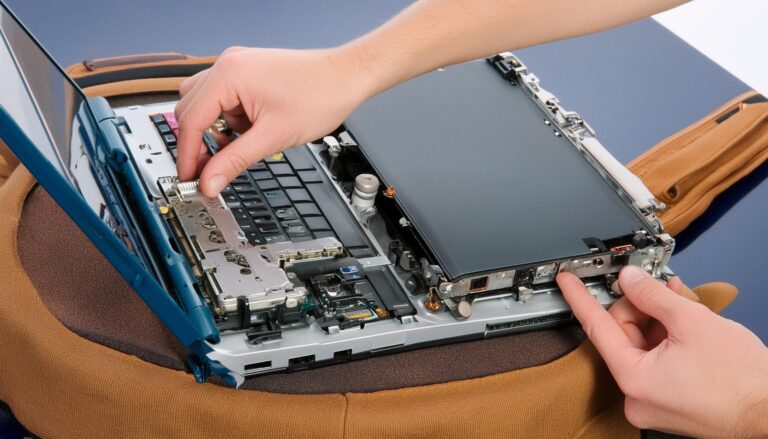
It looks like all the screws are the same size, so I’m not worried about mixing them up. Once all the screws are removed, the back cover will pop right off.

There’s a slot for the m.2 here and an empty secondary slot where you can add another m.2 drive. This computer uses DDR4 RAM. I’ll make a separate video on adding an additional m.2 drive. If you’re interested, check the link in the description or visit my channel.

For now, I’ll remove the hard drive and run tests using my USB adapter. I won’t be able to show you this part in the video since I’ll need to use another workstation for diagnostics. I’ll remove the bracket and the m.2 drive. The thermal pad helps conduct heat away from the drive. Slide the drive to the left to remove it.

I’ll use the USB reader to back up the data before running diagnostics and stress tests on the m.2 drive. This computer has trouble booting into Windows, and I’ve seen “boot device not found” errors, likely referring to the hard drive.

Thanks for watching. Until next time, bye now!

Legal Disclosure:

UberGeeks video(s) or information provided on this website does not, and is not intended to, constitute legal advice, constitute IT professional advise, information technology expert, or tech related material; instead, all information and content available on this are for entertainment purposes only. No information contained in this video shall create any express or implied warranty or guarantee of any particular result.

UberGeeks shall not be held liable for any damages, losses, injuries, loss of data, or harm arising from the use of information or techniques presented in our video(s) or information provided on this website. By accessing and using our content, you agree to release us from any liability.

Participation in any activities or experiments presented in our video(s) is entirely voluntary. If you choose to replicate any actions or experiments, exercise caution, and prioritize your safety and the safety of your equipment.

Thank you for joining us on this IT journey. We hope you find our video(s) enjoyable. Remember, your participation in this channel is at your own discretion, and we encourage you to use the information responsibly and safely.

Transparency Note:

This article was collaboratively written with the assistance of ChatGPT, an AI language model developed by OpenAI. While the content was generated with AI assistance, it was reviewed and edited by our human editorial team to ensure accuracy and quality. As part of our efforts to enhance the user experience, we utilize artificial intelligence (AI) technologies to generate images and visual content on this website. Adobe Firefly AI-generated images may include graphics, illustrations, and other visual elements.


Related Articles