01/28/2024

FIXED HP Envy x360 15 EY FROZE M2 SSD Replacement

[vc_video link=”https://www.youtube.com/watch?v=bwoTYlGgKes” title=” FIXED HP Envy x360 15 EY FROZE M2 SSD Replacement “]

Title: How to Change the Hard Drive on an HP Laptop

Introduction:

“Hi, welcome! Simon here. Hope you’re doing well. In this video, I’ll be changing out the hard drive on an HP laptop. Before we start, I’ll explain the background of the issue.”

Background:

  • Problem: The computer randomly shows a blue screen with a sad face, even during simple tasks like checking emails. It sometimes freezes completely, with no response from the mouse, keyboard, or cursor.
  • Initial Steps: Performed a factory reset, erasing all data, but the problem persisted, suggesting it might not be a software issue.
  • Next Step: Change the hard drive to see if that resolves the issue.

Steps to Change the Hard Drive:

  1. Identify the Laptop Model:
    • HP NB X360 2-in-1 Laptop 15-ee0023DX
  2. Gather Tools:
    • Use a Torx T5 screwdriver (or T4 if available).
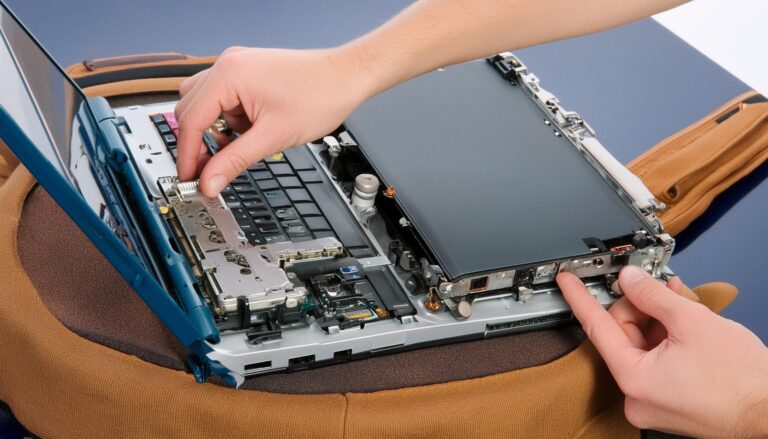
  3. Remove the Back Cover:
    • Remove the four screws holding the back cover.
    • Use a metal prying tool to find an opening, then switch to a plastic prying tool to avoid scratching the metal. Pry around to remove the back cover.
  4. Locate and Remove the Hard Drive:
    • The hard drive is at the bottom left.
    • Use a Phillips screwdriver (PH1) to remove the two screws holding the hard drive bracket.
    • Slide the hard drive bracket towards your body to remove it.
    • Remove the M.2 SSD from the bracket.
  5. Install the New Hard Drive:
    • Insert the new M.2 SSD (512GB) at a 45-degree angle and push it in.
    • Secure it with the screws and replace the bracket.
  6. Reassemble the Laptop:
    • Align the back cover at the bottom and press down to clip it back in place.
    • Replace and tighten the screws.

Optional Data Recovery:

  • Use a USB M.2 adapter to recover data from the old SSD. Insert the old SSD into the adapter, secure it with a rubber band, and plug it into another computer to act as a USB drive.

Conclusion:

  • “After replacing the hard drive, you’ll need to install Windows. You can use a Windows 10 USB installer or create your own using the Microsoft media creation tool. If you found this video helpful, please comment below and let me know how it went. Don’t forget to click on YouTube Super Thanks to show your support. Thanks for watching! Bye now.”

Legal Disclosure:

UberGeeks video(s) or information provided on this website does not, and is not intended to, constitute legal advice, constitute IT professional advise, information technology expert, or tech related material; instead, all information and content available on this are for entertainment purposes only. No information contained in this video shall create any express or implied warranty or guarantee of any particular result.

UberGeeks shall not be held liable for any damages, losses, injuries, loss of data, or harm arising from the use of information or techniques presented in our video(s) or information provided on this website. By accessing and using our content, you agree to release us from any liability.

Participation in any activities or experiments presented in our video(s) is entirely voluntary. If you choose to replicate any actions or experiments, exercise caution, and prioritize your safety and the safety of your equipment.

Thank you for joining us on this IT journey. We hope you find our video(s) enjoyable. Remember, your participation in this channel is at your own discretion, and we encourage you to use the information responsibly and safely.

Transparency Note:

This article was collaboratively written with the assistance of ChatGPT, an AI language model developed by OpenAI. While the content was generated with AI assistance, it was reviewed and edited by our human editorial team to ensure accuracy and quality. As part of our efforts to enhance the user experience, we utilize artificial intelligence (AI) technologies to generate images and visual content on this website. Adobe Firefly AI-generated images may include graphics, illustrations, and other visual elements.


Related Articles