01/23/2024

Thinkpad 4th Yoga 20SA Motherboard Replacement Teardown

[vc_video link=”https://youtu.be/5rw179Mdcp4″ title=” Thinkpad 4th Yoga 20SA Motherboard Replacement Teardown “]

Hi, welcome! Simon here, and I hope you’re doing well. In this video, I’ll be replacing the motherboard on a Lenovo ThinkPad Yoga, fourth generation. The model is 20SA-S03.

This is the replacement motherboard, so let’s go ahead and get started.

I’m using a Phillips screwdriver. It looks like the screws don’t come off completely from the back of the computer, so keep that in mind.

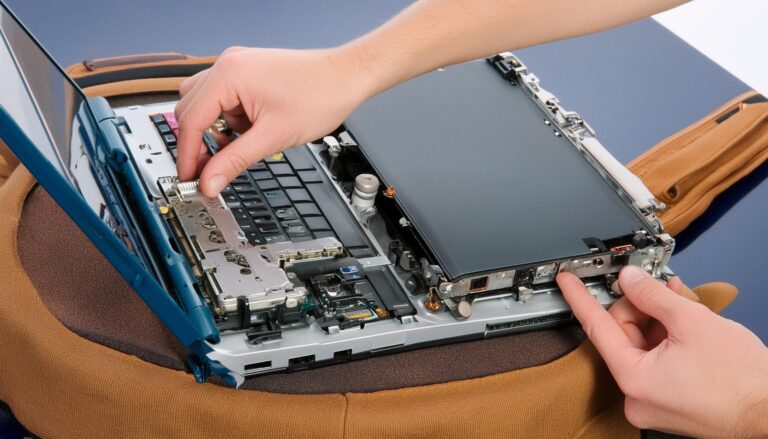
I’m using a metal prying tool to open and remove the entire back cover. At this point, let’s identify a few components before we get started. This is the m.2 SSD drive, the battery, the CPU fan and heatsink (the motherboard is underneath), and the speakers on the sides. You can add an additional m.2 SSD in the secondary slot, but it doesn’t look like the RAM is upgradable; it appears to be built into the motherboard.

Let’s go ahead and disconnect the battery. To remove it, lift it straight up as the connector goes straight into the motherboard.

Next, let’s remove some of the screws. If you’re not sure where each screw goes, I suggest taking a picture of the computer or using a piece of paper as a reference, placing the screws on top of the paper as you remove them.

The entire battery will come right off. If you need a replacement, look for the model L18M4P72. I’ll link it in the description below, so you can find it on Amazon or eBay.

Flip open the little clip and slide the keyboard cable out. Do the same for the keyboard lighting, speaker, CMOS battery, and trackpad cables. For the USB port cable, flip open the metal clip and slide the cable out. Disconnect the LCD cable by opening the clip and sliding the cable away. Lift the Wi-Fi antenna connectors straight up and untangle the cables.

Now, let’s start removing the screws to free up the motherboard.

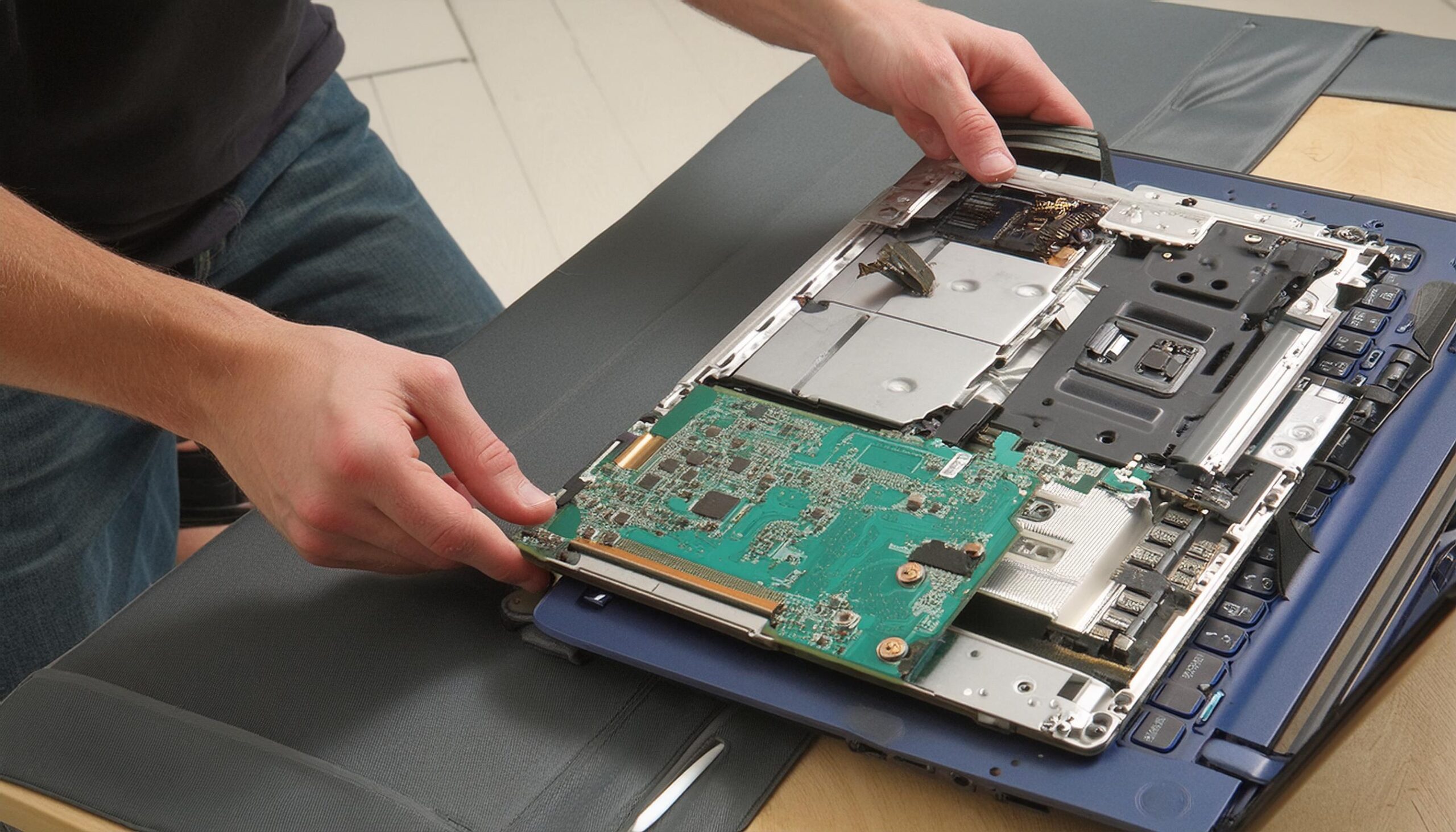
The entire motherboard should come right off. I like to transfer the heatsink over to the replacement motherboard. Remove the screws, and the whole heatsink and CPU fan assembly will come off.

Use an alcohol wipe to clean off the old, dried thermal paste. I’ll be applying new thermal paste using MX4 thermal compound.

When reattaching the heatsink, I like to rotate each screw a couple of times in sequence. This way, the pressure on the heatsink is even, and the thermal paste is spread evenly.

Slide the motherboard back in, making sure all the cables (Wi-Fi and others) are above the motherboard.

Reattach all the cables: slide them in and close the clips. Tuck in the Wi-Fi cables, ensuring they are properly connected. Reconnect the keyboard, CMOS battery, touchpad, CPU fan, and USB cable.

Next, let’s put the battery back in place. Once all the screws are in, slide the battery connector back in and secure it. Finally, put the back cover on and secure it with the screws.

We’ve successfully replaced the motherboard on the Lenovo ThinkPad. If you have any questions, comment down below. Check the description for links to parts like the m.2 drive, motherboard, or battery. If you found this video helpful, consider clicking on the YouTube Super Thanks to show your support. Before you go, smash the like button, subscribe to the channel, and I’ll see you next time. Bye now!

Legal Disclosure:

UberGeeks video(s) or information provided on this website does not, and is not intended to, constitute legal advice, constitute IT professional advise, information technology expert, or tech related material; instead, all information and content available on this are for entertainment purposes only. No information contained in this video shall create any express or implied warranty or guarantee of any particular result.

UberGeeks shall not be held liable for any damages, losses, injuries, loss of data, or harm arising from the use of information or techniques presented in our video(s) or information provided on this website. By accessing and using our content, you agree to release us from any liability.

Participation in any activities or experiments presented in our video(s) is entirely voluntary. If you choose to replicate any actions or experiments, exercise caution, and prioritize your safety and the safety of your equipment.

Thank you for joining us on this IT journey. We hope you find our video(s) enjoyable. Remember, your participation in this channel is at your own discretion, and we encourage you to use the information responsibly and safely.

Transparency Note:

This article was collaboratively written with the assistance of ChatGPT, an AI language model developed by OpenAI. While the content was generated with AI assistance, it was reviewed and edited by our human editorial team to ensure accuracy and quality. As part of our efforts to enhance the user experience, we utilize artificial intelligence (AI) technologies to generate images and visual content on this website. Adobe Firefly AI-generated images may include graphics, illustrations, and other visual elements.


Related Articles