01/26/2024

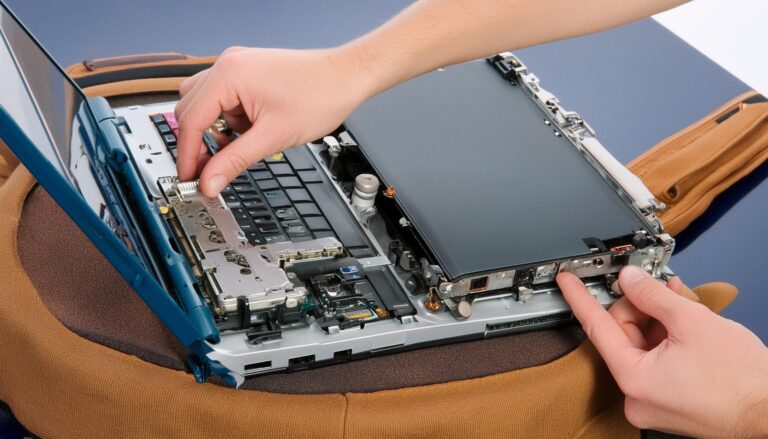
Acer Nitro V15 Screen Replacement

[vc_row][vc_column][vc_video link=”https://youtu.be/cZ4YDTfRjSw” title=”Acer Nitro V15 Screen Replacement”][vc_raw_html]JTNDc2NyaXB0JTIwYXN5bmMlMjBzcmMlM0QlMjJodHRwcyUzQSUyRiUyRnBhZ2VhZDIuZ29vZ2xlc3luZGljYXRpb24uY29tJTJGcGFnZWFkJTJGanMlMkZhZHNieWdvb2dsZS5qcyUzRmNsaWVudCUzRGNhLXB1Yi04MDk0NDMzMDk5ODI1MDMwJTIyJTBBJTIwJTIwJTIwJTIwJTIwY3Jvc3NvcmlnaW4lM0QlMjJhbm9ueW1vdXMlMjIlM0UlM0MlMkZzY3JpcHQlM0UlMEElM0MlMjEtLSUyMFNxdWFyZSUyMEFkJTIwQmxvZyUyMC0tJTNFJTBBJTNDaW5zJTIwY2xhc3MlM0QlMjJhZHNieWdvb2dsZSUyMiUwQSUyMCUyMCUyMCUyMCUyMHN0eWxlJTNEJTIyZGlzcGxheSUzQWJsb2NrJTIyJTBBJTIwJTIwJTIwJTIwJTIwZGF0YS1hZC1jbGllbnQlM0QlMjJjYS1wdWItODA5NDQzMzA5OTgyNTAzMCUyMiUwQSUyMCUyMCUyMCUyMCUyMGRhdGEtYWQtc2xvdCUzRCUyMjg2MjIwOTkzNTklMjIlMEElMjAlMjAlMjAlMjAlMjBkYXRhLWFkLWZvcm1hdCUzRCUyMmF1dG8lMjIlMEElMjAlMjAlMjAlMjAlMjBkYXRhLWZ1bGwtd2lkdGgtcmVzcG9uc2l2ZSUzRCUyMnRydWUlMjIlM0UlM0MlMkZpbnMlM0UlMEElM0NzY3JpcHQlM0UlMEElMjAlMjAlMjAlMjAlMjAlMjhhZHNieWdvb2dsZSUyMCUzRCUyMHdpbmRvdy5hZHNieWdvb2dsZSUyMCU3QyU3QyUyMCU1QiU1RCUyOS5wdXNoJTI4JTdCJTdEJTI5JTNCJTBBJTNDJTJGc2NyaXB0JTNF[/vc_raw_html][/vc_column][/vc_row][vc_row][vc_column][vc_column_text]

Title: How to Replace the Screen on an Acer Nitro V15 Laptop

Introduction:

“Hi, welcome! Simon here. Hope you’re doing well. In this video, I’ll be replacing the screen on an Acer Nitro V15. Unfortunately, I couldn’t film the screen removal, but I’ll walk you through the process and show you how to install the new screen.”

Step-by-Step Instructions:

  1. Remove the Battery:
    • Disconnect and remove the battery using a Phillips screwdriver to remove all screws securing the back cover.
    • Slide the battery connector out gently. Note that Acer’s design doesn’t secure the battery with screws, so the back cover holds it in place.
  2. Prepare for Screen Removal:
    • Reattach the back cover to protect the motherboard during the screen removal.
    • Use a metal priming tool to carefully pry off the bezel, which is clipped onto the screen.
  3. Remove Adhesive Tape:
    • Locate and remove the double-sided adhesive tape on the top left and right corners of the screen using tweezers.
    • Be cautious as removing the last piece of tape can cause the screen to detach suddenly.
  4. Disconnect the Screen:
    • Gently peel off the tape securing the connector.
    • Flip open the connector clip and slide out the LCD cable to free the screen.
  5. Install the New Screen:
    • Verify the new screen model for compatibility.
    • Slide the 40-pin connector into the new screen and secure it with the clip and tape.
    • Reapply double-sided adhesive tape to secure the new screen in place, matching the original positions.
  6. Reattach the Battery and Test:
    • Reconnect the battery and verify the screen works by turning on the laptop.
    • Ensure the display is functioning correctly before proceeding.
  7. Reassemble the Laptop:
    • Reattach the bezel by pressing it down all around the edges until it clicks into place.
    • Replace the back cover and secure it with screws.

Conclusion:

“That’s it! Hopefully, this video was helpful. If you need to purchase a replacement screen or double-sided tape, check the links in the description. If you found this video useful, please hit the like button, subscribe, and consider using the YouTube Super Thanks feature to support my channel. Thanks for watching!”

[/vc_column_text][/vc_column][/vc_row][vc_row][vc_column][vc_raw_html]JTNDc2NyaXB0JTIwYXN5bmMlMjBzcmMlM0QlMjJodHRwcyUzQSUyRiUyRnBhZ2VhZDIuZ29vZ2xlc3luZGljYXRpb24uY29tJTJGcGFnZWFkJTJGanMlMkZhZHNieWdvb2dsZS5qcyUzRmNsaWVudCUzRGNhLXB1Yi04MDk0NDMzMDk5ODI1MDMwJTIyJTBBJTIwJTIwJTIwJTIwJTIwY3Jvc3NvcmlnaW4lM0QlMjJhbm9ueW1vdXMlMjIlM0UlM0MlMkZzY3JpcHQlM0UlMEElM0MlMjEtLSUyMFNxdWFyZSUyMEFkJTIwQmxvZyUyMC0tJTNFJTBBJTNDaW5zJTIwY2xhc3MlM0QlMjJhZHNieWdvb2dsZSUyMiUwQSUyMCUyMCUyMCUyMCUyMHN0eWxlJTNEJTIyZGlzcGxheSUzQWJsb2NrJTIyJTBBJTIwJTIwJTIwJTIwJTIwZGF0YS1hZC1jbGllbnQlM0QlMjJjYS1wdWItODA5NDQzMzA5OTgyNTAzMCUyMiUwQSUyMCUyMCUyMCUyMCUyMGRhdGEtYWQtc2xvdCUzRCUyMjg2MjIwOTkzNTklMjIlMEElMjAlMjAlMjAlMjAlMjBkYXRhLWFkLWZvcm1hdCUzRCUyMmF1dG8lMjIlMEElMjAlMjAlMjAlMjAlMjBkYXRhLWZ1bGwtd2lkdGgtcmVzcG9uc2l2ZSUzRCUyMnRydWUlMjIlM0UlM0MlMkZpbnMlM0UlMEElM0NzY3JpcHQlM0UlMEElMjAlMjAlMjAlMjAlMjAlMjhhZHNieWdvb2dsZSUyMCUzRCUyMHdpbmRvdy5hZHNieWdvb2dsZSUyMCU3QyU3QyUyMCU1QiU1RCUyOS5wdXNoJTI4JTdCJTdEJTI5JTNCJTBBJTNDJTJGc2NyaXB0JTNF[/vc_raw_html][vc_column_text]

Legal Disclosure:

UberGeeks video(s) or information provided on this website does not, and is not intended to, constitute legal advice, constitute IT professional advise, information technology expert, or tech related material; instead, all information and content available on this are for entertainment purposes only. No information contained in this video shall create any express or implied warranty or guarantee of any particular result.

UberGeeks shall not be held liable for any damages, losses, injuries, loss of data, or harm arising from the use of information or techniques presented in our video(s) or information provided on this website. By accessing and using our content, you agree to release us from any liability.

Participation in any activities or experiments presented in our video(s) is entirely voluntary. If you choose to replicate any actions or experiments, exercise caution, and prioritize your safety and the safety of your equipment.

Thank you for joining us on this IT journey. We hope you find our video(s) enjoyable. Remember, your participation in this channel is at your own discretion, and we encourage you to use the information responsibly and safely.

Transparency Note:

This article was collaboratively written with the assistance of ChatGPT, an AI language model developed by OpenAI. While the content was generated with AI assistance, it was reviewed and edited by our human editorial team to ensure accuracy and quality. As part of our efforts to enhance the user experience, we utilize artificial intelligence (AI) technologies to generate images and visual content on this website. Adobe Firefly AI-generated images may include graphics, illustrations, and other visual elements.


[/vc_column_text][vc_raw_html]JTNDc2NyaXB0JTIwYXN5bmMlMjBzcmMlM0QlMjJodHRwcyUzQSUyRiUyRnBhZ2VhZDIuZ29vZ2xlc3luZGljYXRpb24uY29tJTJGcGFnZWFkJTJGanMlMkZhZHNieWdvb2dsZS5qcyUzRmNsaWVudCUzRGNhLXB1Yi04MDk0NDMzMDk5ODI1MDMwJTIyJTBBJTIwJTIwJTIwJTIwJTIwY3Jvc3NvcmlnaW4lM0QlMjJhbm9ueW1vdXMlMjIlM0UlM0MlMkZzY3JpcHQlM0UlMEElM0MlMjEtLSUyMFNxdWFyZSUyMEFkJTIwQmxvZyUyMC0tJTNFJTBBJTNDaW5zJTIwY2xhc3MlM0QlMjJhZHNieWdvb2dsZSUyMiUwQSUyMCUyMCUyMCUyMCUyMHN0eWxlJTNEJTIyZGlzcGxheSUzQWJsb2NrJTIyJTBBJTIwJTIwJTIwJTIwJTIwZGF0YS1hZC1jbGllbnQlM0QlMjJjYS1wdWItODA5NDQzMzA5OTgyNTAzMCUyMiUwQSUyMCUyMCUyMCUyMCUyMGRhdGEtYWQtc2xvdCUzRCUyMjg2MjIwOTkzNTklMjIlMEElMjAlMjAlMjAlMjAlMjBkYXRhLWFkLWZvcm1hdCUzRCUyMmF1dG8lMjIlMEElMjAlMjAlMjAlMjAlMjBkYXRhLWZ1bGwtd2lkdGgtcmVzcG9uc2l2ZSUzRCUyMnRydWUlMjIlM0UlM0MlMkZpbnMlM0UlMEElM0NzY3JpcHQlM0UlMEElMjAlMjAlMjAlMjAlMjAlMjhhZHNieWdvb2dsZSUyMCUzRCUyMHdpbmRvdy5hZHNieWdvb2dsZSUyMCU3QyU3QyUyMCU1QiU1RCUyOS5wdXNoJTI4JTdCJTdEJTI5JTNCJTBBJTNDJTJGc2NyaXB0JTNF[/vc_raw_html][/vc_column][/vc_row][vc_row][vc_column][/vc_column][/vc_row]

Related Articles