01/25/2024

FIXED Dell Inspiron 15 Power Button

[vc_video link=”https://youtu.be/oC01P2r6HV4″ title=”FIXED Dell Inspiron 15 Power Button”]

Video Transcript: Fixing the Power Button on a Dell Inspiron 15 3000 Series


Introduction

Hi, welcome. Simon here. Hope you’re doing well. In this video, I’ll try to fix the power button on a Dell Inspiron 15 3000 Series.

Problem Description

In my case, the power button doesn’t have that click feeling, and it seems to be sunk in. It’s not powering on the laptop reliably. Sometimes it does power on if you press on the exact spot, but it’s tricky. Also, I noticed that when I shake the laptop, I can hear something rattling inside, which could be a piece of plastic or a loose screw related to the power button.

Disassembly

Alright, let’s get right into it. First, let’s identify the model. This is the Inspiron 3593 or P75F.

  1. Removing Screws:
    • Use a Phillips screwdriver to start removing the screws.
    • The top left and right screws don’t come off completely.
    • The middle screw and another one on the side do come off. Be sure to pay attention to the screws and their sizes to avoid mix-ups during reassembly.
  2. Prying Open:
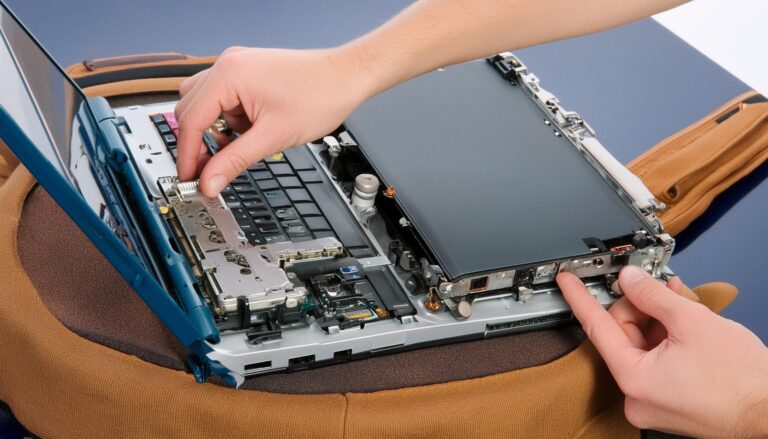
    • Use a metal prying tool to get between the plastic cover and the keyboard/palm rest area.
    • Switch to a plastic prying tool to avoid damaging the plastic parts.
    • Carefully work your way around to crack it open.

Inspection and Repair

  1. Inspecting Inside:
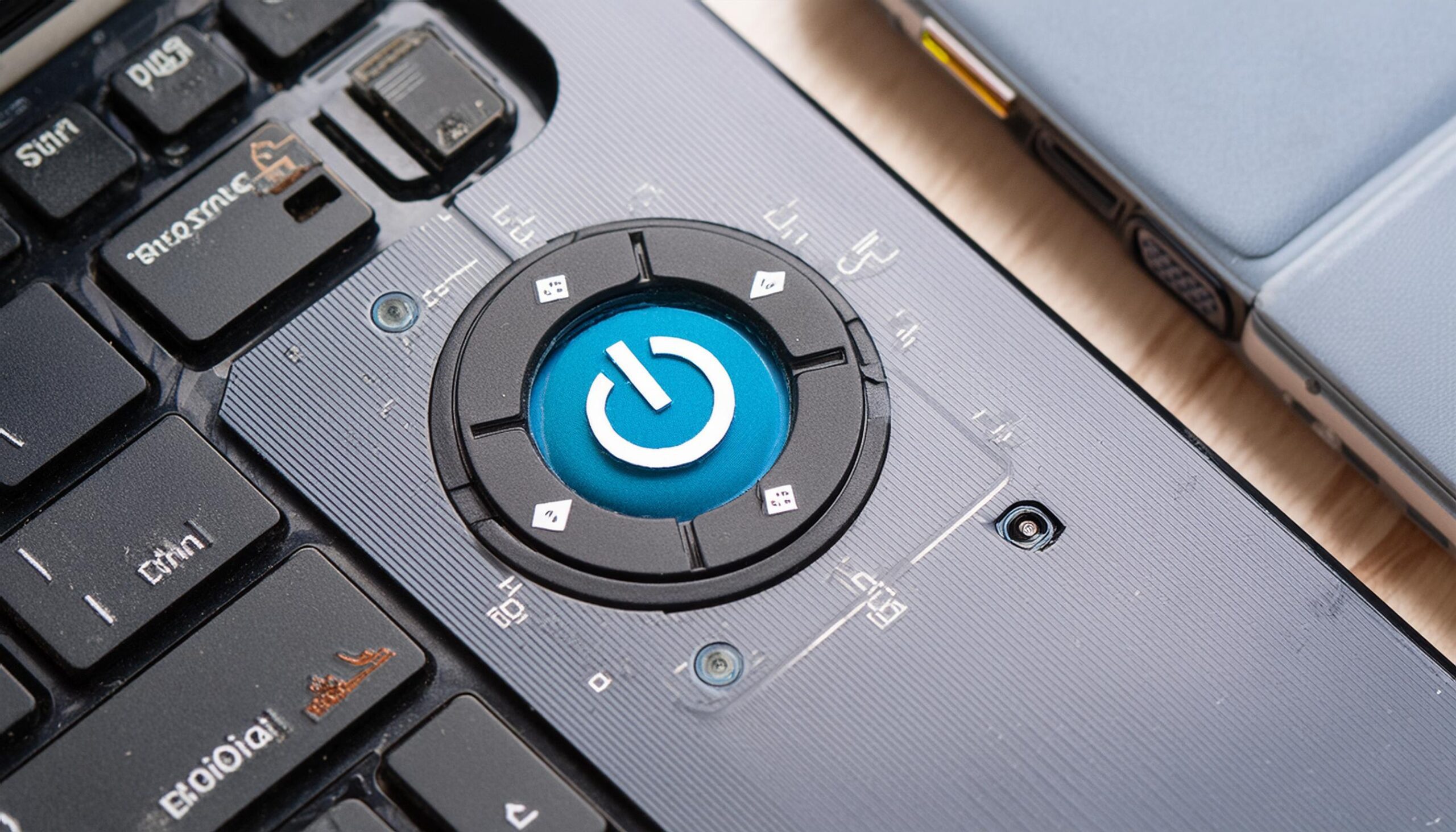
    • After removing the back cover, let’s focus on the top left corner where the power button is.
    • I noticed a broken piece of plastic running around, which seems to be a part of the power button mechanism.
  2. Removing Obstructions:
    • Unscrew any screws holding down the power button board.
    • Remove any wires if necessary to get better access.
  3. Identifying the Issue:
    • I found that the screw bracket holding the power button is broken.
    • The small piece of plastic that clicks on the switch is also detached.
  4. Fixing the Broken Bracket:
    • I’ll use super glue (gel type) to fix the broken bracket.
    • Apply a tiny drop of glue to avoid any mess and potential damage to the board.
    • Hold the piece in place for about a minute until the glue sets.

Reassembly

  1. Reassembling the Components:
    • Reinstall the screws and wires that were removed earlier.
    • Ensure that all parts are securely in place and the glue has dried.
  2. Reattaching the Back Cover:
    • Snap the back cover back on by pressing it down and ensuring all clips are secured.
    • Reinstall all screws, making sure each one goes back in its original place.

Testing the Fix

  1. Testing the Power Button:
    • Check if the power button now has the click feeling and if it powers on the laptop.
    • Unfortunately, in this case, the battery is dead, so I can’t demonstrate the power-up. But the button does feel like it’s clicking correctly.

Conclusion

Hopefully, this video was helpful. If you found it useful, please smash the like button. If you haven’t subscribed, feel free to do so. Thanks for watching, and I hope you can follow along to get your repair done. Bye now!

Legal Disclosure:

UberGeeks video(s) or information provided on this website does not, and is not intended to, constitute legal advice, constitute IT professional advise, information technology expert, or tech related material; instead, all information and content available on this are for entertainment purposes only. No information contained in this video shall create any express or implied warranty or guarantee of any particular result.

UberGeeks shall not be held liable for any damages, losses, injuries, loss of data, or harm arising from the use of information or techniques presented in our video(s) or information provided on this website. By accessing and using our content, you agree to release us from any liability.

Participation in any activities or experiments presented in our video(s) is entirely voluntary. If you choose to replicate any actions or experiments, exercise caution, and prioritize your safety and the safety of your equipment.

Thank you for joining us on this IT journey. We hope you find our video(s) enjoyable. Remember, your participation in this channel is at your own discretion, and we encourage you to use the information responsibly and safely.

Transparency Note:

This article was collaboratively written with the assistance of ChatGPT, an AI language model developed by OpenAI. While the content was generated with AI assistance, it was reviewed and edited by our human editorial team to ensure accuracy and quality. As part of our efforts to enhance the user experience, we utilize artificial intelligence (AI) technologies to generate images and visual content on this website. Adobe Firefly AI-generated images may include graphics, illustrations, and other visual elements.


Related Articles