01/24/2024

Acer Predator Change M2 SSD

[vc_video link=”https://youtu.be/ptsn4cyaZlo” title=” Acer Predator Change M2 SSD “]

Hi, welcome! Simon here. I’m not sure if I should call this a part two video, but I’ll continue from the first one. I just want to jump right in and explain what happened in the previous video.

In the earlier video, I showed how to remove the back cover and explained the issue with the original hard drive. This is the 1TB Western Digital drive that came with the computer. I was getting a blue screen every time I turned on the computer. It would try to load, diagnose the problem, and then show a sad face on a blue screen. Sometimes, I would get a message saying “no boot device found” or “hard drive error.” If you’re seeing these messages, it’s likely that the m.2 drive is bad.

I explained how to retrieve the data using one of these USB adapters. I’ll link it in the description below where you can buy it from Amazon or eBay. I ran a test on a workbench computer and found bad sectors on the disk, meaning some sectors were corrupted. So, I’ll be replacing this with a Crucial 1TB m.2 drive. I was able to recover the data, which is a good sign.

In this video, I’ll install the new hard drive and possibly Windows. I’m not sure if I’ll show the Windows installation on camera, but I’ll need to install Windows on the new hard drive for it to start up properly.

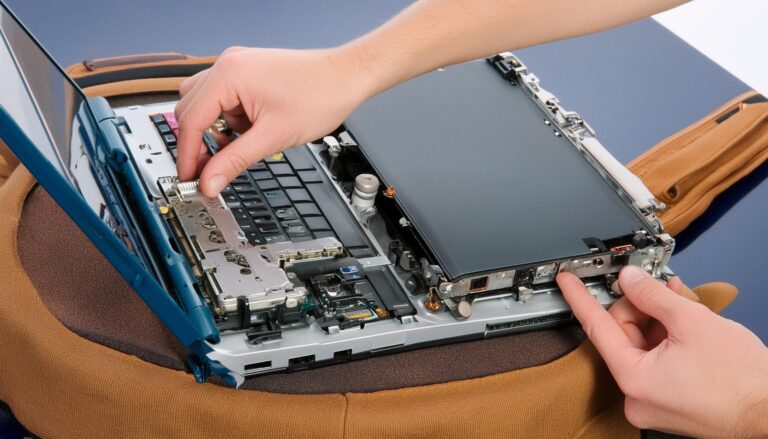
The new hard drive comes with a mounting screw, which is nice. I don’t think I’ll need it for this purpose, but I’ll save it anyway. To install, just slide it in at a 45-degree angle. Place the heat sink back on top.

Now, I’ll put the two screws back that came from the computer.

Okay, that should be it. I’ll walk you through the process. You might need to buy a Windows 10 or Windows 11 USB installer. If you don’t want to buy it, you can make your own. If you buy it, you’re buying the license for Windows, which the computer already has. So, technically, you don’t need to buy it. You can go to the Microsoft website—I’ll link it in the description below—or you can Google “Windows 10 Media Creation Tool” to create your own installer.

Thanks for watching. Until next time, bye now!

Legal Disclosure:

UberGeeks video(s) or information provided on this website does not, and is not intended to, constitute legal advice, constitute IT professional advise, information technology expert, or tech related material; instead, all information and content available on this are for entertainment purposes only. No information contained in this video shall create any express or implied warranty or guarantee of any particular result.

UberGeeks shall not be held liable for any damages, losses, injuries, loss of data, or harm arising from the use of information or techniques presented in our video(s) or information provided on this website. By accessing and using our content, you agree to release us from any liability.

Participation in any activities or experiments presented in our video(s) is entirely voluntary. If you choose to replicate any actions or experiments, exercise caution, and prioritize your safety and the safety of your equipment.

Thank you for joining us on this IT journey. We hope you find our video(s) enjoyable. Remember, your participation in this channel is at your own discretion, and we encourage you to use the information responsibly and safely.

Transparency Note:

This article was collaboratively written with the assistance of ChatGPT, an AI language model developed by OpenAI. While the content was generated with AI assistance, it was reviewed and edited by our human editorial team to ensure accuracy and quality. As part of our efforts to enhance the user experience, we utilize artificial intelligence (AI) technologies to generate images and visual content on this website. Adobe Firefly AI-generated images may include graphics, illustrations, and other visual elements.


Related Articles