
11/25/2023

Asus V241EA Screen Replacement

[vc_video link=”https://www.youtube.com/watch?v=UL7zTlrMHCY” title=”Asus V241EA Screen Replacement”]

How to Replace the Screen on an Asus All-in-One Desktop

Introduction:

Hello, tech enthusiasts! I’m Simon, and in today’s guide, we’ll be tackling a screen replacement for an Asus All-in-One Desktop. The model we’re focusing on is the Asus V241 EA. This guide will not only cover screen replacement but will also provide insights into the internals of this Asus model, including potential RAM and hard drive upgrades.

Identifying the Model:

Before we dive into the replacement process, it’s crucial to identify your model number correctly. For the Asus V241 EA, you’ll find this number at the bottom of the stand, along with the serial number.

Screen Replacement Process:

  1. Removing the Back Cover: Start by removing the rubber stoppers at the base to reveal hidden screws. Using a Phillips screwdriver, proceed to unscrew and gently lift the back cover using a plastic prying tool.
  2. Disconnecting the Screen: Be cautious while lifting the screen as it’s still connected to the motherboard. You’ll need to slide the connector out to detach it completely.
  3. Handling the Damaged Screen: In this specific case, the screen had a visible impact point and required a complete replacement.
  4. Inspecting the Internal Components: Upon opening, you might notice some components, like the hard drive, have been replaced or altered. It’s crucial to handle these components carefully during the screen replacement process.
  5. Unscrewing the Broken Screen: You’ll find multiple screws holding the screen bracket in place. Carefully unscrew these to release the damaged screen.
  6. Preparing for the New Screen: Order a replacement screen matching the model number (MV238FHM-N20 for this guide). Transfer necessary components like cables from the old screen to the new one.
  7. Installing the New Screen: Reverse the disassembly process to install the new screen. Ensure all cables are reconnected properly, and the screen is secured with screws.

Upgrading Other Components:

While the focus of this guide is screen replacement, this is also an opportunity to upgrade other components like RAM and hard drive. For RAM upgrades, you’ll typically find the RAM slots under a metal plate that can be unscrewed. The process is similar for hard drive upgrades.

Conclusion:

Replacing the screen on your Asus All-in-One Desktop might seem daunting, but with the right tools and a bit of patience, it’s certainly doable. Remember, handling internal components requires care to avoid any further damage.

If you found this guide helpful, please give it a like and consider subscribing for more tech repair tutorials. For those who wish to show appreciation or support my work, feel free to use the YouTube super thanks feature. Good luck with your repair, and thank you for watching!

Legal Disclosure:

UberGeeks video(s) or information provided on this website does not, and is not intended to, constitute legal advice, constitute IT professional advise, information technology expert, or tech related material; instead, all information and content available on this are for entertainment purposes only. No information contained in this video shall create any express or implied warranty or guarantee of any particular result.

UberGeeks shall not be held liable for any damages, losses, injuries, loss of data, or harm arising from the use of information or techniques presented in our video(s) or information provided on this website. By accessing and using our content, you agree to release us from any liability.

Participation in any activities or experiments presented in our video(s) is entirely voluntary. If you choose to replicate any actions or experiments, exercise caution, and prioritize your safety and the safety of your equipment.

Thank you for joining us on this IT journey. We hope you find our video(s) enjoyable. Remember, your participation in this channel is at your own discretion, and we encourage you to use the information responsibly and safely.

Transparency Note:

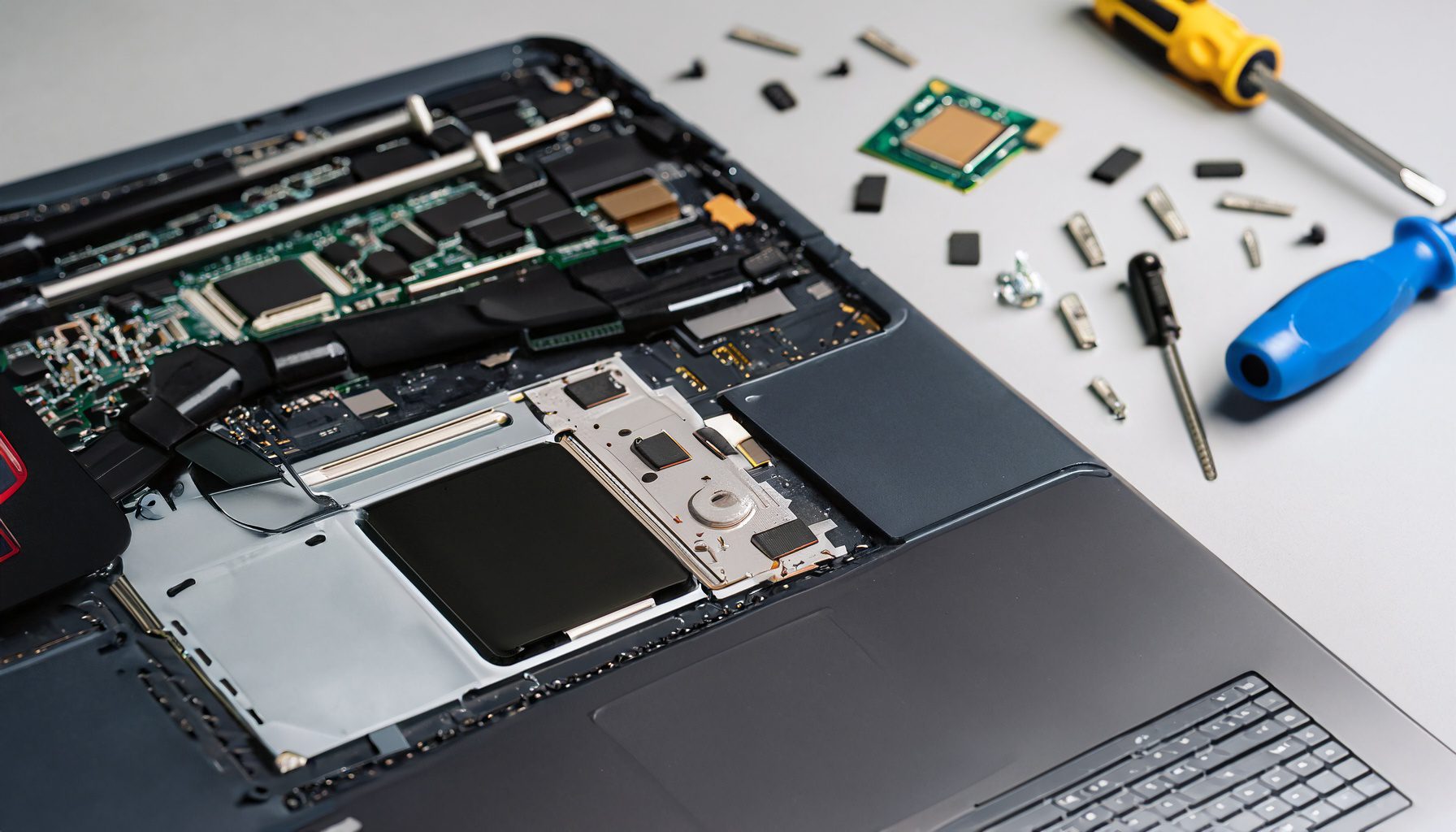
This article was collaboratively written with the assistance of ChatGPT, an AI language model developed by OpenAI. While the content was generated with AI assistance, it was reviewed and edited by our human editorial team to ensure accuracy and quality. As part of our efforts to enhance the user experience, we utilize artificial intelligence (AI) technologies to generate images and visual content on this website. Adobe Firefly AI-generated images may include graphics, illustrations, and other visual elements.


Related Articles









