
11/21/2023

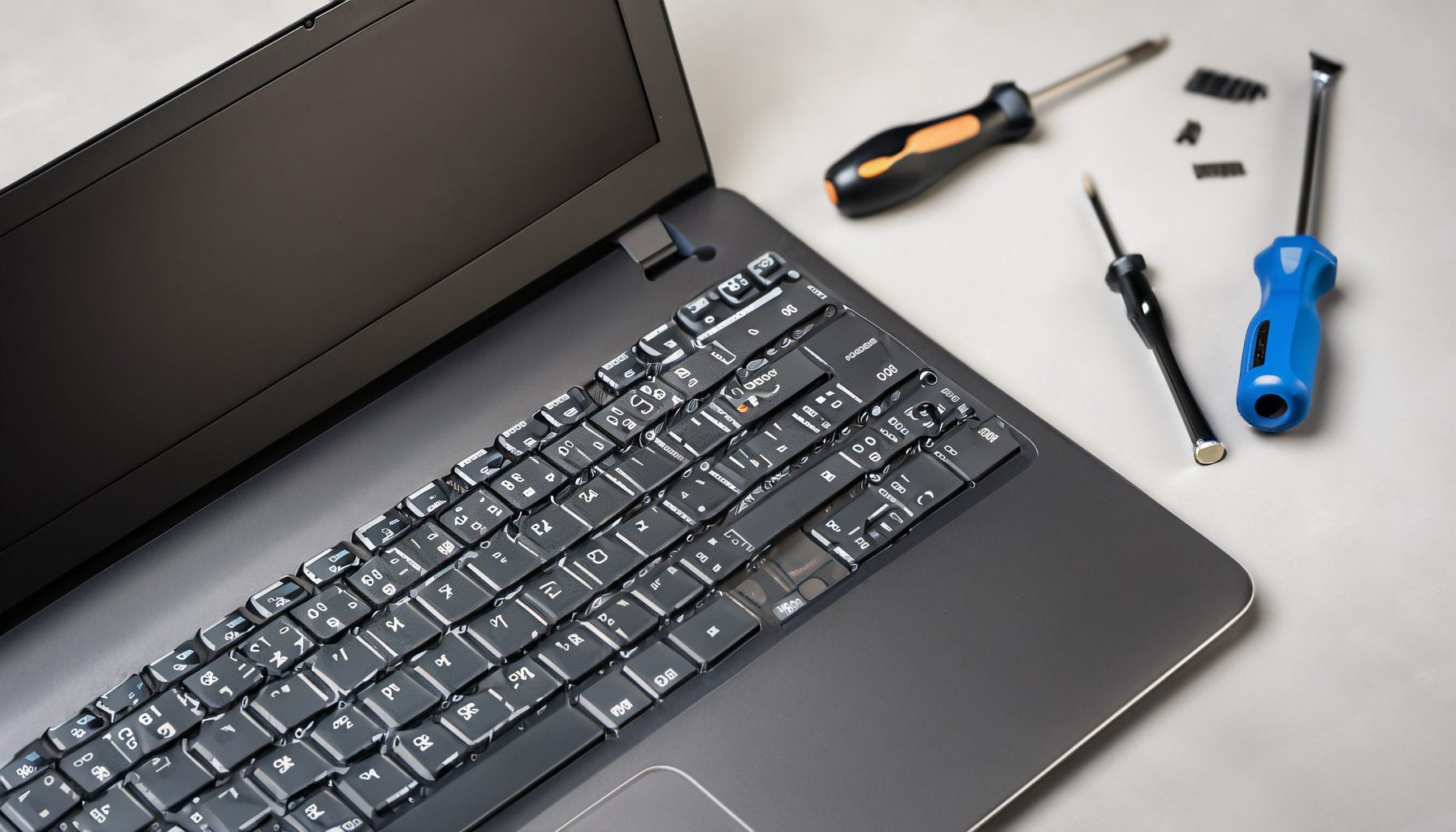
Lenovo IdeaPad 5 14AR Keyboard Replacement

[vc_video link=”https://www.youtube.com/watch?v=OjZxlNp1Wdc” title=”Lenovo IdeaPad 5 14AR Keyboard Replacement”]

Replacing the Keyboard on a Lenovo Ideapad Flex 5: A Step-by-Step Guide

Introduction

Hello everyone, Simon here! Today, I’m excited to share a detailed guide on replacing a keyboard on a Lenovo Ideapad Flex 5 laptop. This tutorial is particularly useful if you’re experiencing issues with specific keys or if the keyboard has sustained damage.

Identifying the Problem

Initially, I noticed that some keys, including ‘O’, ‘L’, and the dot key, were unresponsive. This clearly indicated a hardware issue with the keyboard. In such cases, a full keyboard assembly replacement is necessary as these keyboards are designed as a single unit.

Preparing for Replacement

Before starting the replacement process, ensure your laptop is turned off. The model we’re working on is the Lenovo Ideapad Flex 5, model 14IIL05. Remember, safety first: make sure the device is powered down before you begin any repairs.

Tools Required

For this task, you’ll need:

  1. Torx T5 screwdriver
  2. Phillips head screwdriver (PH1 and PH1.5)
  3. Plastic prying tools
  4. Replacement keyboard assembly

Step-by-Step Replacement Process

  1. Removing the Back Cover: Start by unscrewing the back cover using the Torx T5 screwdriver. There are longer screws on the top and shorter ones at the bottom.
  2. Disconnecting the Battery: Once the back cover is off, disconnect the battery by sliding its connector out. This step is crucial for safety and to prevent any electrical damage to the laptop components.
  3. Transferring Components: Next, carefully transfer the components from the old keyboard assembly to the new one. This includes the I/O board, CPU fan, motherboard, and speakers. Pay special attention to the Wi-Fi cables and the M.2 SSD drive during transfer.
  4. Reconnecting Components: After placing the motherboard onto the new keyboard assembly, reconnect all the flex cables, including the trackpad, keyboard backlight, Touch ID, and USB port cables. Ensure these cables are properly seated and their connectors are securely locked.
  5. Reinstalling the Battery and Back Cover: Once all internal components are correctly positioned and secured, reinstall the battery and screw the back cover back on.
  6. Testing the New Keyboard: Power on your laptop and test the new keyboard. Ensure all keys are responsive and functioning correctly.

Conclusion

Replacing a keyboard on the Lenovo Ideapad Flex 5 is a straightforward process, provided you have the right tools and follow these steps carefully. This repair can significantly extend the life of your laptop, saving you the cost of buying a new one.

Tips for a Successful Repair:

  • Keep track of all screws and where they belong. Taking a picture before starting can help.
  • Be gentle with flex cables and connectors to avoid damaging them.
  • After reconnecting the battery, the laptop might take longer to boot up initially. This is normal.

Final Thoughts

I hope this guide helps you successfully replace your Lenovo laptop’s keyboard. If you find this tutorial helpful, please hit the like button and consider subscribing for more tech repair guides. For any questions or additional tips, feel free to leave a comment below. Thanks for reading, and good luck with your repair!

Legal Disclosure:

UberGeeks video(s) or information provided on this website does not, and is not intended to, constitute legal advice, constitute IT professional advise, information technology expert, or tech related material; instead, all information and content available on this are for entertainment purposes only. No information contained in this video shall create any express or implied warranty or guarantee of any particular result.

UberGeeks shall not be held liable for any damages, losses, injuries, loss of data, or harm arising from the use of information or techniques presented in our video(s) or information provided on this website. By accessing and using our content, you agree to release us from any liability.

Participation in any activities or experiments presented in our video(s) is entirely voluntary. If you choose to replicate any actions or experiments, exercise caution, and prioritize your safety and the safety of your equipment.

Thank you for joining us on this IT journey. We hope you find our video(s) enjoyable. Remember, your participation in this channel is at your own discretion, and we encourage you to use the information responsibly and safely.

Transparency Note:

This article was collaboratively written with the assistance of ChatGPT, an AI language model developed by OpenAI. While the content was generated with AI assistance, it was reviewed and edited by our human editorial team to ensure accuracy and quality. As part of our efforts to enhance the user experience, we utilize artificial intelligence (AI) technologies to generate images and visual content on this website. Adobe Firefly AI-generated images may include graphics, illustrations, and other visual elements.


Related Articles









