
11/17/2022

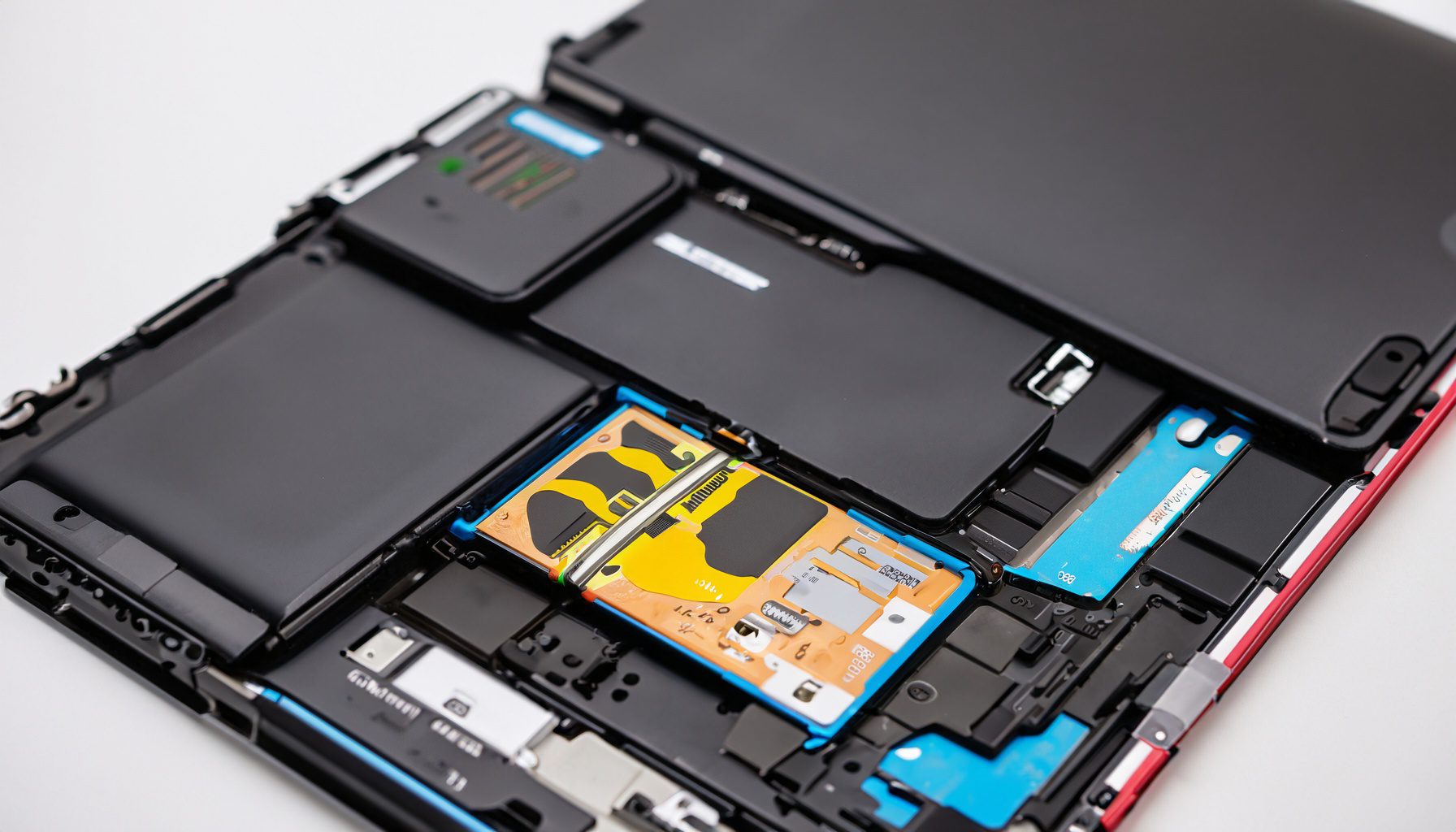
HP Spectre x360 15 bl112dx Battery Replacement

[vc_video link=”https://www.youtube.com/watch?v=8EzWyb3r8rs” title=”HP Spectre x360 15 bl112dx Battery Replacement”]

Title: HP Laptop Battery Replacement Guide

Author: Simon

Introduction: Hi, Simon here. In this tutorial, I’m going to guide you through the process of replacing the battery in an HP laptop, specifically the HP model 15-B112DX. If you’ve noticed that your trackpad is less responsive or your laptop’s back is bulging, it’s a sign that your battery needs replacing. Let’s get started!

Tools Needed:

  • T5 Screwdriver
  • Phillips Screwdriver

Procedure:

  1. Identify the Model: Check the bottom of your laptop for the model number. In this case, it’s HP 15-B112DX.
  2. Remove the Screws: Start by using the T5 screwdriver to remove screws from the bottom of the laptop. Don’t forget to remove the two hidden screws under the plastic covers.
  3. Open the Laptop: Gently slide and lift the back cover off.
  4. Inspect the Battery: If the battery looks swollen or deformed, it definitely needs to be replaced.
  5. Disconnect the Battery: Slide the battery connector to the right to disconnect it.
  6. Remove the Battery: Unscrew the battery using the Phillips screwdriver and remove it from the laptop.
  7. Replace with New Battery: Assuming you have a new battery (model KB06XL for this HP model), reverse the process to install it. Place the new battery in, screw it down, and slide the connector to the left to secure it.
  8. Reassemble the Laptop: Put the back cover on and screw it back into place.

Conclusion: Replacing the battery in your HP laptop is a straightforward process that requires just a couple of tools and a bit of patience. Remember, a bulging battery can be a safety hazard, so it’s important to address it as soon as possible.

Additional Tips:

  • Keep track of all screws and where they belong to avoid confusion during reassembly.
  • Handle the battery and other components gently to avoid damage.
  • After the replacement, the trackpad should be more responsive, and any bulging should be gone.

Call to Action: If you found this guide helpful, please give it a like and subscribe for more. If you have any questions or need further assistance, feel free to leave a comment below.

Closing: Thank you for watching this HP laptop battery replacement tutorial. Stay tuned for more helpful guides and tips. Until next time, take care and bye now!

Note: Remember, if you’re unsure about doing this yourself or if your laptop is still under warranty, consider seeking professional help or contacting HP support for guidance.


Legal Disclosure:

UberGeeks video(s) or information provided on this website does not, and is not intended to, constitute legal advice, constitute IT professional advise, information technology expert, or tech related material; instead, all information and content available on this are for entertainment purposes only. No information contained in this video shall create any express or implied warranty or guarantee of any particular result.

UberGeeks shall not be held liable for any damages, losses, injuries, loss of data, or harm arising from the use of information or techniques presented in our video(s) or information provided on this website. By accessing and using our content, you agree to release us from any liability.

Participation in any activities or experiments presented in our video(s) is entirely voluntary. If you choose to replicate any actions or experiments, exercise caution, and prioritize your safety and the safety of your equipment.

Thank you for joining us on this IT journey. We hope you find our video(s) enjoyable. Remember, your participation in this channel is at your own discretion, and we encourage you to use the information responsibly and safely.

Transparency Note:

This article was collaboratively written with the assistance of ChatGPT, an AI language model developed by OpenAI. While the content was generated with AI assistance, it was reviewed and edited by our human editorial team to ensure accuracy and quality. As part of our efforts to enhance the user experience, we utilize artificial intelligence (AI) technologies to generate images and visual content on this website. Adobe Firefly AI-generated images may include graphics, illustrations, and other visual elements.


Related Articles









