
08/26/2022

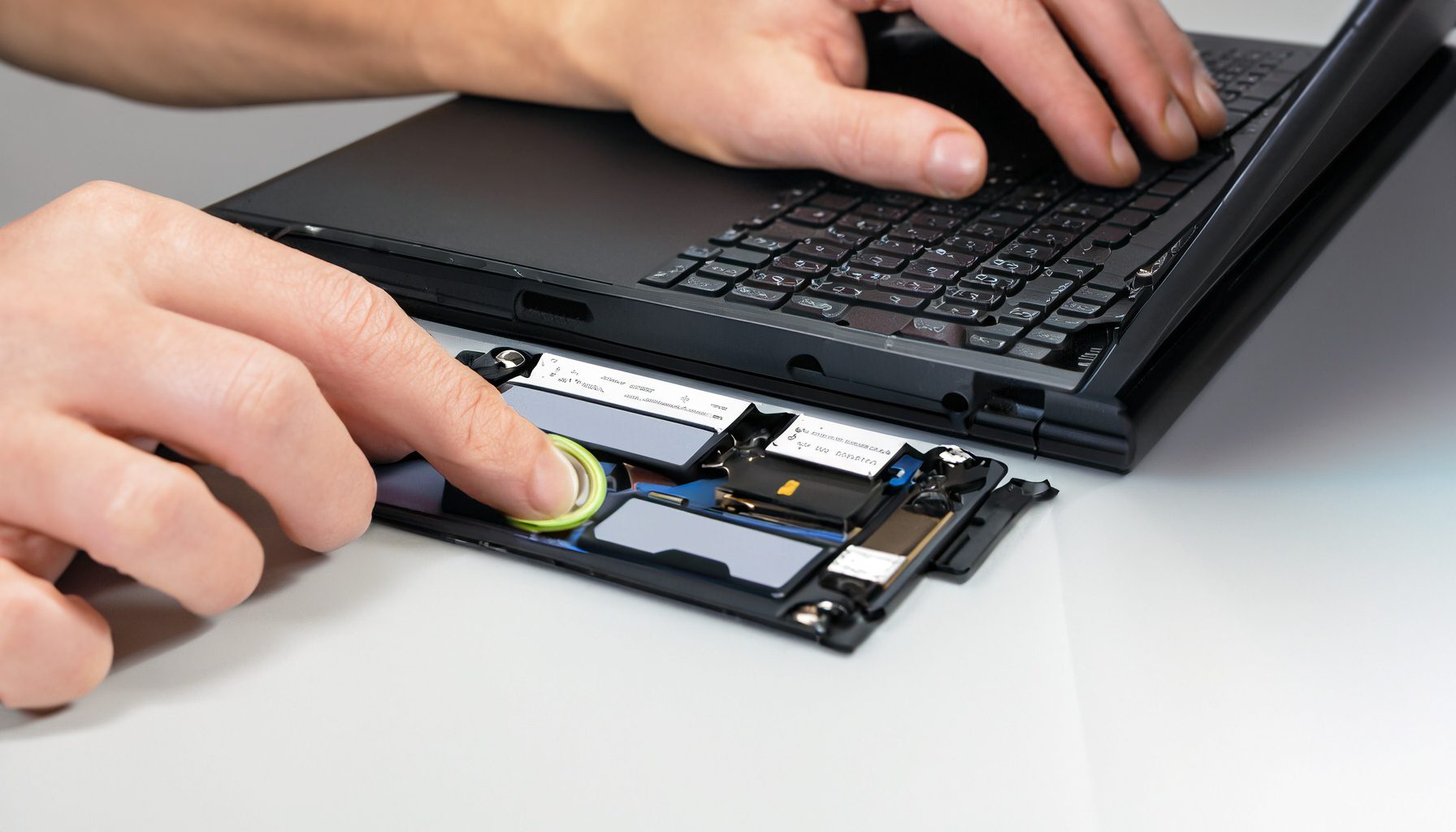
HP 17 cn0023dx Battery Replacement

[vc_video link=”https://www.youtube.com/watch?v=rjQ-hFDoEjc” title=”HP 17 cn0023dx Battery Replacement”]

Guide to HP Laptop Battery Replacement

Introduction

  • Objective: Guide on replacing the battery in an HP laptop.
  • Model: HP 17-inch CN0023DX.
  • Tools Required: Phillips screwdriver.

Symptoms of Battery Failure

  1. Battery Not Charging: If the battery isn’t holding a charge or drains rapidly.
  2. Physical Signs of Battery Failure:
    • Non-clickable touchpad.
    • Touchpad or palm rest bulging (indicating a swollen battery).

Steps for Battery Replacement

  1. Identify the Laptop Model: Check the model number on the back of the laptop.
  2. Remove Rubber Stoppers: Located at the laptop’s base, covering screws.
  3. Unscrew the Base: Use a Phillips screwdriver to remove all screws.
  4. Prying Open the Back Cover: Gently pry from the sides between the palm rest and back cover.
  5. Locate the Battery: Identify the battery inside the laptop.
  6. Remove the Battery: Unscrew and lift out the old battery.
  7. Battery Specification: Look for a replacement battery using the model number on the battery (e.g., HW03XL or L97300-0).

Post-Replacement

  • Reassemble the Laptop: Align the back cover and press it down firmly. Replace and tighten all screws.
  • Battery Care Tips: To prolong battery life, avoid leaving the charger plugged in continuously. Unplug when not in use.

Conclusion

  • Importance of Replacement: A failing battery can affect laptop performance and usability.
  • Difficulty Level: Moderate. Suitable for individuals with basic knowledge of laptop components.

Engagement

  • Call to Action: Encourages viewers to like, subscribe, and comment for further assistance.
  • Support Offered: Answers to questions related to battery replacement available in the comments section.

Additional Tips

  • Safety First: Always ensure the laptop is powered off and unplugged before starting any replacement procedure.
  • Warranty Check: Before proceeding with a self-replacement, check if your laptop is still under warranty which might cover battery issues.


Legal Disclosure:

UberGeeks video(s) or information provided on this website does not, and is not intended to, constitute legal advice, constitute IT professional advise, information technology expert, or tech related material; instead, all information and content available on this are for entertainment purposes only. No information contained in this video shall create any express or implied warranty or guarantee of any particular result.

UberGeeks shall not be held liable for any damages, losses, injuries, loss of data, or harm arising from the use of information or techniques presented in our video(s) or information provided on this website. By accessing and using our content, you agree to release us from any liability.

Participation in any activities or experiments presented in our video(s) is entirely voluntary. If you choose to replicate any actions or experiments, exercise caution, and prioritize your safety and the safety of your equipment.

Thank you for joining us on this IT journey. We hope you find our video(s) enjoyable. Remember, your participation in this channel is at your own discretion, and we encourage you to use the information responsibly and safely.

Transparency Note:

This article was collaboratively written with the assistance of ChatGPT, an AI language model developed by OpenAI. While the content was generated with AI assistance, it was reviewed and edited by our human editorial team to ensure accuracy and quality. As part of our efforts to enhance the user experience, we utilize artificial intelligence (AI) technologies to generate images and visual content on this website. Adobe Firefly AI-generated images may include graphics, illustrations, and other visual elements.


Related Articles









