
08/17/2022

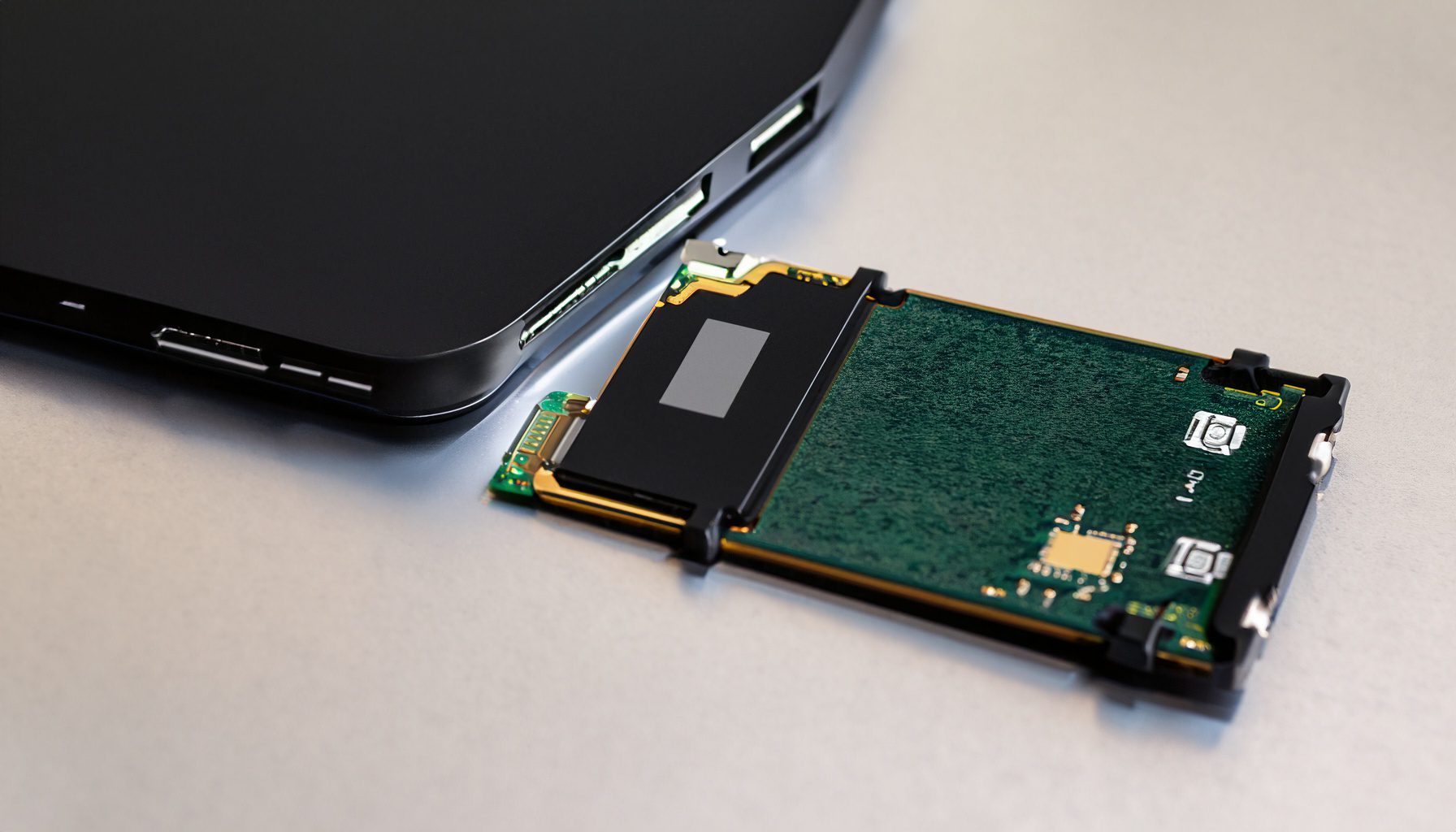
Lenovo Legion Y740 17IRH SSD Upgrade Replacement

[vc_video link=”https://www.youtube.com/watch?v=Kl9Vjz_IXUk” title=”Lenovo Legion Y740 17IRH SSD Upgrade Replacement”]

Guide to Upgrading Secondary Drive to SSD in Lenovo Legion Y740-17IRH Gaming Laptop

Introduction

  • Objective: Tutorial on replacing the secondary spinning drive with a solid-state drive (SSD) in a Lenovo Legion Y740-17IRH gaming laptop.
  • Tools Needed: Phillips screwdriver, replacement SSD, possibly an external drive for data transfer.

Steps for SSD Upgrade

  1. Identifying the Model:
    • Check the laptop model by looking at the label on the back. Example model: Lenovo Legion Y740-17IRH.
  2. Removing Back Cover:
    • Use a small Phillips screwdriver to remove the screws from the back cover.
    • Carefully pry open the back cover starting from a corner where there’s a gap.
    • Slide the back cover down towards yourself to remove it.
  3. Locating the Secondary Drive:
    • Find the 2.5-inch spinning hard drive, typically located on the bottom left inside the laptop.
  4. Data Transfer Consideration:
    • If needed, transfer data from the existing drive to an external drive before continuing.
  5. Removing Existing Hard Drive:
    • Unscrew and gently lift the hard drive.
    • Disconnect the SATA connector carefully.
  6. Transferring Hard Drive Bracket to SSD:
    • Remove the bracket from the existing hard drive.
    • Attach the bracket to the new SSD using the same screws.
  7. Installing the SSD:
    • Connect the SATA connector to the SSD.
    • Align and secure the SSD with the bracket in place.
  8. Reassembling the Laptop:
    • Replace the back cover, starting from the top.
    • Ensure everything is aligned correctly before pressing down to close.
    • Replace all screws to secure the back cover.

Post-Installation Steps

  1. Initializing New SSD:
    • After installation, the new SSD might not immediately show up in Windows.
    • Right-click the Windows icon (Windows 10: bottom left; Windows 11: center) and select ‘Disk Management’.
    • Initialize and format the new SSD through Disk Management.
  2. Data Transfer:
    • Once the SSD is formatted and visible in Windows, transfer data from the external drive (if used) back to the SSD.

Conclusion

  • Model Specific: This guide is specific to the Lenovo Legion Y740-17IRH model.
  • Support: For further assistance, viewers are encouraged to comment below.

Additional Tips

  • Screw Organization: Keep track of screws, as they vary in size.
  • Handling Connectors: Be cautious with connectors to avoid damage.
  • Tool and Part Links: Links for purchasing tools and the SSD are provided in the video description.


Legal Disclosure:

UberGeeks video(s) or information provided on this website does not, and is not intended to, constitute legal advice, constitute IT professional advise, information technology expert, or tech related material; instead, all information and content available on this are for entertainment purposes only. No information contained in this video shall create any express or implied warranty or guarantee of any particular result.

UberGeeks shall not be held liable for any damages, losses, injuries, loss of data, or harm arising from the use of information or techniques presented in our video(s) or information provided on this website. By accessing and using our content, you agree to release us from any liability.

Participation in any activities or experiments presented in our video(s) is entirely voluntary. If you choose to replicate any actions or experiments, exercise caution, and prioritize your safety and the safety of your equipment.

Thank you for joining us on this IT journey. We hope you find our video(s) enjoyable. Remember, your participation in this channel is at your own discretion, and we encourage you to use the information responsibly and safely.

Transparency Note:

This article was collaboratively written with the assistance of ChatGPT, an AI language model developed by OpenAI. While the content was generated with AI assistance, it was reviewed and edited by our human editorial team to ensure accuracy and quality. As part of our efforts to enhance the user experience, we utilize artificial intelligence (AI) technologies to generate images and visual content on this website. Adobe Firefly AI-generated images may include graphics, illustrations, and other visual elements.


Related Articles









