
01/18/2022

TP Link AX1800 Setup and Port Forwarding PS5

[vc_video link=”https://www.youtube.com/watch?v=9o2vSdrbL2A” title=”TP Link AX1800 Setup and Port Forwarding PS5″]

Step-by-Step Guide to Setting Up Your TP-Link AX1800 Router and Port Forwarding for PlayStation 5

Introduction:

Hello everyone, Simon here. Hope you’re all doing well. Today, I have a special guide that many of you might find extremely useful. I will be walking you through the process of setting up a brand new TP-Link AX1800 router, and I’ll also show you how to set up port forwarding specifically for a PlayStation 5. This guide is perfect for both tech enthusiasts and those less familiar with home networking.

Setting Up the TP-Link AX1800 Router:

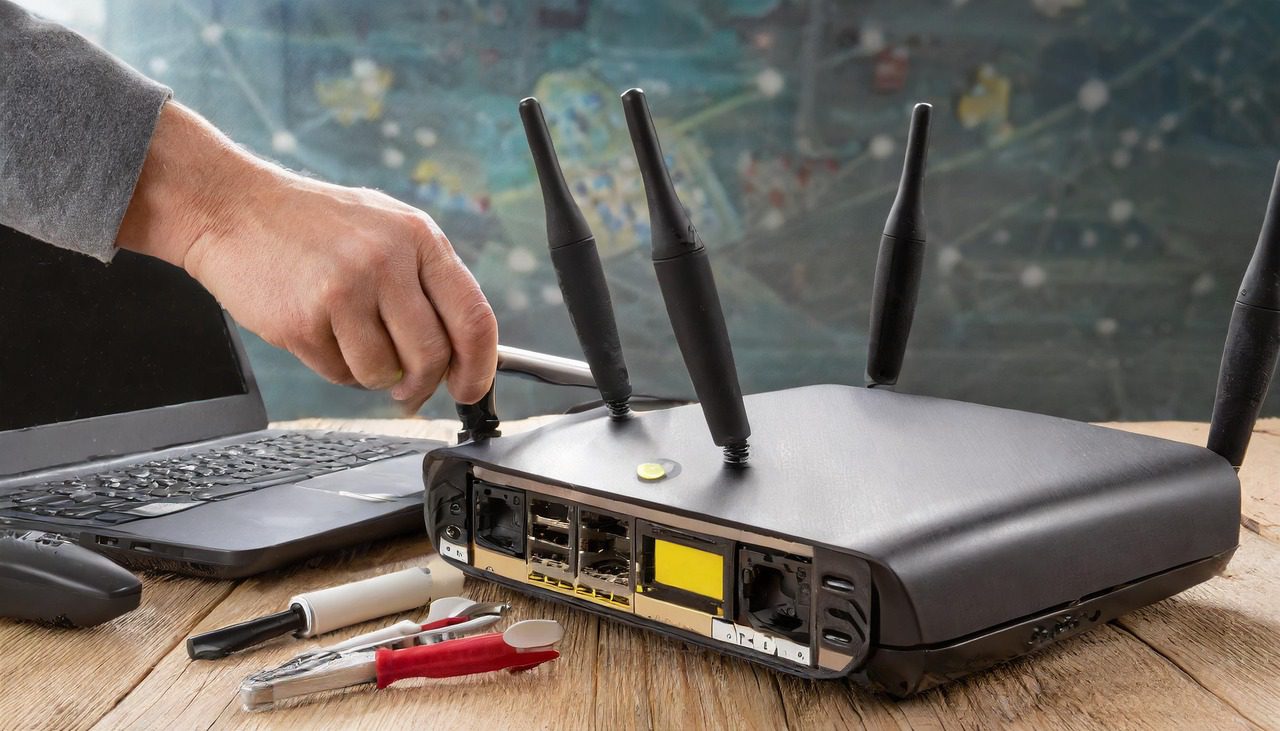
Firstly, let’s take a closer look at the TP-Link AX1800 router. This model comes equipped with four antennas, ensuring a strong and stable Wi-Fi signal throughout your home. On the side of the router, you’ll find the power cable slot, the power button, and the WPS Wi-Fi button.

Here’s a step-by-step guide to setting up the router:

  1. Connecting the Cables:
    • The black cable is the power cable, which goes to the outlet.
    • The white cable (or it could be a different color) from your internet service provider (like Spectrum) should connect to the blue port on the router.
    • The orange ports are for your local devices, such as computers, laptops, TVs, or security cameras.
  2. Configuring the Router:
    • On your laptop, open a web browser (Microsoft Edge, Chrome, or Firefox).
    • Go to tplinkwifi.net.
    • Enter a password for the router when prompted.
    • Select your time zone (for example, Hawaii).
    • Leave the connection type as the default “Dynamic IP” (common for most residential setups).
    • Personalize your wireless settings, including your network name (SSID) and password.
  3. Finalizing Setup:
    • The router will connect to the internet and complete the setup process.
    • You may skip the TP-Link cloud service offer and firmware update for now.
    • Once setup is successful, you should see your Wi-Fi network name and password. Make a note of these details.

Port Forwarding for PlayStation 5:

Port forwarding is crucial for gaming as it can help reduce lag and improve connection stability. Here’s how to set it up for your PlayStation 5:

  1. Access Router Settings:
    • Revisit tplinkwifi.net and log in with your router password.
    • Navigate to the “Advanced” section and click on “Net Forwarding”.
  2. Setting Up Ports:
    • Click “Add” to create new port forwarding rules.
    • For PlayStation 5, you’ll need to open several ports, including 1935, 3074, 3478, 3479, and 3480.
    • Assign each port as both TCP and UDP (select “All”) to ensure optimal performance.
    • Make sure you choose your PlayStation 5 from the list of connected devices.
  3. Finalizing Port Forwarding:
    • After adding all the necessary ports, save your settings.
    • Restart your PlayStation 5 to ensure the changes take effect.

Conclusion:

There you have it – a comprehensive guide to setting up your TP-Link AX1800 router and configuring port forwarding for an enhanced PlayStation 5 gaming experience. This setup will ensure that your home network is not only robust but also optimally configured for gaming. If you have any questions or need further assistance, feel free to drop a comment below. Happy gaming, and take care!

Legal Disclosure:

UberGeeks video(s) or information provided on this website does not, and is not intended to, constitute legal advice, constitute IT professional advise, information technology expert, or tech related material; instead, all information and content available on this are for entertainment purposes only. No information contained in this video shall create any express or implied warranty or guarantee of any particular result.

UberGeeks shall not be held liable for any damages, losses, injuries, loss of data, or harm arising from the use of information or techniques presented in our video(s) or information provided on this website. By accessing and using our content, you agree to release us from any liability.

Participation in any activities or experiments presented in our video(s) is entirely voluntary. If you choose to replicate any actions or experiments, exercise caution, and prioritize your safety and the safety of your equipment.

Thank you for joining us on this IT journey. We hope you find our video(s) enjoyable. Remember, your participation in this channel is at your own discretion, and we encourage you to use the information responsibly and safely.

Transparency Note:

This article was collaboratively written with the assistance of ChatGPT, an AI language model developed by OpenAI. While the content was generated with AI assistance, it was reviewed and edited by our human editorial team to ensure accuracy and quality. As part of our efforts to enhance the user experience, we utilize artificial intelligence (AI) technologies to generate images and visual content on this website. Adobe Firefly AI-generated images may include graphics, illustrations, and other visual elements.


Related Articles









