
01/11/2022

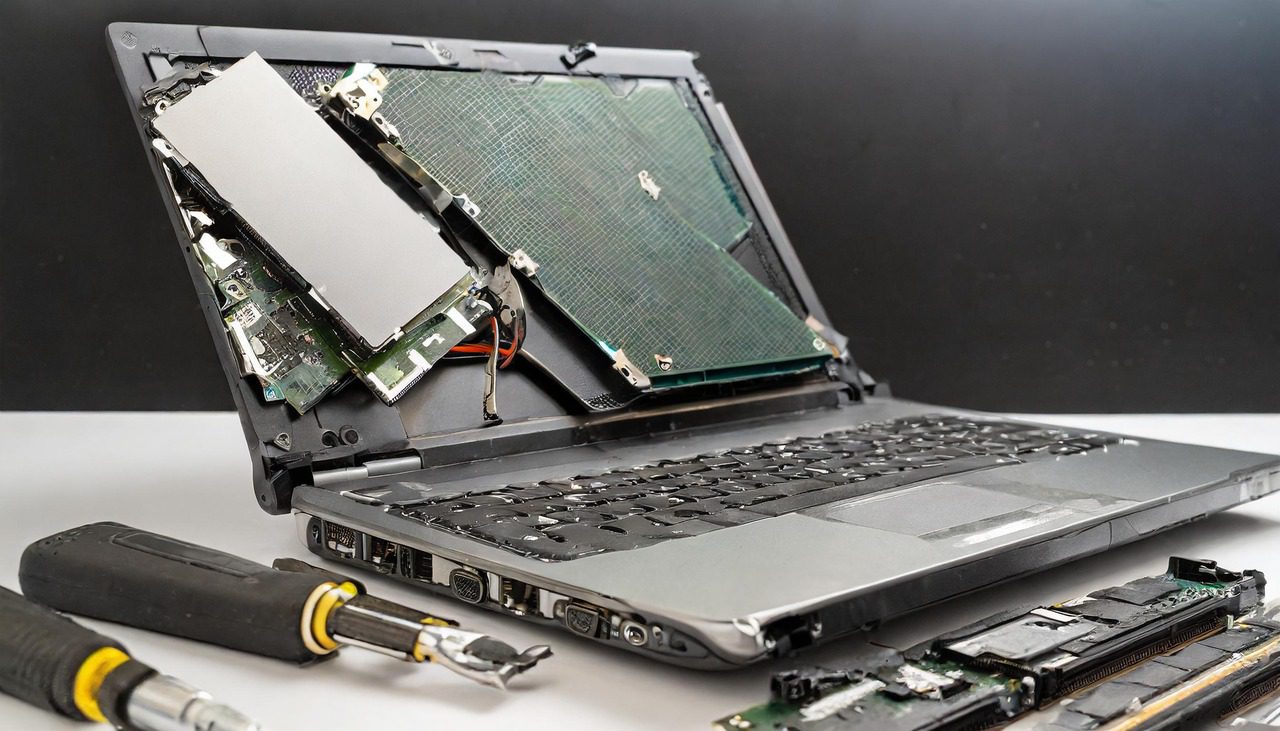
Lenovo Y520 15IKBM Tear Down Disassemble

[vc_video link=”https://www.youtube.com/watch?v=EFi30jGgdSQ” title=”Lenovo Y520 15IKBM Tear Down Disassemble”]

Comprehensive Guide to Lenovo Y520-15IKBM Laptop Teardown and Upgrade

Hello tech enthusiasts, Simon here! In this blog, I’m excited to walk you through a comprehensive teardown of the Lenovo Y520-15IKBM laptop. This guide is perfect for those looking to upgrade their RAM, hard drive, replace the battery, or even change the motherboard. Let’s embark on this technical journey together!

Preliminary Steps

Ensure your laptop is turned off and disconnected from any power source. This is a crucial safety step.

Tools You’ll Need

  • Phillips head screwdriver
  • Plastic prying tool

The Teardown Process

Step 1: Removing the Back Cover

Flip your laptop to access the back cover. Start by removing all the Phillips head screws. There are four screws on the top, two in the center, and additional ones along the bottom. Once all screws are out, use the plastic prying tool to gently lift the back cover, starting from a corner.

Step 2: Internal Overview

With the back cover off, you’ll notice several components:

  • The dusty CPU fan: Clean it using a duster.
  • The M.2 drive: This is where your data and OS are stored.
  • The battery: Held in place by screws and a connector.
  • The RAM: Located under a cover and easy to upgrade.
  • The Wi-Fi module: Identified by a gray and black cable.
  • The CMOS battery: Useful for resetting the motherboard.
  • Speakers: Easily removable without screws.

Step 3: Upgrading Components

  • M.2 Drive: Upgrade it by removing one screw and sliding out the drive.
  • RAM: Upgrade by pushing the clips and swapping the modules.
  • Battery Replacement: Remove screws and slide out the connector.

Step 4: Further Disassembly

If you need to access more components, continue with these steps:

  • Disconnect the CPU fan and speaker connectors.
  • Remove the heatsink to access the CPU and GPU.
  • Carefully lift out the motherboard after disconnecting all relevant cables.

Step 5: CPU and GPU Maintenance

Clean the CPU and GPU with alcohol wipes and reapply thermal paste for better heat dissipation.

Step 6: Keyboard and Palm Rest

The keyboard is built into the palm rest and is not individually replaceable. To replace a faulty keyboard, you’d need to swap out the entire palm rest.

Reassembling Your Laptop

Follow the disassembly steps in reverse order to reassemble your laptop. Ensure all connectors are securely in place and screws are tightened.

Conclusion

And there you have it! A complete guide to disassembling and upgrading the Lenovo Y520-15IKBM. Whether you’re upgrading your RAM, swapping out the hard drive, or just giving your laptop a good clean, this guide has got you covered.

Have questions or need further assistance? Feel free to drop your queries in the comments below. If you found this guide helpful, please like and subscribe for more tech tutorials. Thanks for reading, and happy upgrading!


This blog post is adapted from your script to make it reader-friendly and informative. If you need any adjustments or additional sections, let me know!

Legal Disclosure:

UberGeeks video(s) or information provided on this website does not, and is not intended to, constitute legal advice, constitute IT professional advise, information technology expert, or tech related material; instead, all information and content available on this are for entertainment purposes only. No information contained in this video shall create any express or implied warranty or guarantee of any particular result.

UberGeeks shall not be held liable for any damages, losses, injuries, loss of data, or harm arising from the use of information or techniques presented in our video(s) or information provided on this website. By accessing and using our content, you agree to release us from any liability.

Participation in any activities or experiments presented in our video(s) is entirely voluntary. If you choose to replicate any actions or experiments, exercise caution, and prioritize your safety and the safety of your equipment.

Thank you for joining us on this IT journey. We hope you find our video(s) enjoyable. Remember, your participation in this channel is at your own discretion, and we encourage you to use the information responsibly and safely.

Transparency Note:

This article was collaboratively written with the assistance of ChatGPT, an AI language model developed by OpenAI. While the content was generated with AI assistance, it was reviewed and edited by our human editorial team to ensure accuracy and quality. As part of our efforts to enhance the user experience, we utilize artificial intelligence (AI) technologies to generate images and visual content on this website. Adobe Firefly AI-generated images may include graphics, illustrations, and other visual elements.


Related Articles









