
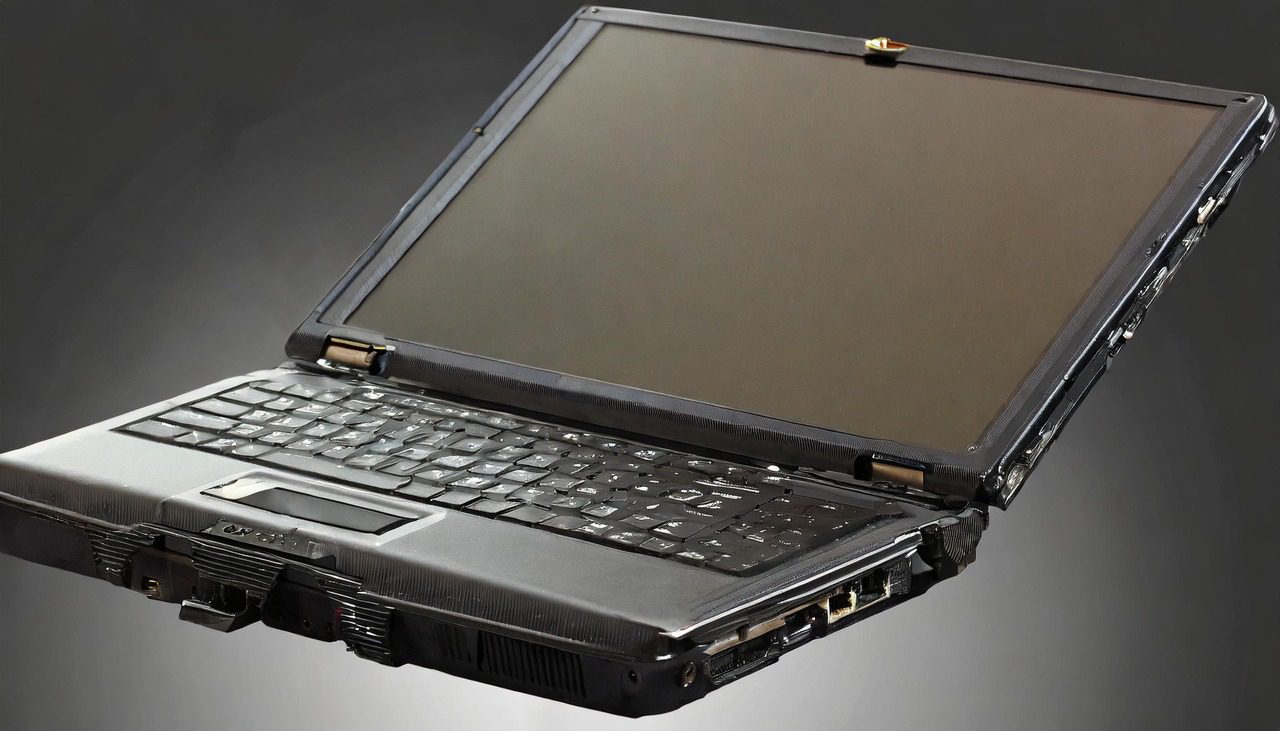
11/30/2021

Acer Aspire 3 A315 23 Tear Down Disassemble

[vc_video link=”https://www.youtube.com/watch?v=B3dNA03Uqjo” title=”Acer Aspire 3 A315 23 Tear Down Disassemble”]

Acer Aspire 3 (N18Q13) Complete Teardown Guide

Welcome, I’m Simon. In this video, we’re going to do a complete teardown of an Acer Aspire 3 laptop. I’ll guide you through each step and explain how to upgrade components like RAM, change the battery, upgrade your hard drive, or even replace the motherboard.

Tools and Preparation

  • Model Identification: This is the Acer Aspire 3, model N18Q13.
  • Tools: You’ll need a Phillips screwdriver. I’m using an electric screwdriver for efficiency. You can find a link to a similar screwdriver in the description below.

Teardown Process

  1. Removing the Back Cover: Start by removing all screws from the back cover. They are of the same size, so no need to worry about mixing them up. Use a plastic pry tool to gently lift off the back cover.
  2. Exploring Internal Components:
    • CPU Fan and Heatsink: Here’s where the CPU fan and heatsink are located.
    • Battery: The battery model is AP18C8K. If your touchpad isn’t clicking properly, it could be due to a swollen battery pressing against it.
    • M.2 SSD: This is where your data is stored. To extract data, you can use a USB NVMe adapter.
    • CMOS Battery: Located here for resetting BIOS settings.
    • RAM: This laptop uses DDR4 RAM. You can easily upgrade by removing the existing module.
    • Wi-Fi Card: Simple to remove and replace if needed.
    • CPU Fan: Removing the CPU fan can help in cleaning or replacing it.
  3. Applying New Thermal Paste:
    • If your laptop overheats, consider cleaning the fan and applying new thermal paste to the CPU heatsink.
  4. Removing the Motherboard:
    • Carefully disconnect all connectors and remove screws securing the motherboard. Lift it out gently.
  5. Keyboard and Palm Rest:
    • The keyboard is integrated into the palm rest and isn’t individually replaceable. If it fails, you’ll need to replace the entire palm rest.
  6. Screen Assembly:
    • The screen can be replaced as a whole unit or just the LCD panel. I’ll cover this in a separate tutorial.

Conclusion

This teardown should help you understand your Acer Aspire 3’s internal layout and how to upgrade or replace key components. Remember, each step requires care and attention to avoid damaging your laptop.


Thank you for watching. If you found this video helpful, please like and subscribe for more tutorials. Feel free to leave any questions in the comments below. See you in the next video!

Legal Disclosure:

UberGeeks video(s) or information provided on this website does not, and is not intended to, constitute legal advice, constitute IT professional advise, information technology expert, or tech related material; instead, all information and content available on this are for entertainment purposes only. No information contained in this video shall create any express or implied warranty or guarantee of any particular result.

UberGeeks shall not be held liable for any damages, losses, injuries, loss of data, or harm arising from the use of information or techniques presented in our video(s) or information provided on this website. By accessing and using our content, you agree to release us from any liability.

Participation in any activities or experiments presented in our video(s) is entirely voluntary. If you choose to replicate any actions or experiments, exercise caution, and prioritize your safety and the safety of your equipment.

Thank you for joining us on this IT journey. We hope you find our video(s) enjoyable. Remember, your participation in this channel is at your own discretion, and we encourage you to use the information responsibly and safely.

Transparency Note:

This article was collaboratively written with the assistance of ChatGPT, an AI language model developed by OpenAI. While the content was generated with AI assistance, it was reviewed and edited by our human editorial team to ensure accuracy and quality. As part of our efforts to enhance the user experience, we utilize artificial intelligence (AI) technologies to generate images and visual content on this website. Adobe Firefly AI-generated images may include graphics, illustrations, and other visual elements.


Related Articles









