
11/23/2021

iPad 8th A2270 A2428 A2429 Touch Screen Replacement

[vc_video link=”https://www.youtube.com/watch?v=yhNm06gmKRQ” title=”iPad 8th A2270 A2428 A2429 Touch Screen Replacement”]

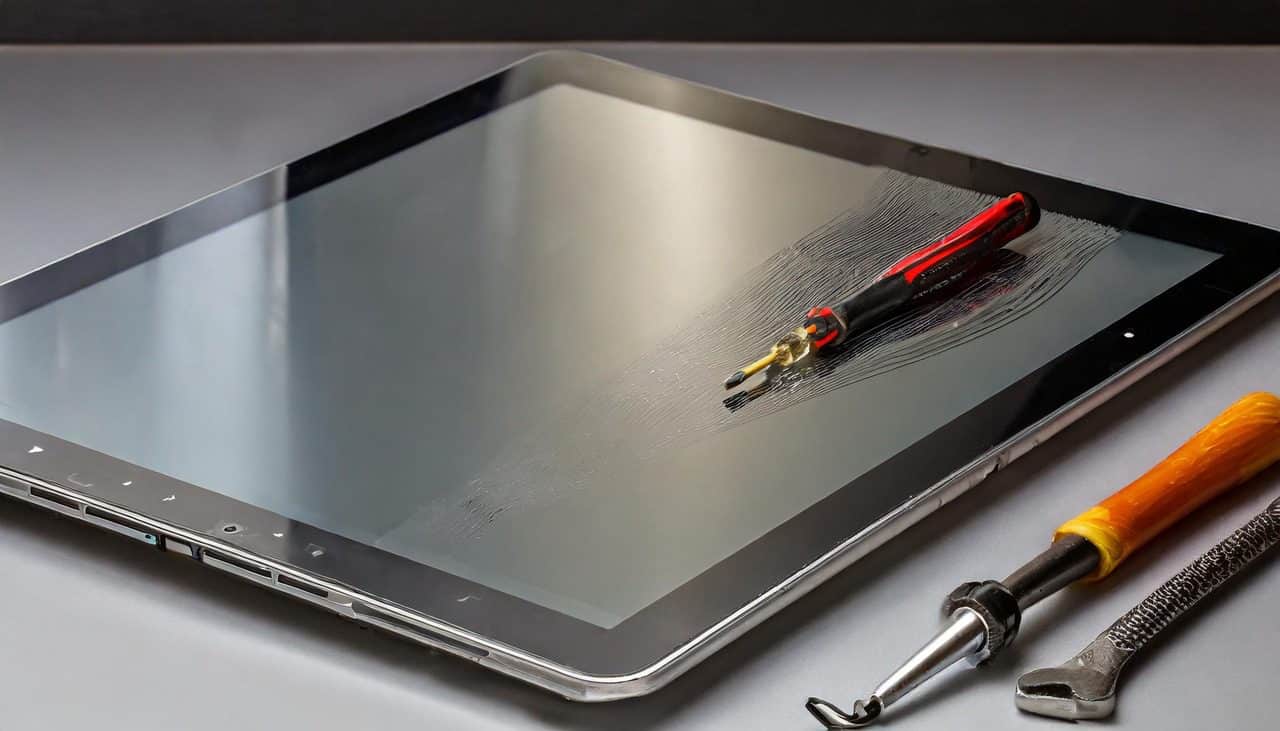
iPad 8th Generation (A2270) Screen Repair Tutorial

Hello, I’m Simon, and in this video, I’ll guide you through repairing the screen of an iPad 8th generation, model A2270.

Safety First

  • Essential Gear: Safety goggles are a must to protect your eyes from any flying glass fragments during the repair process.

Identifying the iPad

  • Model Check: The model number A2270 confirms it’s an iPad 8th generation.

Assessing the Damage

  • Damage Overview: The glass is shattered, affecting the home button and disabling Touch ID. However, the LCD beneath is still functional.

Tools and Parts Needed

  • Necessary Tools: Prying tool, double-sided adhesive tape, super glue (for the home button bracket), scissors, screwdrivers, plastic prying tools.
  • Heat Source: A heat gun is used to warm up the screen and loosen the adhesive. A hair dryer could be a substitute.
  • Parts: The replacement digitizer (glass screen) can be found on Amazon or eBay. Links will be provided in the description.

Process Overview

  • Warning: Screen replacement can be challenging, especially for beginners. It requires patience and careful handling.
  • Heat Application: Gently heat the screen’s edges to soften the adhesive. Move the heat gun constantly to avoid concentrating heat in one area.
  • Removing the Broken Screen: Carefully pry and remove the shattered glass, paying extra attention to avoid damaging the Wi-Fi antenna and the home button cable.
  • Preparing for New Screen Installation: Clean the iPad’s surface to remove any glass shards or debris.

Replacing the Home Button

  • Home Button Transfer: Carefully transfer the original home button to the new screen. Super glue is used to secure the button’s bracket.
  • Touch ID: Note that replacing the home button with a third-party part will disable Touch ID.

Reinstalling Components

  • Reconnecting Digitizer Cable: Connect the new digitizer cable to the iPad.
  • LCD Screen Reattachment: Reattach the LCD screen, being careful not to damage it.
  • Final Assembly: After ensuring that everything works (home button and touchscreen functionality), remove the protective film from the adhesive and carefully align the new screen before pressing it into place.

Conclusion and Tips

  • Time Allocation: Allow at least two hours for the repair, especially if it’s your first attempt.
  • Final Testing: Test all functions one last time before sealing the screen.
  • Engagement Request: If the video is helpful, viewers are encouraged to like, subscribe, and comment for any queries or feedback.

Thank you for watching this tutorial on repairing the screen of an iPad 8th generation. If you have any questions or need further assistance, feel free to leave a comment below. Don’t forget to like and subscribe for more helpful guides!

Legal Disclosure:

UberGeeks video(s) or information provided on this website does not, and is not intended to, constitute legal advice, constitute IT professional advise, information technology expert, or tech related material; instead, all information and content available on this are for entertainment purposes only. No information contained in this video shall create any express or implied warranty or guarantee of any particular result.

UberGeeks shall not be held liable for any damages, losses, injuries, loss of data, or harm arising from the use of information or techniques presented in our video(s) or information provided on this website. By accessing and using our content, you agree to release us from any liability.

Participation in any activities or experiments presented in our video(s) is entirely voluntary. If you choose to replicate any actions or experiments, exercise caution, and prioritize your safety and the safety of your equipment.

Thank you for joining us on this IT journey. We hope you find our video(s) enjoyable. Remember, your participation in this channel is at your own discretion, and we encourage you to use the information responsibly and safely.

Transparency Note:

This article was collaboratively written with the assistance of ChatGPT, an AI language model developed by OpenAI. While the content was generated with AI assistance, it was reviewed and edited by our human editorial team to ensure accuracy and quality. As part of our efforts to enhance the user experience, we utilize artificial intelligence (AI) technologies to generate images and visual content on this website. Adobe Firefly AI-generated images may include graphics, illustrations, and other visual elements.


Related Articles









