
08/20/2021

MSI Laptop MS 16Q2 CPU Fan Replacement

[vc_video link=”https://www.youtube.com/watch?v=FqsW5E7kiYg” title=”MSI Laptop MS 16Q2 CPU Fan Replacement”]

How to Replace a Faulty Fan in an MSI Gaming Laptop

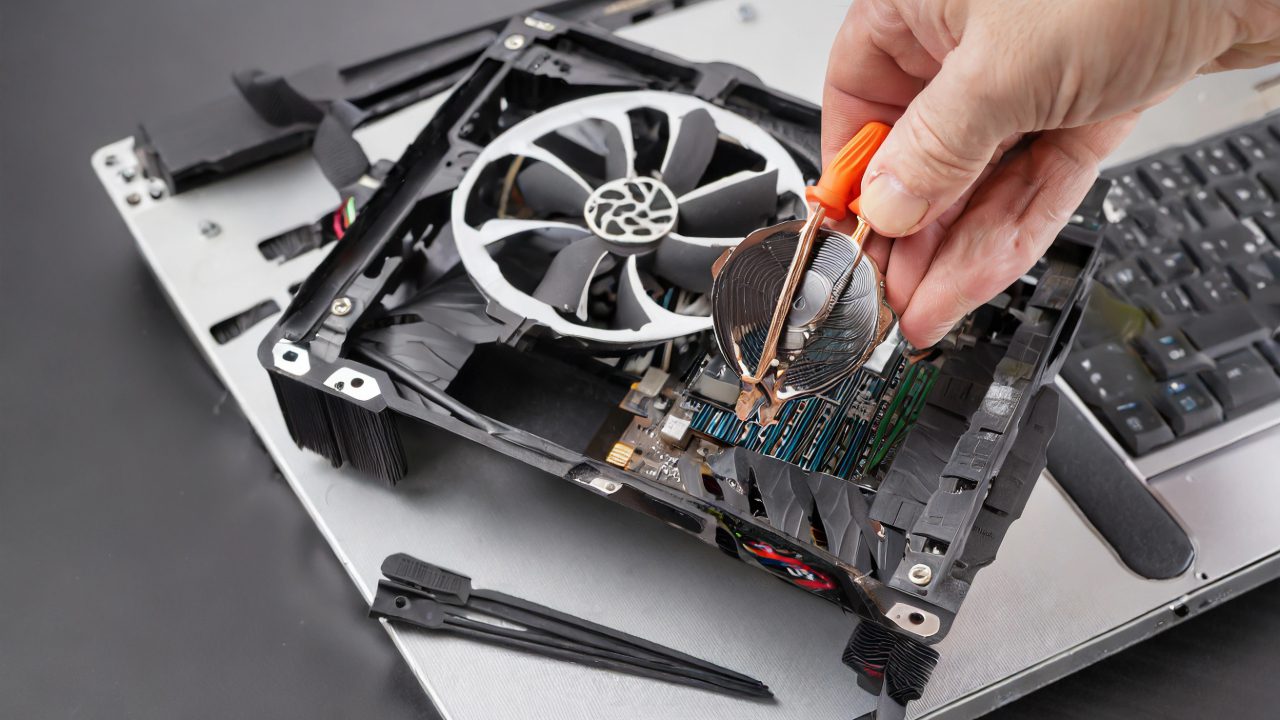
If you’re experiencing grinding noises from your MSI gaming laptop, it might be time to replace the fan. This guide provides a step-by-step process for fan replacement in an MSI laptop, model MS-16Q2.

Tools and Materials Needed

  • Screwdrivers (Phillips and a smaller type for the fan screws)
  • Replacement fan (purchased from a reliable source)
  • Patience and attention to detail

Steps for Fan Replacement

  1. Turn off the Laptop: Ensure the laptop is shut down and unplugged from any power source.
  2. Remove the Back Plate: Unscrew the back plate using the appropriate screwdriver. The screws should be the same size, making reassembly straightforward.
  3. Locate and Assess the Fan: Observe the fan’s condition. A properly functioning fan should spin smoothly without stopping abruptly or making grinding noises.
  4. Disconnect the Battery: Slide down the battery connector to disconnect the battery safely.
  5. Detach the Faulty Fan: Carefully disconnect the fan connector and unscrew the fan. Be gentle to avoid damaging the connector or other components.
  6. Remove the Faulty Fan: Once unscrewed, remove the fan. You may need to peel off some tape that’s securing the fan.
  7. Clean the Area: Before installing the new fan, clean any dust build-up around the fan area and the heatsink.
  8. Install the New Fan: Place the new fan in the exact position as the old one and screw it back in place. Reconnect the fan connector.
  9. Reassemble the Laptop: Replace the back plate and screw it back on.
  10. Test the Laptop: Power on the laptop to ensure the new fan functions correctly without making any abnormal noises.

Additional Tips

  • While you have the laptop open, it’s a good opportunity to clean any dust from other components and check the overall health of your laptop.
  • Consider applying new thermal paste to the CPU and heatsink if they are running hot.
  • If you need to upgrade your storage or RAM, this is an opportune time since you already have the laptop open.

Conclusion

Replacing a fan in an MSI gaming laptop is a straightforward process that can significantly improve your laptop’s performance and reduce noise. Regular maintenance, including cleaning and replacing worn-out parts, can extend the life of your gaming laptop. If you encounter any issues or have questions, feel free to ask in the comments below.


Regular maintenance and timely replacements of components like fans can keep your gaming laptop running efficiently. This guide aims to help you through the process, ensuring your MSI gaming laptop continues to deliver optimal performance.

Legal Disclosure:

UberGeeks video(s) or information provided on this website does not, and is not intended to, constitute legal advice, constitute IT professional advise, information technology expert, or tech related material; instead, all information and content available on this are for entertainment purposes only. No information contained in this video shall create any express or implied warranty or guarantee of any particular result.

UberGeeks shall not be held liable for any damages, losses, injuries, loss of data, or harm arising from the use of information or techniques presented in our video(s) or information provided on this website. By accessing and using our content, you agree to release us from any liability.

Participation in any activities or experiments presented in our video(s) is entirely voluntary. If you choose to replicate any actions or experiments, exercise caution, and prioritize your safety and the safety of your equipment.

Thank you for joining us on this IT journey. We hope you find our video(s) enjoyable. Remember, your participation in this channel is at your own discretion, and we encourage you to use the information responsibly and safely.

Transparency Note:

This article was collaboratively written with the assistance of ChatGPT, an AI language model developed by OpenAI. While the content was generated with AI assistance, it was reviewed and edited by our human editorial team to ensure accuracy and quality. As part of our efforts to enhance the user experience, we utilize artificial intelligence (AI) technologies to generate images and visual content on this website. Adobe Firefly AI-generated images may include graphics, illustrations, and other visual elements.


Related Articles









