
08/04/2021

HP Chromebook x360 a14 Screen Replacement

[vc_video link=”https://www.youtube.com/watch?v=jPZyNXHyudU” title=”HP Chromebook x360 a14 Screen Replacement”]

HP Chromebook x360 Screen Replacement Guide

Are you dealing with a cracked screen on your HP Chromebook x360 (model 14A)? Don’t worry; this guide will walk you through the step-by-step process of replacing the screen yourself.

Identifying the Problem

The HP Chromebook x360’s LCD screen can easily crack under pressure or impact. Before replacing the screen, ensure the rest of the laptop is functional. You can connect it to an external monitor via a USB-C to VGA connector to check if other components are working correctly.

Tools You’ll Need:

  • Metal prying tool
  • Replacement LCD screen (model NT140WHM-T00)
  • Double-sided adhesive tape (preferably red adhesive tape)

Step-by-Step Replacement Process:

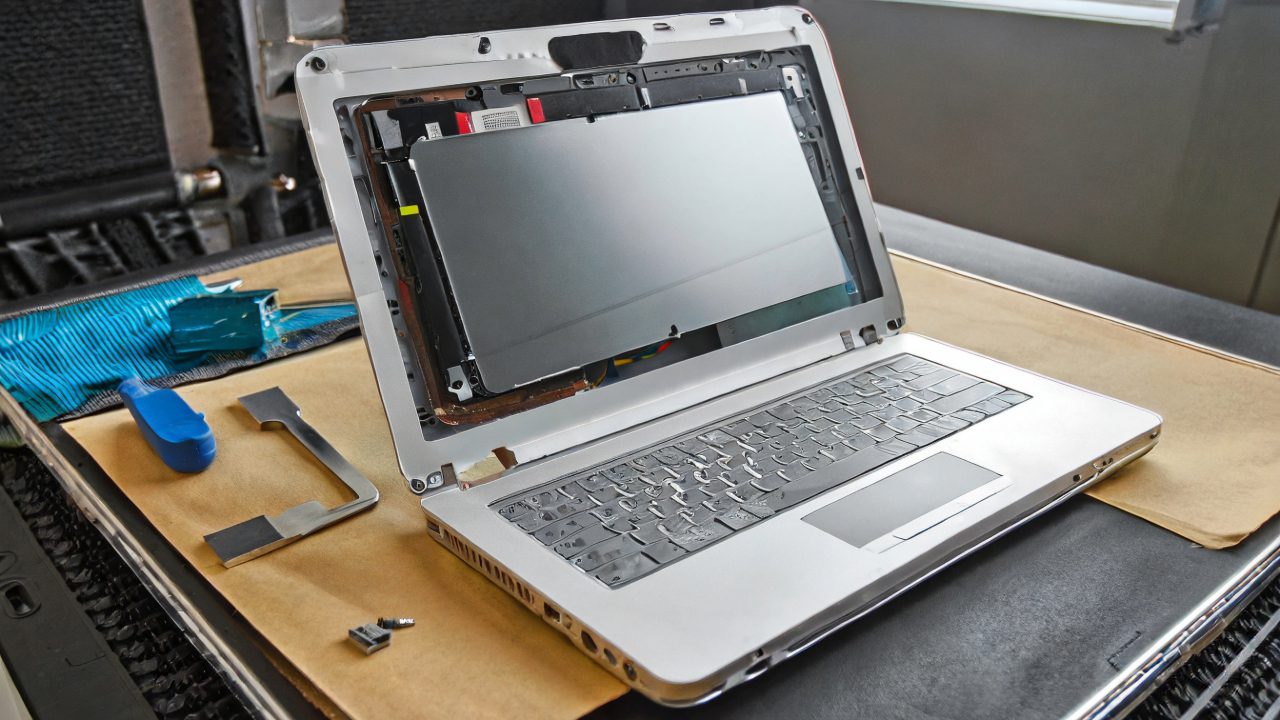
  1. Bezel Removal: Start by gently prying off the bezel using a metal prying tool. The bezel is attached with double-sided adhesive tape, so proceed with care to avoid damaging any cables.
  2. Screen Removal: Once the bezel is off, you’ll see that the screen is held in place with double-sided tape. Carefully remove this tape from both sides to free the screen.
  3. Disconnecting the Screen: Gently flip the screen towards the keyboard. You’ll find a connector secured with a clip. Carefully open the clip and slide the connector out to disconnect the screen.
  4. Screen Replacement: For the new screen, prepare it by attaching double-sided tape along its sides. Make sure to leave a small overhang of the tape for easy removal in the future. Connect the new screen using the reversed process of disconnection.
  5. Reattaching the Bezel: Once the new screen is securely connected and tested, reattach the bezel by pressing it firmly back into place, ensuring the adhesive tape holds it securely.

Conclusion:

Replacing the screen on your HP Chromebook x360 is a straightforward process that can save you time and money. With the right tools and careful handling, you can have your Chromebook looking as good as new. Remember, if you’re not confident in performing the replacement yourself, it’s always a good idea to seek professional help.

For purchasing links to replacement screens and more detailed instructions, please refer to the video description.


This summarized blog post provides a clear and concise guide for those looking to replace the screen of their HP Chromebook x360, model 14A. The process is detailed with the necessary steps and tools, making it a valuable resource for Chromebook owners.

Legal Disclosure:

UberGeeks video(s) or information provided on this website does not, and is not intended to, constitute legal advice, constitute IT professional advise, information technology expert, or tech related material; instead, all information and content available on this are for entertainment purposes only. No information contained in this video shall create any express or implied warranty or guarantee of any particular result.

UberGeeks shall not be held liable for any damages, losses, injuries, loss of data, or harm arising from the use of information or techniques presented in our video(s) or information provided on this website. By accessing and using our content, you agree to release us from any liability.

Participation in any activities or experiments presented in our video(s) is entirely voluntary. If you choose to replicate any actions or experiments, exercise caution, and prioritize your safety and the safety of your equipment.

Thank you for joining us on this IT journey. We hope you find our video(s) enjoyable. Remember, your participation in this channel is at your own discretion, and we encourage you to use the information responsibly and safely.

Transparency Note:

This article was collaboratively written with the assistance of ChatGPT, an AI language model developed by OpenAI. While the content was generated with AI assistance, it was reviewed and edited by our human editorial team to ensure accuracy and quality. As part of our efforts to enhance the user experience, we utilize artificial intelligence (AI) technologies to generate images and visual content on this website. Adobe Firefly AI-generated images may include graphics, illustrations, and other visual elements.


Related Articles









