
05/08/2021

Asus GL731G Overheating

[vc_video link=”https://www.youtube.com/watch?v=sy4mWf4yKow” title=”Asus GL731G Overheating”]

How to Apply New Thermal Paste to Your ASUS GL731G Gaming Laptop

Introduction

Overheating can significantly impact the performance of your ASUS GL731G gaming laptop. A common solution is to apply new thermal paste, which helps in efficient heat transfer from the CPU and GPU to the heat sink. This guide will walk you through the steps to clean the fans and apply new thermal paste.

Tools You’ll Need

  • Screwdriver set
  • Canned air duster
  • Thermal paste
  • Alcohol wipes
  • Pry tool (optional)

Step 1: Removing the Screws

Begin by removing all the screws from the back cover of the laptop. Remember, screws are not the same size, so keep track of where each screw belongs.

Step 2: Opening the Back Cover

Carefully pry open the back cover. Be mindful of the two cables attached to the cover for lighting. Flip the cover towards yourself and disconnect these cables by lifting the clippers and sliding the cables out.

Step 3: Cleaning the Fans

Upon opening, you might find dust accumulation on the fans. Use a canned air duster to clean the fans thoroughly.

Step 4: Removing the Heat Sink

The next step is to remove the heat sink. Unscrew it and gently pry it off. You’ll notice thermal pads on the silver parts of the heat sink and thermal paste on the copper parts.

Step 5: Cleaning and Applying New Thermal Paste

  • Clean the old thermal paste from the heat sink and the CPU/GPU using alcohol wipes.
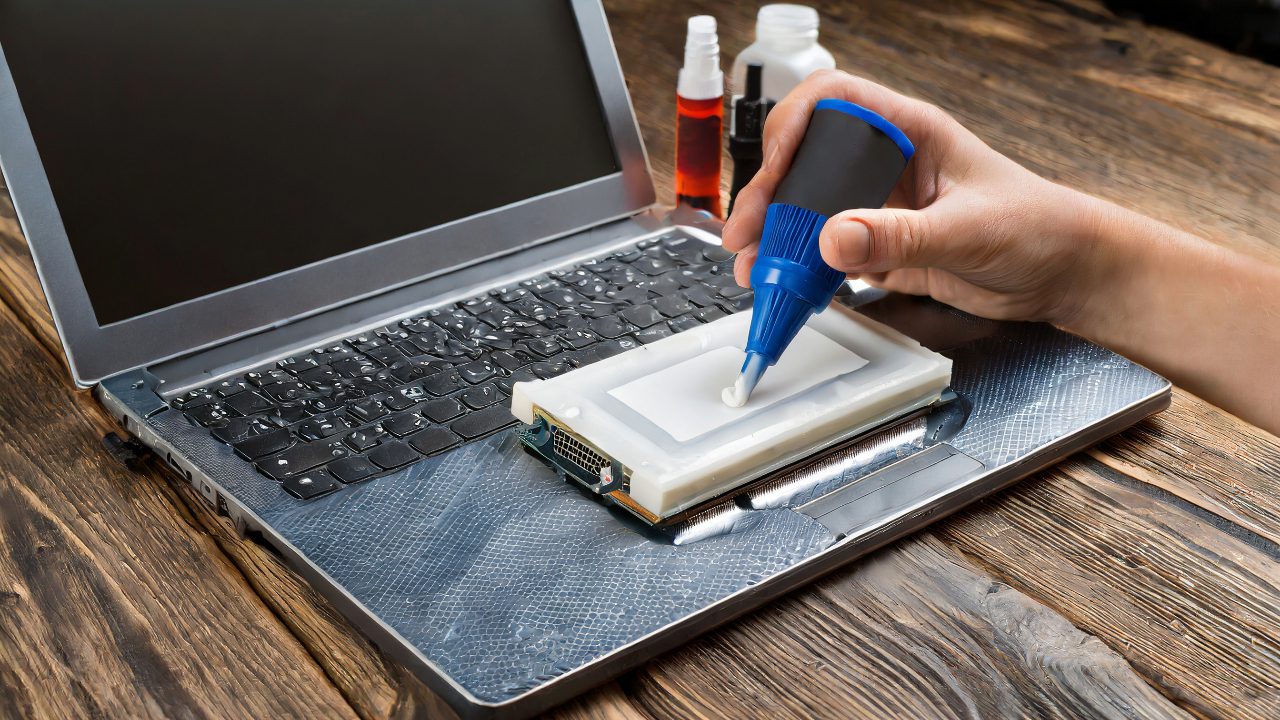
  • Apply new thermal paste to the CPU and GPU. Remember, a small pea-sized amount is usually sufficient.
  • If the thermal pads are worn out, consider replacing them as well.

Step 6: Reassembly

  • Reattach the heat sink and screw it back in place.
  • Clean and reattach the fans.
  • Reconnect the lighting cables and close the back cover, ensuring all screws are returned to their respective places.

Conclusion

Applying new thermal paste is an effective way to manage overheating in your ASUS GL731G gaming laptop. It’s a relatively simple process that can extend the life of your laptop and improve its performance during gaming sessions.

Additional Tips

  • Handle all components with care.
  • Ensure no dust remains inside the laptop after cleaning.
  • If you’re unsure about any step, consult a professional or refer to the laptop’s manual.

We hope this guide helps you in maintaining your ASUS gaming laptop. If you have any questions or need further assistance, feel free to leave a comment below. Stay tuned for more tech tips and tutorials!


This blog post is tailored to your script, providing a clear and concise guide for anyone looking to apply new thermal paste to their ASUS gaming laptop. Let me know if you’d like any additional information included!

Legal Disclosure:

UberGeeks video(s) or information provided on this website does not, and is not intended to, constitute legal advice, constitute IT professional advise, information technology expert, or tech related material; instead, all information and content available on this are for entertainment purposes only. No information contained in this video shall create any express or implied warranty or guarantee of any particular result.

UberGeeks shall not be held liable for any damages, losses, injuries, loss of data, or harm arising from the use of information or techniques presented in our video(s) or information provided on this website. By accessing and using our content, you agree to release us from any liability.

Participation in any activities or experiments presented in our video(s) is entirely voluntary. If you choose to replicate any actions or experiments, exercise caution, and prioritize your safety and the safety of your equipment.

Thank you for joining us on this IT journey. We hope you find our video(s) enjoyable. Remember, your participation in this channel is at your own discretion, and we encourage you to use the information responsibly and safely.

Transparency Note:

This article was collaboratively written with the assistance of ChatGPT, an AI language model developed by OpenAI. While the content was generated with AI assistance, it was reviewed and edited by our human editorial team to ensure accuracy and quality. As part of our efforts to enhance the user experience, we utilize artificial intelligence (AI) technologies to generate images and visual content on this website. Adobe Firefly AI-generated images may include graphics, illustrations, and other visual elements.


Related Articles









