
04/06/2021

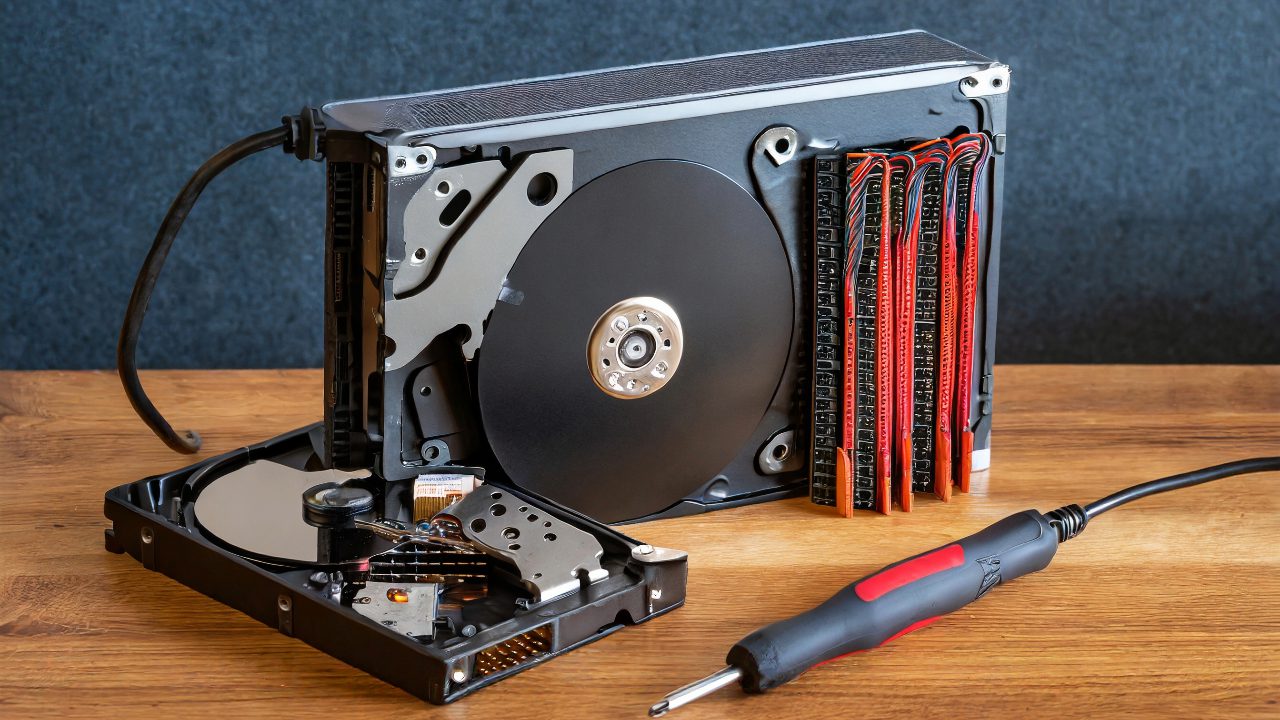
HP Desktop TP01 1050 Upgrade Add Secondary Hard Drive

[vc_video link=”https://www.youtube.com/watch?v=8ho6FCzyJPs” title=”HP Desktop TP01 1050 Upgrade Add Secondary Hard Drive”]

Guide to Adding Additional Hard Drive to HP Pavilion Desktop TP01-1050

Overview

  • Video demonstrates how to upgrade or add an additional hard drive to an HP Pavilion Desktop TP01-1050.
  • The computer comes with Windows 10 Home Premium, Wi-Fi, Bluetooth, DVD drive, 512 GB M.2 SSD, 8 GB DDR4 RAM, and an Intel i10 processor.
  • The goal is to increase storage by adding a secondary hard drive.

Steps for Upgrading

Accessing the Internal Components

  1. Remove Side Panel: Unscrew the back screw with a Torx or flathead screwdriver and slide the panel off.
  2. Internal Layout: Inside the computer, there’s the CPU fan, logic board, and a tray for an additional hard drive.

Preparing for the New Hard Drive

  1. Remove Black Panel: Unscrew and lift out the panel that covers the hard drive tray.
  2. Removing Optical Drive: Disconnect the SATA and power cables from the DVD drive, press the green clip to slide it out.
  3. Front Panel Removal: Take off the front panel by releasing three clippers.

Installing the Hard Drive

  1. Accessing the Hard Drive Bracket: Remove the screw that becomes accessible after removing the front panel.
  2. Placing the Hard Drive: Position the 3.5-inch hard drive with its back facing you and secure it with screws (not provided by HP).
  3. Connect Power and SATA Cables: Attach the respective cables to the new hard drive.
  4. Reassemble: Replace the hard drive bracket, optical drive, front and black panels, and finally the side panel.

Finalizing Installation

  • No need for immediate configuration in Windows.
  • In Windows, go to Disk Management to initialize the new hard drive.
  • The drive will appear in ‘This PC’ after initialization.

Upcoming Content

  • The next video will focus on upgrading the computer with an external graphics card, specifically an EVGA GT 730.

Conclusion

  • The video provides a straightforward guide on adding an additional hard drive to the HP Pavilion Desktop TP01-1050.
  • The process requires basic tools and some patience but is achievable for most users.
  • Encouragement for likes and subscription for support and notification of upcoming content.

(Note: The transcript provides a structured summary and essential points from the video for clarity and ease of understanding.)

Legal Disclosure:

UberGeeks video(s) or information provided on this website does not, and is not intended to, constitute legal advice, constitute IT professional advise, information technology expert, or tech related material; instead, all information and content available on this are for entertainment purposes only. No information contained in this video shall create any express or implied warranty or guarantee of any particular result.

UberGeeks shall not be held liable for any damages, losses, injuries, loss of data, or harm arising from the use of information or techniques presented in our video(s) or information provided on this website. By accessing and using our content, you agree to release us from any liability.

Participation in any activities or experiments presented in our video(s) is entirely voluntary. If you choose to replicate any actions or experiments, exercise caution, and prioritize your safety and the safety of your equipment.

Thank you for joining us on this IT journey. We hope you find our video(s) enjoyable. Remember, your participation in this channel is at your own discretion, and we encourage you to use the information responsibly and safely.

Transparency Note:

This article was collaboratively written with the assistance of ChatGPT, an AI language model developed by OpenAI. While the content was generated with AI assistance, it was reviewed and edited by our human editorial team to ensure accuracy and quality. As part of our efforts to enhance the user experience, we utilize artificial intelligence (AI) technologies to generate images and visual content on this website. Adobe Firefly AI-generated images may include graphics, illustrations, and other visual elements.


Related Articles









