
01/10/2021

Macbook A1398 Overheating Apply New Thermal Paste

[vc_video link=”https://www.youtube.com/watch?v=zV5zhRFYhmY” title=”Macbook A1398 Overheating Apply New Thermal Paste”]

MacBook Pro (Early 2015, 15-inch, Model A1398) Thermal Paste Application Guide

Introduction

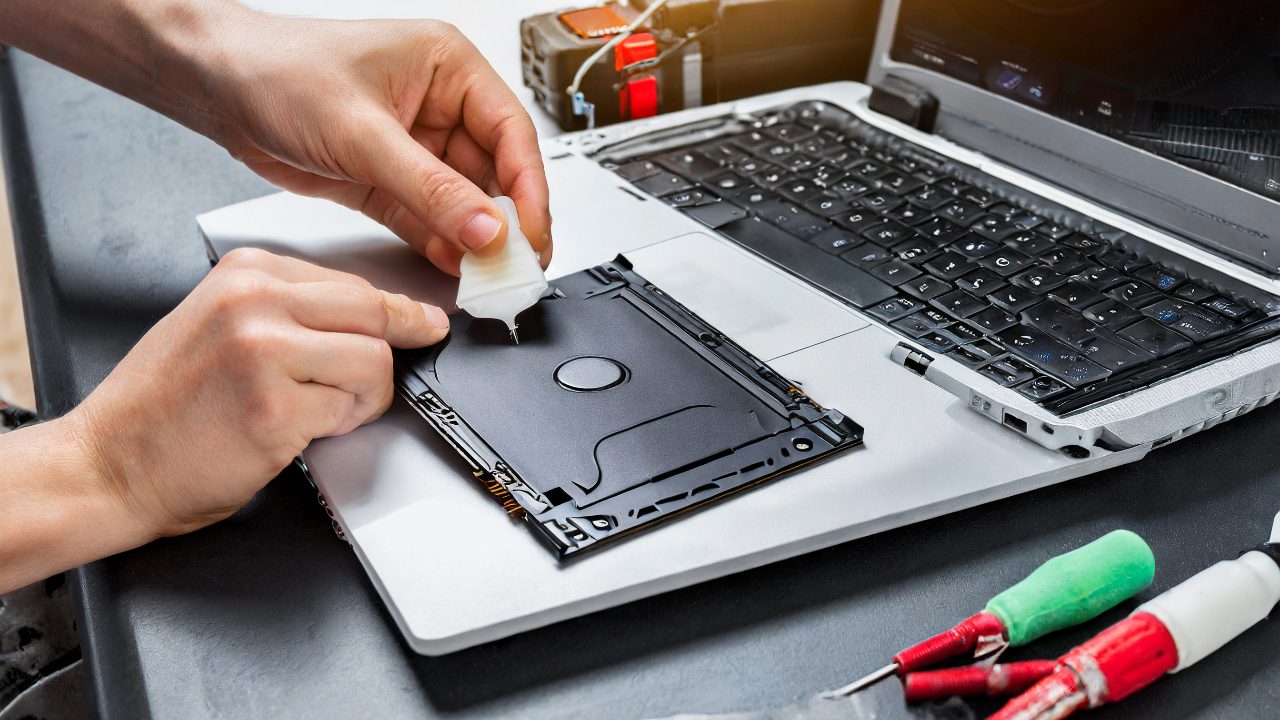
  • Objective: Applying new thermal paste to reduce overheating and fan noise in MacBook Pro (Early 2015, 15-inch, Model A1398).
  • Tools Needed: Pentalobe screwdriver, thermal compound (e.g., MX-4 Thermal Compound 2019 Edition), alcohol wipes, thermal pads.

Steps for Applying Thermal Paste

  1. Preparation:
    • Power off the MacBook Pro.
    • Remove all screws from the back cover using a Pentalobe screwdriver.
    • Carefully lift and remove the back plate.
  2. Accessing the CPU and GPU:
    • Locate the CPU and GPU on the logic board.
    • Identify the screws holding the heatsink in place.
  3. Removing the Heatsink:
    • Remove the screws from the heatsink, including the tension bar screws.
    • Gently lift the heatsink off the CPU and GPU.
    • Be cautious of the rubber placements and cable management brackets during removal.
  4. Cleaning Old Thermal Paste:
    • Use alcohol wipes to gently remove the old thermal paste from both the CPU, GPU, and the heatsink.
    • Ensure a clean, paste-free surface on both the chips and the heatsink.
  5. Applying New Thermal Paste:
    • Apply a small amount (size of a small grain of rice) of thermal paste on both the CPU and GPU.
    • Using a clean tool or finger in a plastic wrap, gently spread the paste evenly over the chip surface. Ensure a thin, even layer.
  6. Reattaching the Heatsink:
    • Carefully realign the heatsink over the CPU and GPU.
    • Replace and tighten the screws, ensuring the tension bar is correctly positioned.
    • Reattach any rubber placements and brackets that were moved.
  7. Final Steps:
    • Double-check all connections and placements.
    • Replace the back cover and screw it back in place using the Pentalobe screwdriver.

Additional Tips

  • Screw Tracking: Keep track of all screws and their positions as they can be of different sizes.
  • Handling: Handle the heatsink and internal components with care to avoid damage.
  • Testing: After reassembly, turn on the MacBook to test if the overheating issue has been resolved.

Conclusion

Applying new thermal paste can significantly help in reducing overheating and excessive fan noise in MacBook Pro models. This preventive maintenance can extend the life of your MacBook. If you are unsure about any step or uncomfortable performing this task, it is recommended to consult a professional. Good luck with your application, and stay safe!

Legal Disclosure:

UberGeeks video(s) or information provided on this website does not, and is not intended to, constitute legal advice, constitute IT professional advise, information technology expert, or tech related material; instead, all information and content available on this are for entertainment purposes only. No information contained in this video shall create any express or implied warranty or guarantee of any particular result.

UberGeeks shall not be held liable for any damages, losses, injuries, loss of data, or harm arising from the use of information or techniques presented in our video(s) or information provided on this website. By accessing and using our content, you agree to release us from any liability.

Participation in any activities or experiments presented in our video(s) is entirely voluntary. If you choose to replicate any actions or experiments, exercise caution, and prioritize your safety and the safety of your equipment.

Thank you for joining us on this IT journey. We hope you find our video(s) enjoyable. Remember, your participation in this channel is at your own discretion, and we encourage you to use the information responsibly and safely.

Transparency Note:

This article was collaboratively written with the assistance of ChatGPT, an AI language model developed by OpenAI. While the content was generated with AI assistance, it was reviewed and edited by our human editorial team to ensure accuracy and quality. As part of our efforts to enhance the user experience, we utilize artificial intelligence (AI) technologies to generate images and visual content on this website. Adobe Firefly AI-generated images may include graphics, illustrations, and other visual elements.


Related Articles









