
05/09/2022

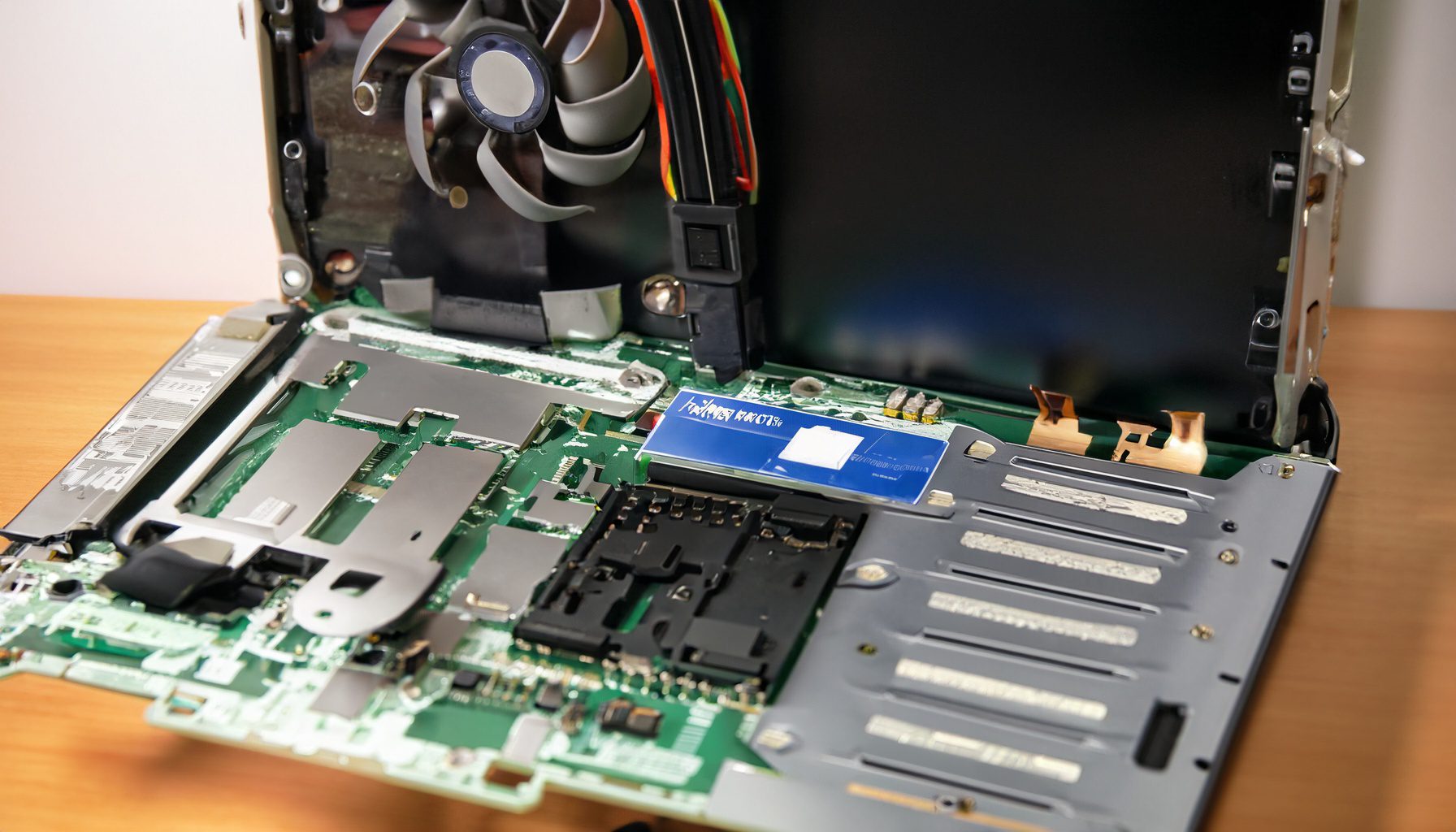
Acer Aspire ATC705 Upgrade Disassemble

[vc_video link=”https://www.youtube.com/watch?v=lJKQjBhMCLw” title=”Acer Aspire ATC705 Upgrade Disassemble”]

Title: Upgrading an Acer Desktop Computer

Introduction:

  • Simon introduces the video, explaining the focus on exploring the internals of an Acer desktop and discussing potential upgrades such as RAM, hard drive, and graphics card.
  • The model of the Acer desktop is ATC-705-UC52.

Steps for Exploring and Upgrading:

  1. Accessing the Interior:
    • Simon uses a Phillips screwdriver to remove two screws and slides off the side panel of the desktop.
  2. Overview of Internal Components:
    • Power Supply: Located at the top of the case.
    • Heatsink and CPU Fan: Simon notes the dust and suggests cleaning with a can duster.
    • RAM Slots: Two slots are occupied, possibly with 4GB each. He mentions the possibility of upgrading to 16GB (8GB per slot).
    • CMOS Battery: Located on the motherboard.
    • Wi-Fi Card and PCIe Slot: Available for adding a graphics card.
    • Hard Drive: Located within the case, with instructions on how to replace it.
  3. Replacing the Hard Drive:
    • Simon demonstrates removing the hard drive by unscrewing it and disconnecting the SATA and power cables.
    • He suggests replacing it with either another HDD or an SSD for improved performance.
  4. RAM Upgrade:
    • He explains how to remove and install RAM by releasing the clips on the side of the RAM slots.
  5. Power Supply Replacement:
    • Simon discusses scenarios like power surges and explains how to replace the power supply unit by disconnecting cables and unscrewing it from the case.
  6. Additional Notes:
    • The possibility of adding an exhaust fan is mentioned, though it requires an adapter for power connection.

Conclusion:

  • Simon wraps up by encouraging viewers to like, subscribe, and hit the notification bell for more videos.
  • He invites viewers to ask questions in the comments, promising to respond and provide assistance.

Summary: The video provides a comprehensive guide on how to access and upgrade key components in an Acer ATC-705-UC52 desktop, including the hard drive, RAM, and power supply. Simon gives detailed instructions and tips for each component, covering aspects like cleaning, replacement, and potential upgrades. He also touches on other parts like the CMOS battery and Wi-Fi card, making the video a valuable resource for those looking to enhance their Acer desktop’s performance.


Legal Disclosure:

UberGeeks video(s) or information provided on this website does not, and is not intended to, constitute legal advice, constitute IT professional advise, information technology expert, or tech related material; instead, all information and content available on this are for entertainment purposes only. No information contained in this video shall create any express or implied warranty or guarantee of any particular result.

UberGeeks shall not be held liable for any damages, losses, injuries, loss of data, or harm arising from the use of information or techniques presented in our video(s) or information provided on this website. By accessing and using our content, you agree to release us from any liability.

Participation in any activities or experiments presented in our video(s) is entirely voluntary. If you choose to replicate any actions or experiments, exercise caution, and prioritize your safety and the safety of your equipment.

Thank you for joining us on this IT journey. We hope you find our video(s) enjoyable. Remember, your participation in this channel is at your own discretion, and we encourage you to use the information responsibly and safely.

Transparency Note:

This article was collaboratively written with the assistance of ChatGPT, an AI language model developed by OpenAI. While the content was generated with AI assistance, it was reviewed and edited by our human editorial team to ensure accuracy and quality. As part of our efforts to enhance the user experience, we utilize artificial intelligence (AI) technologies to generate images and visual content on this website. Adobe Firefly AI-generated images may include graphics, illustrations, and other visual elements.


Related Articles









