
05/05/2021

Dell G3 Laptop Screen Replacement

[vc_video link=”https://www.youtube.com/watch?v=olXWpmbBYs0″ title=”Dell G3 Laptop Screen Replacement”]

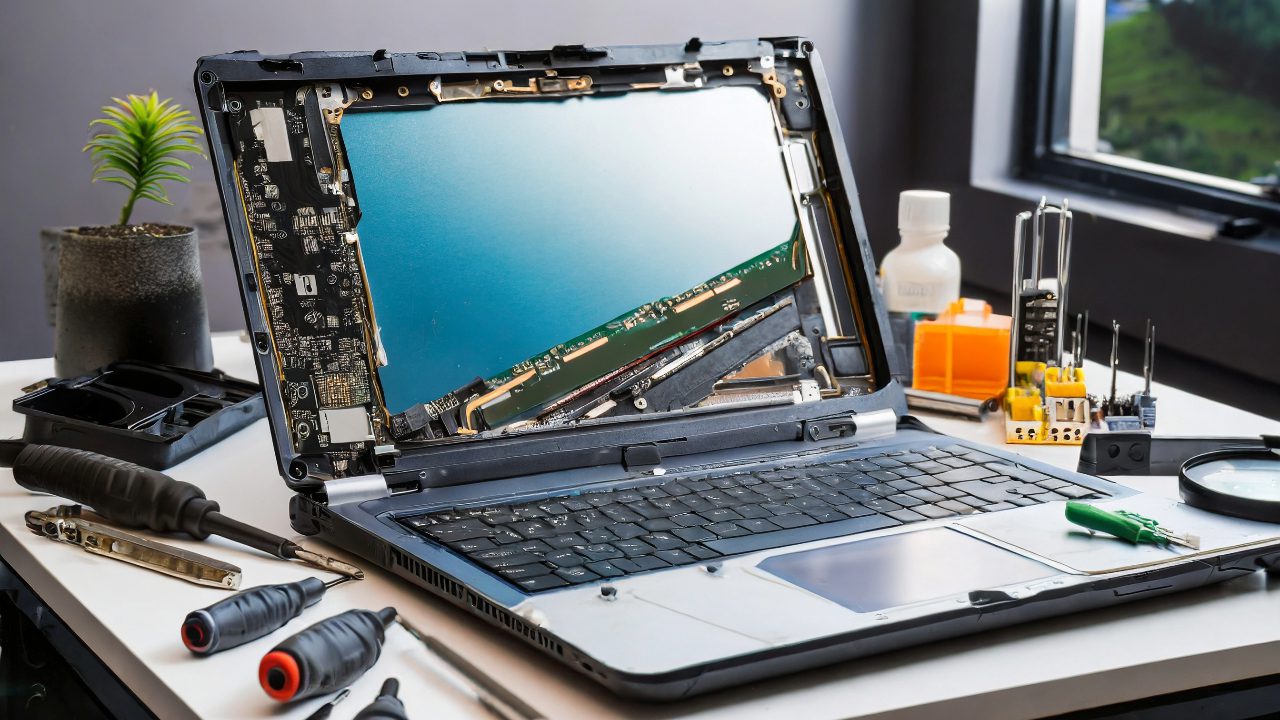
How to Replace the Screen of Your Dell G3 Gaming Laptop: A Step-by-Step Guide

Introduction

Experiencing issues with your Dell G3 gaming laptop screen can be frustrating. Whether it’s a cracked screen, pixelated display, fuzzy images, or distorted colors, the solution often lies in replacing the LCD screen. This guide will take you through the process step-by-step.

Understanding the Problem

Before proceeding with the replacement, it’s important to confirm that the issue is indeed with the LCD screen. Connect your laptop to an external monitor or TV via HDMI. If the display on the external screen is fine, but your laptop screen isn’t, it’s time for a replacement.

Tools You’ll Need

  • A new LCD screen compatible with the Dell G3 model.
  • Pry tools (preferably both metal and plastic).
  • Screwdrivers.
  • Double-sided adhesive tape.

Step 1: Preparing Your Laptop

First, ensure your laptop is turned off. The Dell G3 has a magnet that powers it on when the screen is lifted, so be sure to shut it down properly.

Step 2: Removing the Bezel

Carefully use the metal pry tool to create an opening between the screen and the bezel. This model usually uses adhesive tape to secure the bezel, so gently work your way around the edges to separate it. Pay extra attention to the bottom part of the bezel, where the adhesive is typically stronger.

Step 3: Accessing the LCD Screen

After removing the bezel, you’ll see the LCD screen held in place by double-sided tape. Gently pull the screen down to release it from the tape.

Step 4: Disconnecting the Old Screen

The screen is connected with a ribbon cable at the back. Carefully open the clip that secures the cable and gently slide it out.

Step 5: Preparing the New Screen

  • Before installing the new screen, make sure you have double-sided tape to secure it in place.
  • Align the new screen with the top edge of the laptop frame and press it into place.
  • Reconnect the ribbon cable and secure it with the clip.

Step 6: Reattaching the Bezel

  • If necessary, apply new double-sided tape to the bottom part of the bezel.
  • Carefully align the bezel with the edges of the screen and press it into place, ensuring it snaps back securely.

Conclusion

Screen replacement on a Dell G3 gaming laptop is a straightforward process that can save you the cost of professional repair. With patience and careful handling, you can get your laptop back to its optimal state.

Additional Tips

  • Work in a clean, static-free environment.
  • Keep track of all screws and parts.
  • If you’re unsure about the process, consult a professional.

Feel free to ask any questions in the comments below, and don’t forget to like and subscribe for more tutorials like this. Happy repairing!


This blog post is structured to be informative and easy to follow, based on the detailed steps you provided in your script. Let me know if there’s anything else you’d like to add or modify!

Legal Disclosure:

UberGeeks video(s) or information provided on this website does not, and is not intended to, constitute legal advice, constitute IT professional advise, information technology expert, or tech related material; instead, all information and content available on this are for entertainment purposes only. No information contained in this video shall create any express or implied warranty or guarantee of any particular result.

UberGeeks shall not be held liable for any damages, losses, injuries, loss of data, or harm arising from the use of information or techniques presented in our video(s) or information provided on this website. By accessing and using our content, you agree to release us from any liability.

Participation in any activities or experiments presented in our video(s) is entirely voluntary. If you choose to replicate any actions or experiments, exercise caution, and prioritize your safety and the safety of your equipment.

Thank you for joining us on this IT journey. We hope you find our video(s) enjoyable. Remember, your participation in this channel is at your own discretion, and we encourage you to use the information responsibly and safely.

Transparency Note:

This article was collaboratively written with the assistance of ChatGPT, an AI language model developed by OpenAI. While the content was generated with AI assistance, it was reviewed and edited by our human editorial team to ensure accuracy and quality. As part of our efforts to enhance the user experience, we utilize artificial intelligence (AI) technologies to generate images and visual content on this website. Adobe Firefly AI-generated images may include graphics, illustrations, and other visual elements.


Related Articles









