
07/27/2021

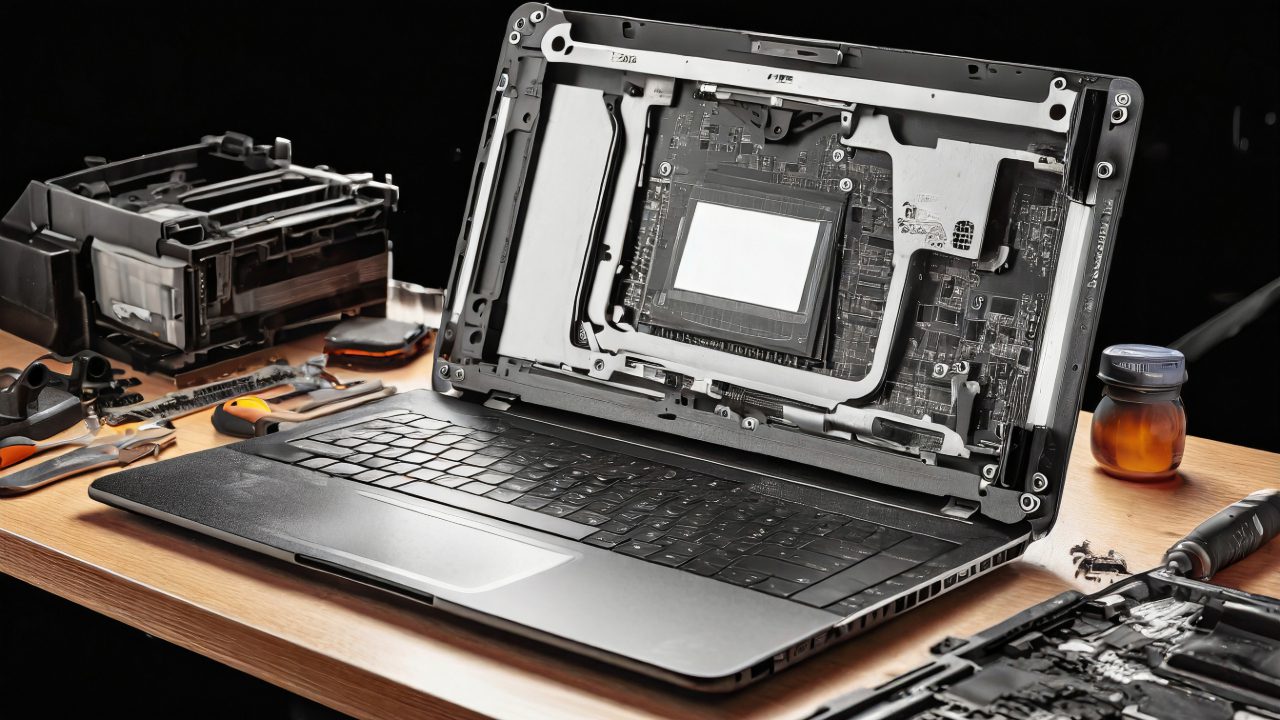
Dell Inspiron 5400 W24CL Tear Down Disassemble

[vc_video link=”https://www.youtube.com/watch?v=DHXs8clLL_8″ title=”Dell Inspiron 5400 W24CL Tear Down Disassemble”]

Comprehensive Teardown Guide for the Dell Inspiron 5400 AIO

Need to disassemble your Dell Inspiron 5400 series AIO for upgrades or repairs? This step-by-step guide will walk you through the process, covering everything from removing the motherboard to upgrading RAM and SSD.

Getting Started

  • Ensure the computer is turned off and unplugged from any power source.
  • Gather the necessary tools: Primarily a Phillips screwdriver.

Disassembling the Dell AIO

  1. Removing the Back Plate: Start by prying off the back plate using your fingernails. There are no screws involved, just clips.
  2. Accessing Internal Components: With the back plate removed, you’ll see the motherboard, RAM, and storage options.

RAM Upgrade

  • Locating the RAM: You’ll find DDR4 RAM slots for easy upgrades. If you’re upgrading to 16GB, for example, simply add an additional 8GB DDR4 stick.

Storage Options

  • M.2 SSD Drive: The AIO comes with an M.2 SSD slot. If you’re planning to upgrade to a higher capacity, such as 1TB, you can find compatible SSDs online.
  • 2.5-inch Hard Drive: There’s also a slot for a 2.5-inch drive, allowing for additional storage.

Battery and CMOS

  • Battery: If you need to replace the battery, locate and carefully disconnect it.
  • CMOS Battery: For BIOS issues, you can reset it by removing the CMOS battery for about five minutes.

Motherboard and CPU Fan

  • Removing the Motherboard: For extensive repairs or replacements, you can remove the entire motherboard by disconnecting all connectors and removing screws.
  • CPU Fan: If the CPU is overheating, consider cleaning the fan or replacing the thermal paste.

LCD Screen Replacement

  • LCD Replacement Complexity: Replacing the LCD screen of this AIO is challenging. It requires removing numerous screws and components. It might be more practical to seek a professional or replace the entire screen assembly.

Reassembly Tips

  • Take your time: Reassembling the AIO can be as challenging as disassembling it. Make sure to reconnect all components correctly.
  • Test before final assembly: It’s a good practice to test the computer before you fully reassemble it to ensure everything is working correctly.

Conclusion

Disassembling the Dell Inspiron 5400 AIO requires patience and precision. Whether you’re upgrading components or performing repairs, this guide aims to assist you in the process. If you encounter any challenges, don’t hesitate to seek professional help.

Share your experiences in the comments below, and good luck with your AIO maintenance!


This blog post is designed to provide a thorough guide for anyone needing to disassemble their Dell Inspiron 5400 AIO for various reasons, from simple upgrades to more complex repairs.


Legal Disclosure:

UberGeeks video(s) or information provided on this website does not, and is not intended to, constitute legal advice, constitute IT professional advise, information technology expert, or tech related material; instead, all information and content available on this are for entertainment purposes only. No information contained in this video shall create any express or implied warranty or guarantee of any particular result.

UberGeeks shall not be held liable for any damages, losses, injuries, loss of data, or harm arising from the use of information or techniques presented in our video(s) or information provided on this website. By accessing and using our content, you agree to release us from any liability.

Participation in any activities or experiments presented in our video(s) is entirely voluntary. If you choose to replicate any actions or experiments, exercise caution, and prioritize your safety and the safety of your equipment.

Thank you for joining us on this IT journey. We hope you find our video(s) enjoyable. Remember, your participation in this channel is at your own discretion, and we encourage you to use the information responsibly and safely.

Transparency Note:

This article was collaboratively written with the assistance of ChatGPT, an AI language model developed by OpenAI. While the content was generated with AI assistance, it was reviewed and edited by our human editorial team to ensure accuracy and quality. As part of our efforts to enhance the user experience, we utilize artificial intelligence (AI) technologies to generate images and visual content on this website. Adobe Firefly AI-generated images may include graphics, illustrations, and other visual elements.


Related Articles









