
12/29/2023

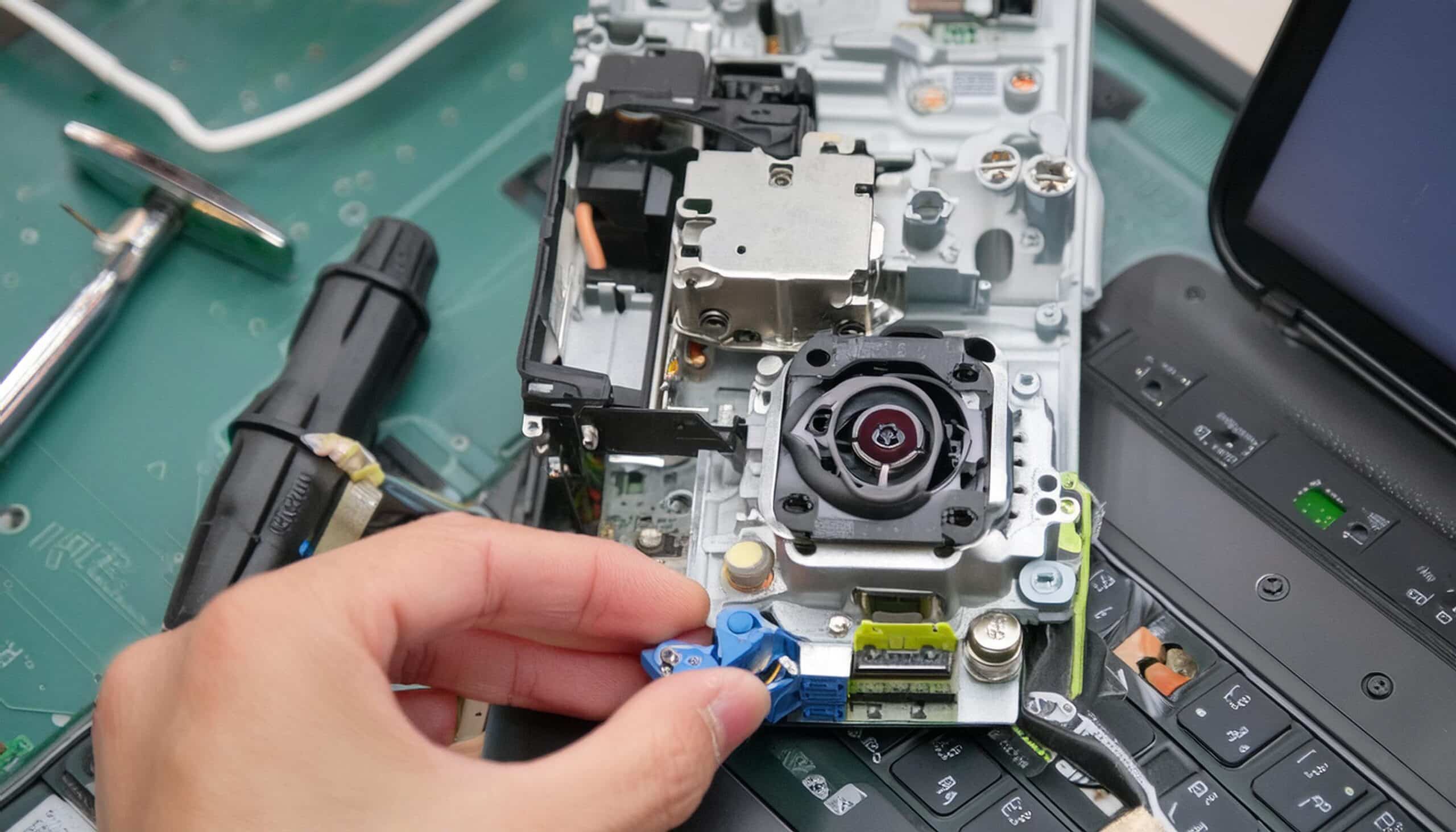
FIXED Dell 3593 P75F Power Button

[vc_video link=”https://studio.youtube.com/video/UpMz15F6_9k/edit” title=”FIXED Dell 3593 P75F Power Button”]

Title: How to Fix a Broken Home Button on a Dell Inspiron: A Step-by-Step Guide

Introduction: Greetings, it’s Simon here! Today, I’ll guide you through fixing a common issue with the home button on a Dell Inspiron laptop. If your home button feels loose or unresponsive, don’t worry – we’ll get it sorted out in no time. Let’s dive in!

Identifying the Issue: If you hear a rattling sound when shaking your laptop, it’s likely that a piece of the home button mechanism is broken. This can cause the button to malfunction or become stuck, affecting its usability.

Tools You’ll Need:

  1. Phillips screwdriver
  2. Metal and plastic prying tools
  3. Super glue gel

Step 1: Remove Screws and Open the Laptop Using a Phillips screwdriver, remove the screws securing the back cover of your Dell Inspiron. Carefully pry open the cover using metal and plastic tools, exposing the internal components of the laptop.

Step 2: Locate the Broken Piece Inspect the area around the home button for any broken or loose pieces. You may notice a small broken plastic piece that’s causing the button to malfunction.

Step 3: Assess the Home Button Mechanism Check the home button mechanism to see if any parts are misaligned or damaged. Ensure that the clicker mechanism is intact and properly aligned with the power button.

Step 4: Secure the Broken Piece Using super glue gel, carefully glue the broken piece of the home button mechanism back into place. Apply pressure to ensure a secure bond and hold it until the glue sets.

Step 5: Reassemble the Laptop Once the glue has dried, reassemble the laptop by securing the back cover with the screws. Be sure to place the screws in their correct positions to avoid any issues.

Step 6: Test the Home Button Power on your Dell Inspiron and test the home button to ensure that it’s working properly. You should feel a satisfying click when pressing the button, indicating that it’s fixed.

Step 7: Final Check Double-check that all components are securely in place and that the home button functions as expected. If everything looks good, you’ve successfully fixed the home button issue!

Conclusion: Congratulations on successfully fixing the home button on your Dell Inspiron laptop! By following these simple steps, you’ve restored functionality to your device and can now enjoy seamless navigation. If you found this guide helpful, be sure to share it with others who may encounter similar issues. Thanks for watching, and until next time, happy computing!

Legal Disclosure:

UberGeeks video(s) or information provided on this website does not, and is not intended to, constitute legal advice, constitute IT professional advise, information technology expert, or tech related material; instead, all information and content available on this are for entertainment purposes only. No information contained in this video shall create any express or implied warranty or guarantee of any particular result.

UberGeeks shall not be held liable for any damages, losses, injuries, loss of data, or harm arising from the use of information or techniques presented in our video(s) or information provided on this website. By accessing and using our content, you agree to release us from any liability.

Participation in any activities or experiments presented in our video(s) is entirely voluntary. If you choose to replicate any actions or experiments, exercise caution, and prioritize your safety and the safety of your equipment.

Thank you for joining us on this IT journey. We hope you find our video(s) enjoyable. Remember, your participation in this channel is at your own discretion, and we encourage you to use the information responsibly and safely.

Transparency Note:

This article was collaboratively written with the assistance of ChatGPT, an AI language model developed by OpenAI. While the content was generated with AI assistance, it was reviewed and edited by our human editorial team to ensure accuracy and quality. As part of our efforts to enhance the user experience, we utilize artificial intelligence (AI) technologies to generate images and visual content on this website. Adobe Firefly AI-generated images may include graphics, illustrations, and other visual elements.


Related Articles









