
12/30/2023

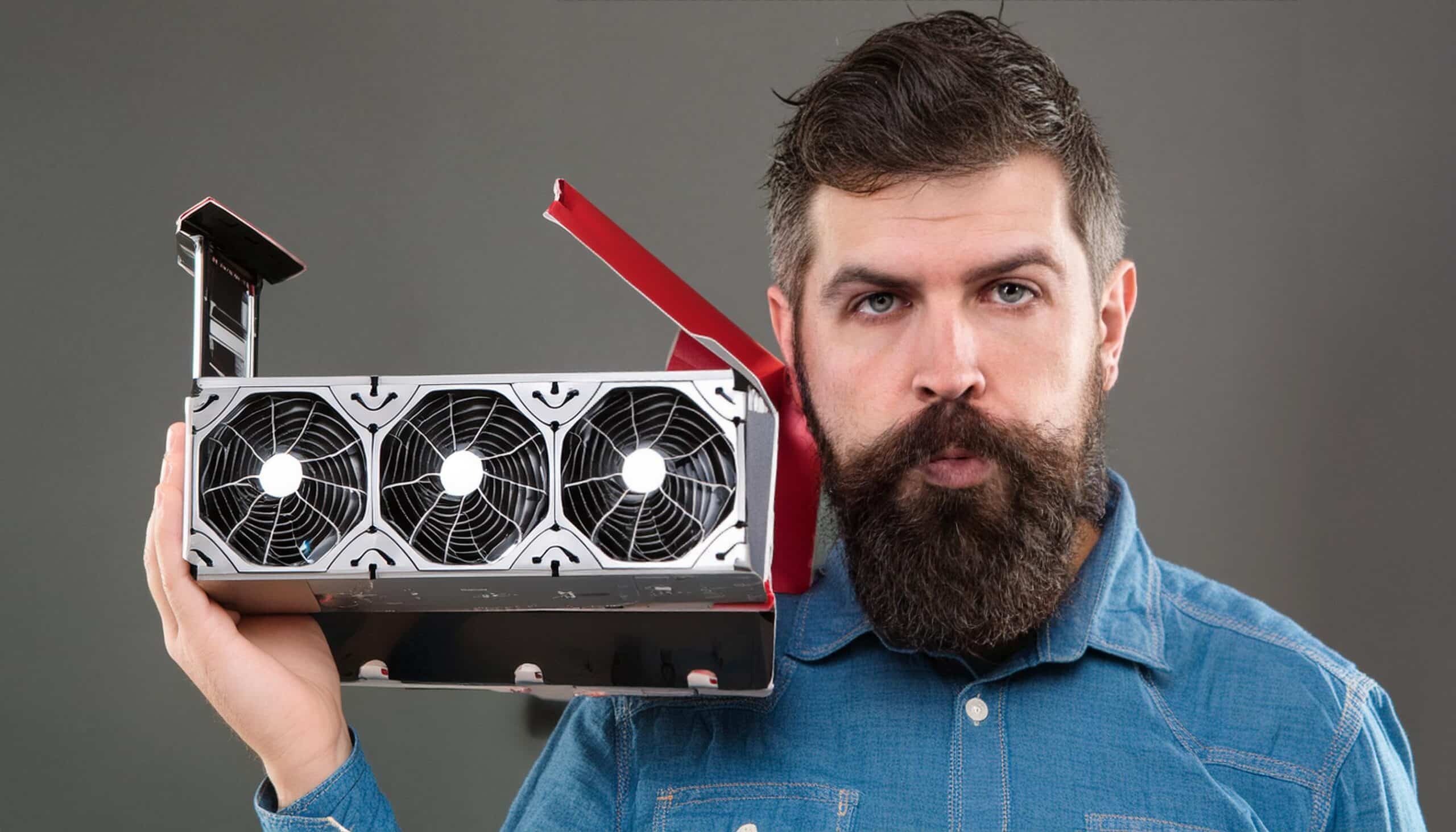
GeForce RTX 3070 Failed Right Out The Box

[vc_video link=”https://youtu.be/5E8MmLFRoTU” title=”GeForce RTX 3070 Failed Right Out The Box”]

Title: Troubleshooting No Display Issue on a Newly Built PC: Step-by-Step Guide

Introduction: Hey everyone, Simon here! Today, we’re troubleshooting a common issue faced by PC builders – no display on a newly built computer. We’ll walk through the process of diagnosing the problem step by step to identify the culprit. Let’s get started!

Identifying the Issue: Our customer reports that their newly built PC powers on but doesn’t display anything on the monitor. We’ll investigate this issue to determine the cause.

Step 1: Check Connections and Power Supply Ensure all cables, including the power supply and GPU connections, are securely plugged in. Test different PCIe power connectors to rule out any issues with the power supply.

Step 2: Verify Graphics Card Functionality Swap the suspected faulty graphics card with a known working one to see if the display issue persists. If the display works with the new graphics card, it confirms that the original GPU is faulty.

Step 3: Confirm Motherboard, CPU, and RAM Functionality If the display works with the replacement graphics card, it indicates that the motherboard, CPU, and RAM are likely functioning correctly. This eliminates them as potential sources of the problem.

Step 4: Test Original Graphics Card on a Different System To confirm whether the original graphics card is indeed faulty, test it on a different system. If it fails to display on another PC, it confirms that the GPU is defective.

Step 5: Conclusion and Next Steps Based on our troubleshooting, we’ve identified that the issue lies with the original graphics card. We recommend replacing it with a new one. Additionally, if the power supply’s PCIe connectors were faulty, consider replacing the power supply unit.

Conclusion: Troubleshooting a no display issue on a newly built PC can be challenging, but by systematically testing each component, we can pinpoint the problem. In this case, identifying the faulty graphics card allows us to take the necessary steps to resolve the issue and get the PC up and running smoothly. Thanks for watching, and happy building!

Legal Disclosure:

UberGeeks video(s) or information provided on this website does not, and is not intended to, constitute legal advice, constitute IT professional advise, information technology expert, or tech related material; instead, all information and content available on this are for entertainment purposes only. No information contained in this video shall create any express or implied warranty or guarantee of any particular result.

UberGeeks shall not be held liable for any damages, losses, injuries, loss of data, or harm arising from the use of information or techniques presented in our video(s) or information provided on this website. By accessing and using our content, you agree to release us from any liability.

Participation in any activities or experiments presented in our video(s) is entirely voluntary. If you choose to replicate any actions or experiments, exercise caution, and prioritize your safety and the safety of your equipment.

Thank you for joining us on this IT journey. We hope you find our video(s) enjoyable. Remember, your participation in this channel is at your own discretion, and we encourage you to use the information responsibly and safely.

Transparency Note:

This article was collaboratively written with the assistance of ChatGPT, an AI language model developed by OpenAI. While the content was generated with AI assistance, it was reviewed and edited by our human editorial team to ensure accuracy and quality. As part of our efforts to enhance the user experience, we utilize artificial intelligence (AI) technologies to generate images and visual content on this website. Adobe Firefly AI-generated images may include graphics, illustrations, and other visual elements.


Related Articles









