
11/14/2023

How to replace iPhone 7 Battery

[vc_video link=”https://www.youtube.com/watch?v=K7KFwSktZA8″ title=”How to replace iPhone 7 Battery”]

How to Safely Replace a Swollen Battery in an iPhone 7

Hello, Tech Enthusiasts!

Simon here, back with another practical tech guide. Today, I’m addressing a common issue many iPhone 7 users might face: a swollen battery causing the screen to bend outward. If you’re experiencing this, don’t panic. Let me walk you through the steps of safely replacing your iPhone’s battery.

Recognizing a Swollen Battery

The telltale sign of a swollen battery is a screen that appears bent or lifted from the frame. This can happen due to overcharging or simply from the battery’s age. Remember, safety first: a swollen battery can be hazardous.

Preparing for Replacement

Turn Off Your iPhone

Always start by powering down your device to avoid any electrical mishaps.

Gather Your Tools

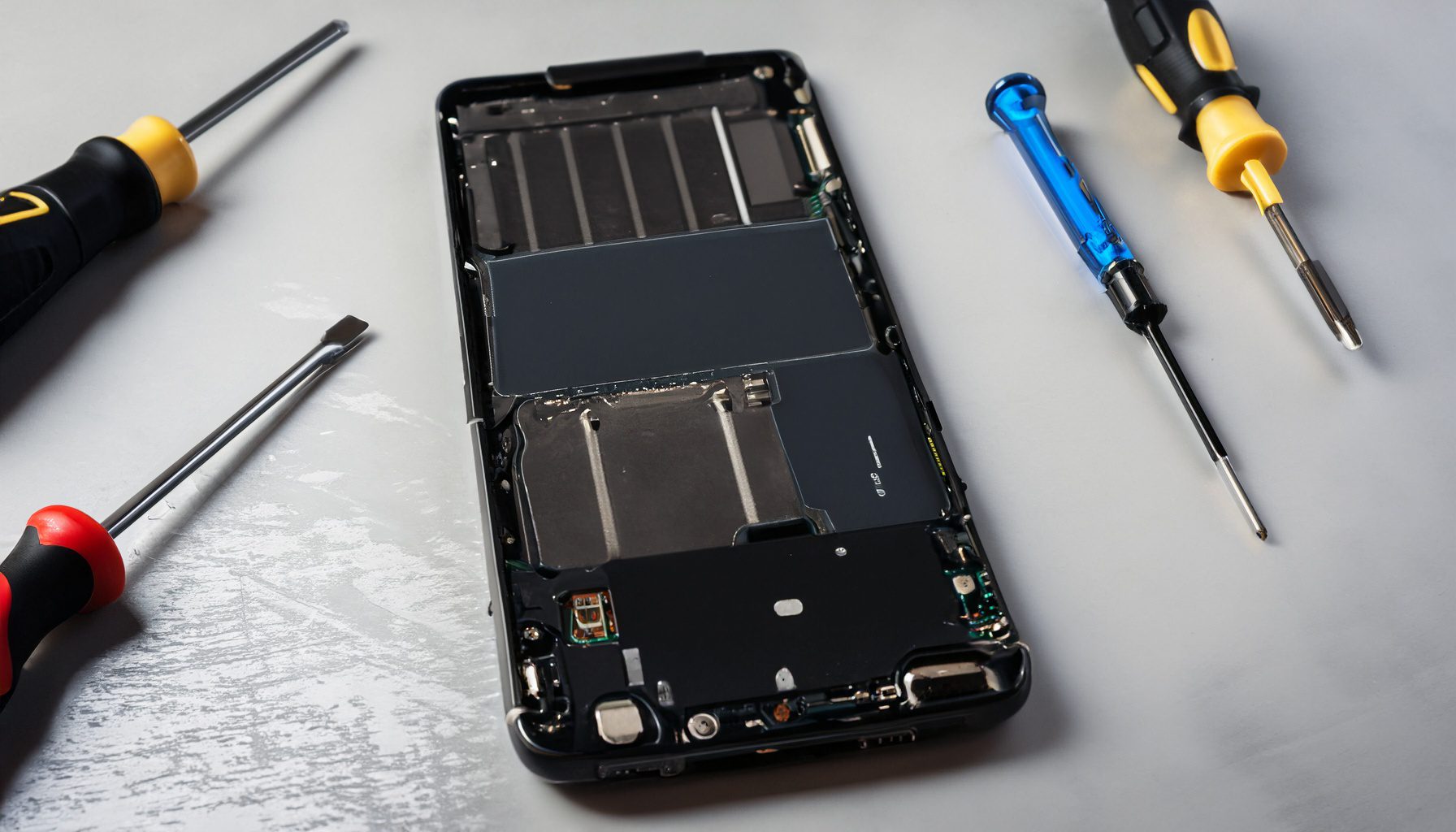
You’ll need a Pentalobe (P2) screwdriver, a metal prying tool, and a Tri-point (Y000) screwdriver. These specialized tools are crucial for opening up an iPhone safely.

Removing the Screen

  1. Remove the Bottom Screws: Start by removing the two screws next to the charging port.
  2. Pry Open the Screen: Carefully use the metal prying tool to separate the screen from the phone’s body. This step requires patience, as you’re cutting through the adhesive that makes the iPhone water-resistant.

Accessing the Battery

  1. Disconnect the Battery: Once the screen is open, use the Tri-point screwdriver to remove the bracket covering the battery connector and disconnect it.
  2. Remove Additional Connectors: Next, disconnect the screen and digitizer cables to completely free the screen from the body.

Dealing with Stripped Screws

Encountering a stripped screw can be a common issue during repairs. If you face this problem, find a screwdriver that offers better grip. Don’t apply excessive force to avoid further damage.

Removing the Old Battery

  1. Gently Remove the Adhesive Tapes: The battery is held in place by adhesive tapes. Slowly pull these tapes out from under the battery, taking care not to rip them.
  2. Lift the Battery Out: Once the adhesive is removed, the battery should lift out easily.

Installing the New Battery

  1. Prepare the New Battery: If your replacement battery doesn’t come with adhesive, you’ll need to apply some double-sided tape.
  2. Position and Connect the Battery: Align the new battery and gently press it into place. Reconnect the battery connector and any other cables you disconnected.

Reassembling Your iPhone

  1. Reattach the Screen: Start by aligning the top of the screen and then press down the sides to reseal the adhesive.
  2. Screw Everything Back in Place: Replace all the screws you removed during the disassembly.

Testing and Final Touches

Once reassembled, turn on your iPhone to ensure everything works correctly. Don’t forget to replace the two pentalobe screws next to the charging port.

Conclusion

Replacing an iPhone battery can be a delicate process, but with the right tools and a bit of know-how, it’s a manageable task. If you found this guide helpful, please show your support by hitting the like button or using YouTube’s Super Thanks feature.

Thanks for joining me in this repair journey. Stay safe, and see you in the next tech adventure!

Legal Disclosure:

UberGeeks video(s) or information provided on this website does not, and is not intended to, constitute legal advice, constitute IT professional advise, information technology expert, or tech related material; instead, all information and content available on this are for entertainment purposes only. No information contained in this video shall create any express or implied warranty or guarantee of any particular result.

UberGeeks shall not be held liable for any damages, losses, injuries, loss of data, or harm arising from the use of information or techniques presented in our video(s) or information provided on this website. By accessing and using our content, you agree to release us from any liability.

Participation in any activities or experiments presented in our video(s) is entirely voluntary. If you choose to replicate any actions or experiments, exercise caution, and prioritize your safety and the safety of your equipment.

Thank you for joining us on this IT journey. We hope you find our video(s) enjoyable. Remember, your participation in this channel is at your own discretion, and we encourage you to use the information responsibly and safely.

Transparency Note:

This article was collaboratively written with the assistance of ChatGPT, an AI language model developed by OpenAI. While the content was generated with AI assistance, it was reviewed and edited by our human editorial team to ensure accuracy and quality. As part of our efforts to enhance the user experience, we utilize artificial intelligence (AI) technologies to generate images and visual content on this website. Adobe Firefly AI-generated images may include graphics, illustrations, and other visual elements.


Related Articles









