
11/28/2023

HP 15 DY Touch Screen Replacement

[vc_video link=”https://www.youtube.com/watch?v=mA6jBTHrE78″ title=”HP 15 DY Touch Screen Replacement”]

Step-by-Step Guide to Replacing Your HP Touchscreen Laptop Screen

Introduction Welcome to our latest DIY tech guide! If you’re facing screen issues with your HP touchscreen laptop – be it cracks, pixelation, or color distortions – you’re in the right place. In this post, we’ll walk you through the process of replacing your laptop screen, ensuring your HP model 15 Dy2046NR gets back to its pristine condition.

Identifying the Problem First off, it’s essential to confirm that the issue is indeed with the screen. If, like in our case, connecting the laptop to an external monitor via HDMI resolves the display issues, it’s a clear sign that your laptop’s screen needs replacement.

Preparation Steps

  1. Gather Your Tools: You’ll need a Phillips screwdriver, a metal prying tool, a plastic prying tool, tweezers, and replacement adhesive tape (both 2mm and 5mm thickness).
  2. Safety First: Before starting, ensure your laptop is turned off. Press and hold the power button until the screen shuts off to prevent any electrical hazards.
  3. Model Verification: Verify your laptop model. For this guide, we are working on an HP model 15 Dy2046NR.

Disassembly

  1. Remove Rubber Stoppers: Start by removing the rubber stoppers located at the laptop’s base. These hide the screws that hold your laptop together.
  2. Unscrew the Base: Use your Phillips screwdriver to remove all screws. Remember, screws might be of different sizes, so keep track of where each screw comes from.
  3. Battery Disconnection: Gently open the laptop and remove the back cover to access the battery. Unscrew and lift the battery to disconnect it.
  4. Prying the Screen: Carefully use the metal prying tool to detach the screen’s bezel. This requires patience and delicacy, especially around the webcam and microphone areas.

Screen Removal

  1. Loosen the Adhesive: The screen is usually held in place by adhesive tape. Use your tools to gently detach the tape without damaging the screen.
  2. Disconnect the Screen: Gently flip the screen towards you and remove the static tape shielding the LCD cable. Use a plastic prying tool to release the clip securing the cable, and then disconnect the cable.
  3. Remove the Screen: Once disconnected, you can remove the damaged screen. Take note of the screen’s model number for ordering a replacement.

Installing the New Screen

  1. Prepare the New Screen: Apply the new adhesive tape to the top part of the new screen.
  2. Connect the LCD Cable: Align the new screen and reconnect the LCD cable, ensuring it’s secure.
  3. Reassemble the Bezel: Carefully place the screen back into position and reattach the bezel.
  4. Final Steps: Replace the battery, screw the back cover, and reattach the rubber stoppers.

Legal Disclosure:

UberGeeks video(s) or information provided on this website does not, and is not intended to, constitute legal advice, constitute IT professional advise, information technology expert, or tech related material; instead, all information and content available on this are for entertainment purposes only. No information contained in this video shall create any express or implied warranty or guarantee of any particular result.

UberGeeks shall not be held liable for any damages, losses, injuries, loss of data, or harm arising from the use of information or techniques presented in our video(s) or information provided on this website. By accessing and using our content, you agree to release us from any liability.

Participation in any activities or experiments presented in our video(s) is entirely voluntary. If you choose to replicate any actions or experiments, exercise caution, and prioritize your safety and the safety of your equipment.

Thank you for joining us on this IT journey. We hope you find our video(s) enjoyable. Remember, your participation in this channel is at your own discretion, and we encourage you to use the information responsibly and safely.

Transparency Note:

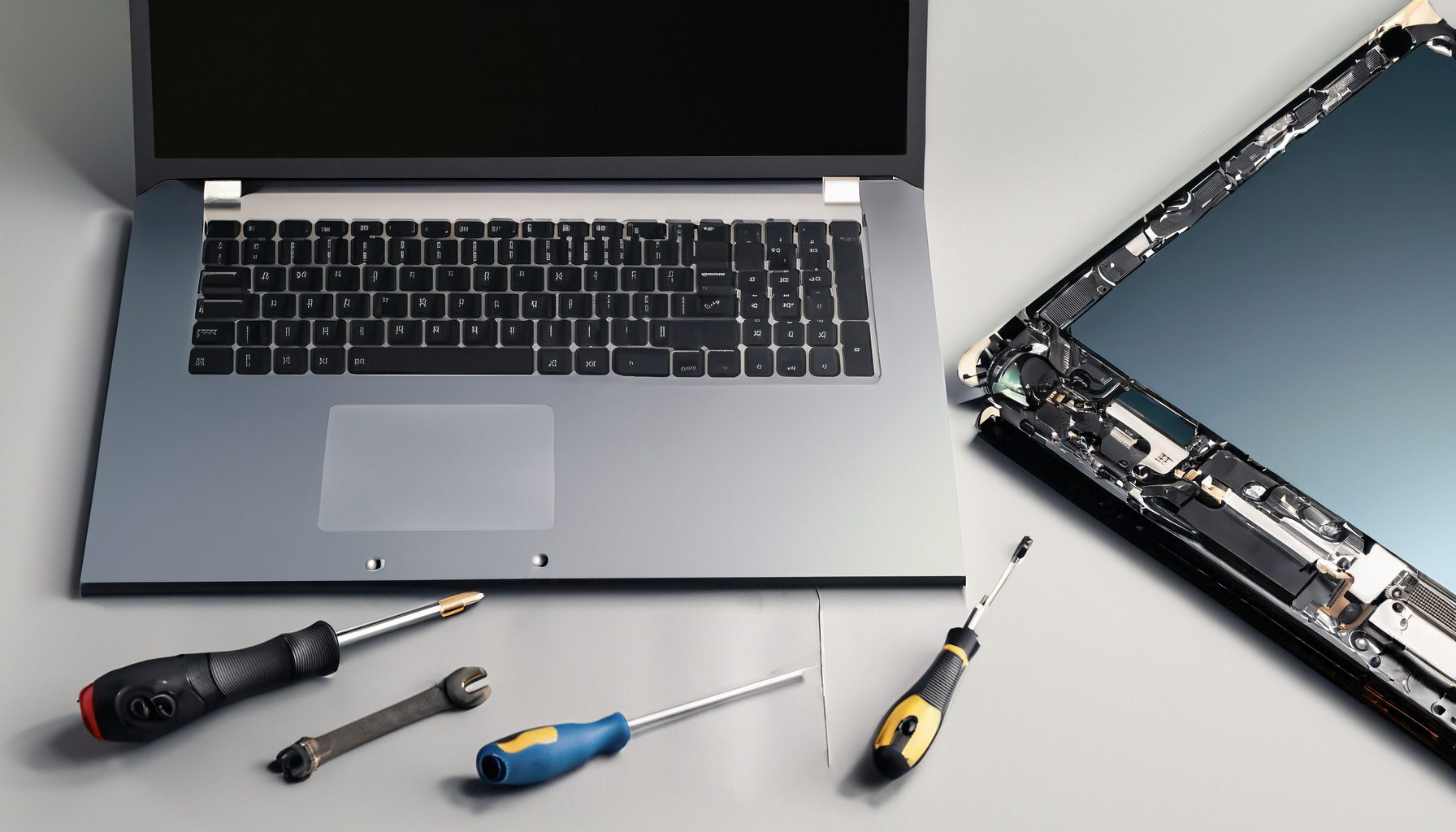
This article was collaboratively written with the assistance of ChatGPT, an AI language model developed by OpenAI. While the content was generated with AI assistance, it was reviewed and edited by our human editorial team to ensure accuracy and quality. As part of our efforts to enhance the user experience, we utilize artificial intelligence (AI) technologies to generate images and visual content on this website. Adobe Firefly AI-generated images may include graphics, illustrations, and other visual elements.


Related Articles









