
03/31/2022

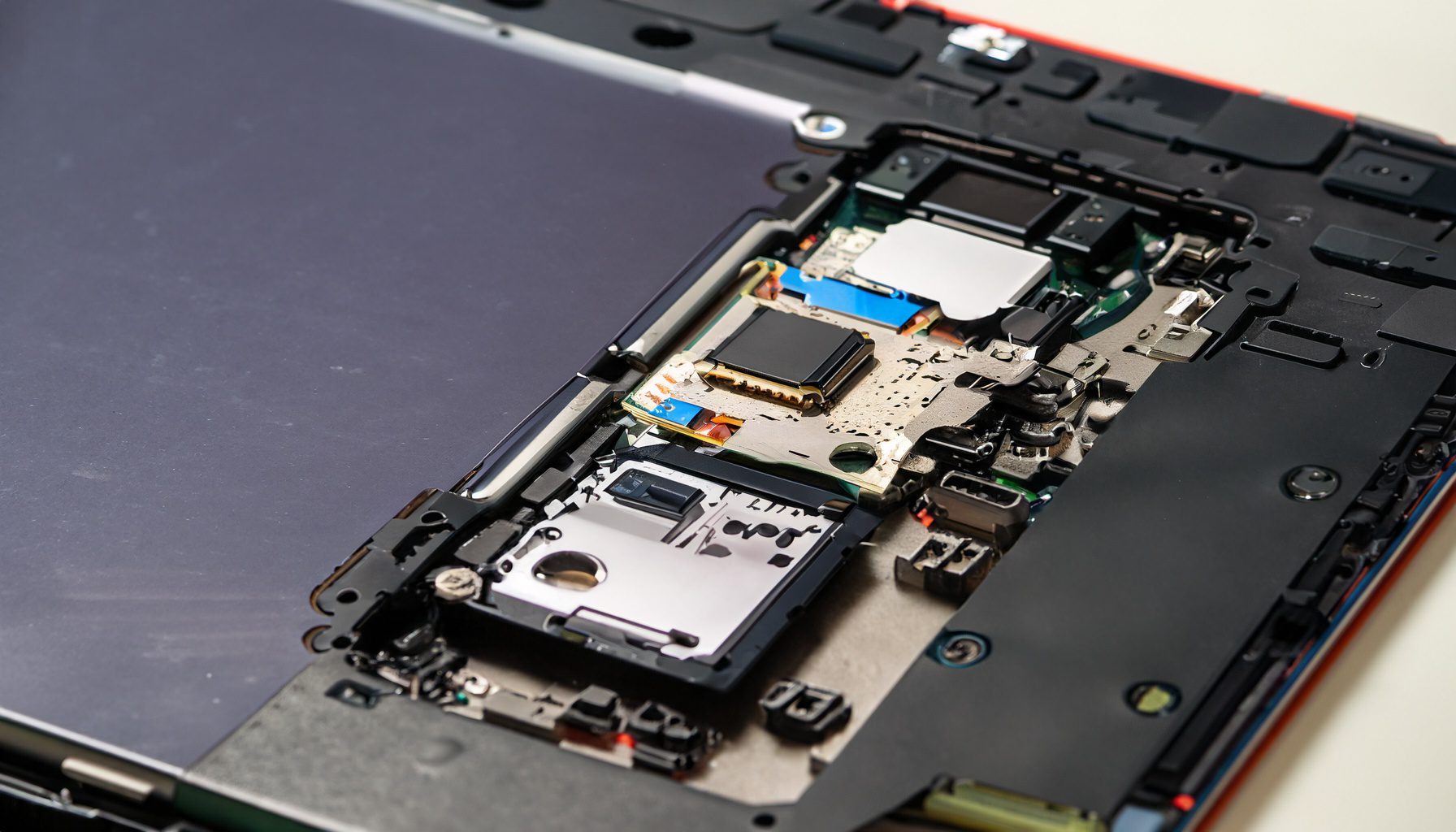
Lenovo Ideapad 3 15ITL05 Tear Down Disassemble

[vc_video link=”https://www.youtube.com/watch?v=fHSWVamPrls” title=”Lenovo Ideapad 3 15ITL05 Tear Down Disassemble”]

Title: Teardown and Upgrade Options for Lenovo Ideapad 3 (15ITL05)

Introduction: Hey everyone, Simon here! In today’s guide, I’m taking you through a teardown of the Lenovo Ideapad 3 (15ITL05). Whether you’re looking to upgrade your RAM, hard drive, or just curious about what’s inside, this guide is for you.

Teardown Process:

  1. Removing the Screws: The first step is to flip the laptop and remove all the screws from the back panel. Note that the screws at the bottom are slightly shorter than the rest.
  2. Prying Open the Back Cover: Using a plastic prying tool, gently lift the back cover. It’s important to use plastic to avoid scratching the laptop.

Exploring the Interior: Once inside, you’ll see several components that can be upgraded or replaced:

  • CPU Fan: Located centrally for cooling.
  • Wi-Fi and Bluetooth Card: Small card on the side.
  • RAM: Easily upgradeable component.
  • CMOS Battery: Maintains system time and settings.
  • Laptop Battery: Check for swelling or damage for potential replacement.
  • Hard Drive Bay: Accommodates a 2.5-inch hard drive for additional storage.
  • M.2 Drive Slot: Currently using a short version, but can be swapped for a full-size M.2 drive.

Upgrading the Laptop:

  1. Upgrading RAM: The Ideapad 3 comes with a DDR4 RAM slot. You can upgrade this to 8 or 16 GB. One slot is already occupied with built-in RAM, and you have an additional slot for expansion.
  2. Replacing the Battery: Look for the model number (L16L2PB3 in this case) to find a compatible replacement.
  3. Upgrading Storage: You can replace the existing M.2 drive with a larger capacity one. Remember to shift the securing screw if you opt for a full-length M.2 drive.
  4. Wi-Fi Card Replacement: Easy to replace by disconnecting and removing a couple of screws.

Points to Note:

  • Keyboard and Palm Rest: These are built into the laptop and can’t be individually replaced. If there’s an issue, you’ll need to replace the entire assembly.
  • Motherboard: For those looking to dive deeper, I’ve also detailed the process to remove the motherboard. However, this is typically beyond the scope of average upgrades.

Conclusion: The Lenovo Ideapad 3 (15ITL05) offers several user-friendly upgrade options, especially for RAM and storage. This makes it a versatile choice for users who might want to enhance their laptop’s performance down the line. Remember, always handle components gently and ensure you’re grounded to avoid static damage.

Final Thoughts: I hope this teardown has been informative and helpful for anyone looking to upgrade their Lenovo Ideapad 3. If you have any questions or get stuck during your upgrade process, feel free to drop a comment below. Don’t forget to like and subscribe for more tech tips and guides. Until next time, happy upgrading!


This blog post aims to guide readers through the process of disassembling a Lenovo Ideapad 3, highlighting potential upgrades and replacements. Feel free to adjust the content to better suit your blog’s style and target audience.


Legal Disclosure:

UberGeeks video(s) or information provided on this website does not, and is not intended to, constitute legal advice, constitute IT professional advise, information technology expert, or tech related material; instead, all information and content available on this are for entertainment purposes only. No information contained in this video shall create any express or implied warranty or guarantee of any particular result.

UberGeeks shall not be held liable for any damages, losses, injuries, loss of data, or harm arising from the use of information or techniques presented in our video(s) or information provided on this website. By accessing and using our content, you agree to release us from any liability.

Participation in any activities or experiments presented in our video(s) is entirely voluntary. If you choose to replicate any actions or experiments, exercise caution, and prioritize your safety and the safety of your equipment.

Thank you for joining us on this IT journey. We hope you find our video(s) enjoyable. Remember, your participation in this channel is at your own discretion, and we encourage you to use the information responsibly and safely.

Transparency Note:

This article was collaboratively written with the assistance of ChatGPT, an AI language model developed by OpenAI. While the content was generated with AI assistance, it was reviewed and edited by our human editorial team to ensure accuracy and quality. As part of our efforts to enhance the user experience, we utilize artificial intelligence (AI) technologies to generate images and visual content on this website. Adobe Firefly AI-generated images may include graphics, illustrations, and other visual elements.


Related Articles









