
05/27/2021

Lenovo Ideapad 320 Hard Drive Replacement

[vc_video link=”https://www.youtube.com/watch?v=Un6386WwHHE” title=”Lenovo Ideapad 320 Hard Drive Replacement”]

Lenovo IdeaPad 320 Hard Drive Replacement with SSD

Introduction

  • Purpose: Step-by-step guide on removing a hard drive from a Lenovo IdeaPad 320 for cloning it to an SSD.
  • Reason for Replacement: The laptop, about 3-4 years old, has a declining performance with a hard drive exhibiting bad sectors.
  • Note: A separate video is available for the cloning process from HDD to SSD. This video focuses only on the hardware replacement.

Preparation

  • Tools Required: Philips screwdriver.
  • Electric Screwdriver: Utilized for efficiency in removing multiple screws.

Step-by-Step Guide

1. Removing the Back Cover

  • Remove all screws from the bottom of the laptop using a Philips screwdriver.
  • Carefully pry open the back cover with a plastic tool to avoid internal damage.

2. Battery Removal (Optional)

  • Location: 3 screws securing the battery.
  • Process: Unscrew and disconnect the battery cable by sliding it down towards the body.
  • Model Number of Battery: L16M2PB1.

3. RAM and Other Components

  • RAM Upgrade: The laptop has a single 4GB DDR4 RAM slot, upgradeable to 16GB.
  • CPU Fan: Mentioned as replaceable.

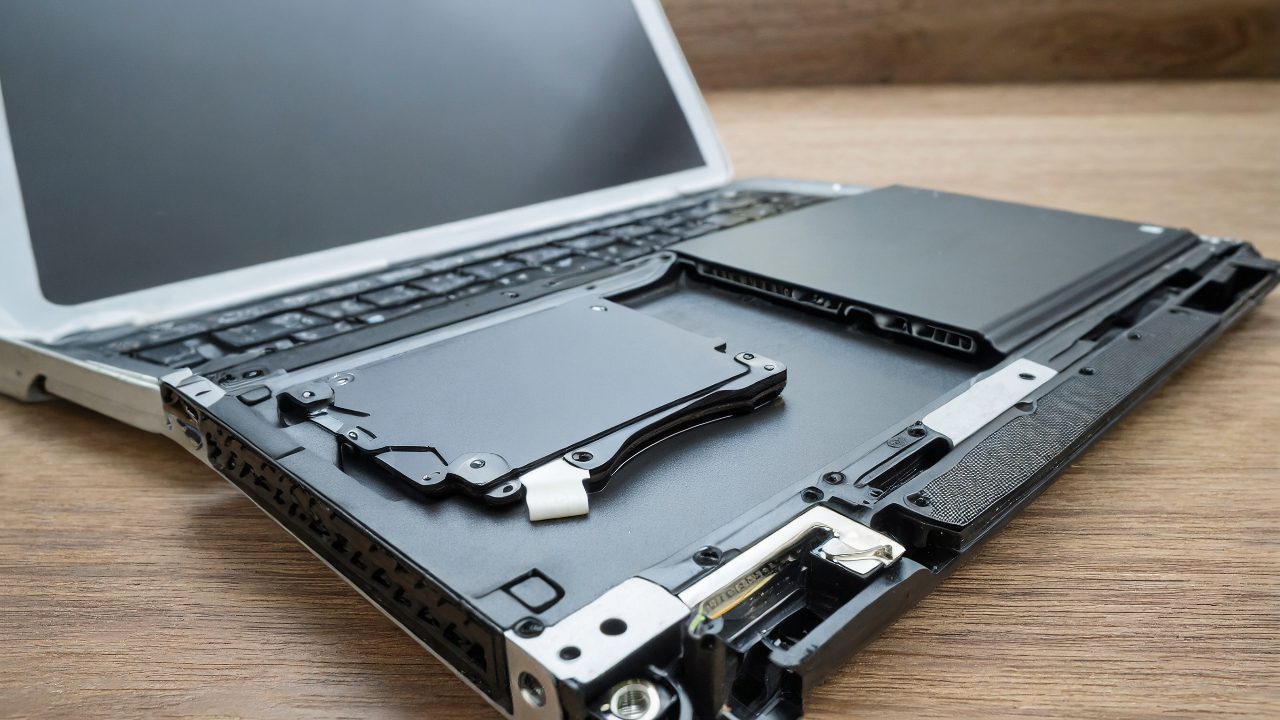
4. Hard Drive Removal

  • Location: Identified without any screws, held in place by a rubber and connector slot.
  • Removal Method: Lift the back end first, then slide it to the left to disconnect.

5. SSD Drive Preparation

  • SSD Specifications: 512GB SSD is chosen for replacement.
  • Bracket Transfer: Necessary to transfer the hard drive bracket to the SSD for proper fitting.

6. Cloning and Windows Installation

  • Cloning Process: Refer to the separate video link for detailed cloning steps.
  • Windows Installation: For a fresh start, use a bootable Windows 10 USB. The laptop’s existing Windows 10 license can be reused.

Conclusion

  • Call for Feedback: Viewers are encouraged to comment with questions and give a like if the tutorial is helpful.
  • Reminder: Check out other videos on the channel for more computer repair tips.

This summary captures the key points of the video, guiding viewers through the process of replacing a hard drive with an SSD in a Lenovo IdeaPad 320. Let me know if you need further details or adjustments to this overview!

Legal Disclosure:

UberGeeks video(s) or information provided on this website does not, and is not intended to, constitute legal advice, constitute IT professional advise, information technology expert, or tech related material; instead, all information and content available on this are for entertainment purposes only. No information contained in this video shall create any express or implied warranty or guarantee of any particular result.

UberGeeks shall not be held liable for any damages, losses, injuries, loss of data, or harm arising from the use of information or techniques presented in our video(s) or information provided on this website. By accessing and using our content, you agree to release us from any liability.

Participation in any activities or experiments presented in our video(s) is entirely voluntary. If you choose to replicate any actions or experiments, exercise caution, and prioritize your safety and the safety of your equipment.

Thank you for joining us on this IT journey. We hope you find our video(s) enjoyable. Remember, your participation in this channel is at your own discretion, and we encourage you to use the information responsibly and safely.

Transparency Note:

This article was collaboratively written with the assistance of ChatGPT, an AI language model developed by OpenAI. While the content was generated with AI assistance, it was reviewed and edited by our human editorial team to ensure accuracy and quality. As part of our efforts to enhance the user experience, we utilize artificial intelligence (AI) technologies to generate images and visual content on this website. Adobe Firefly AI-generated images may include graphics, illustrations, and other visual elements.


Related Articles









