
12/27/2022

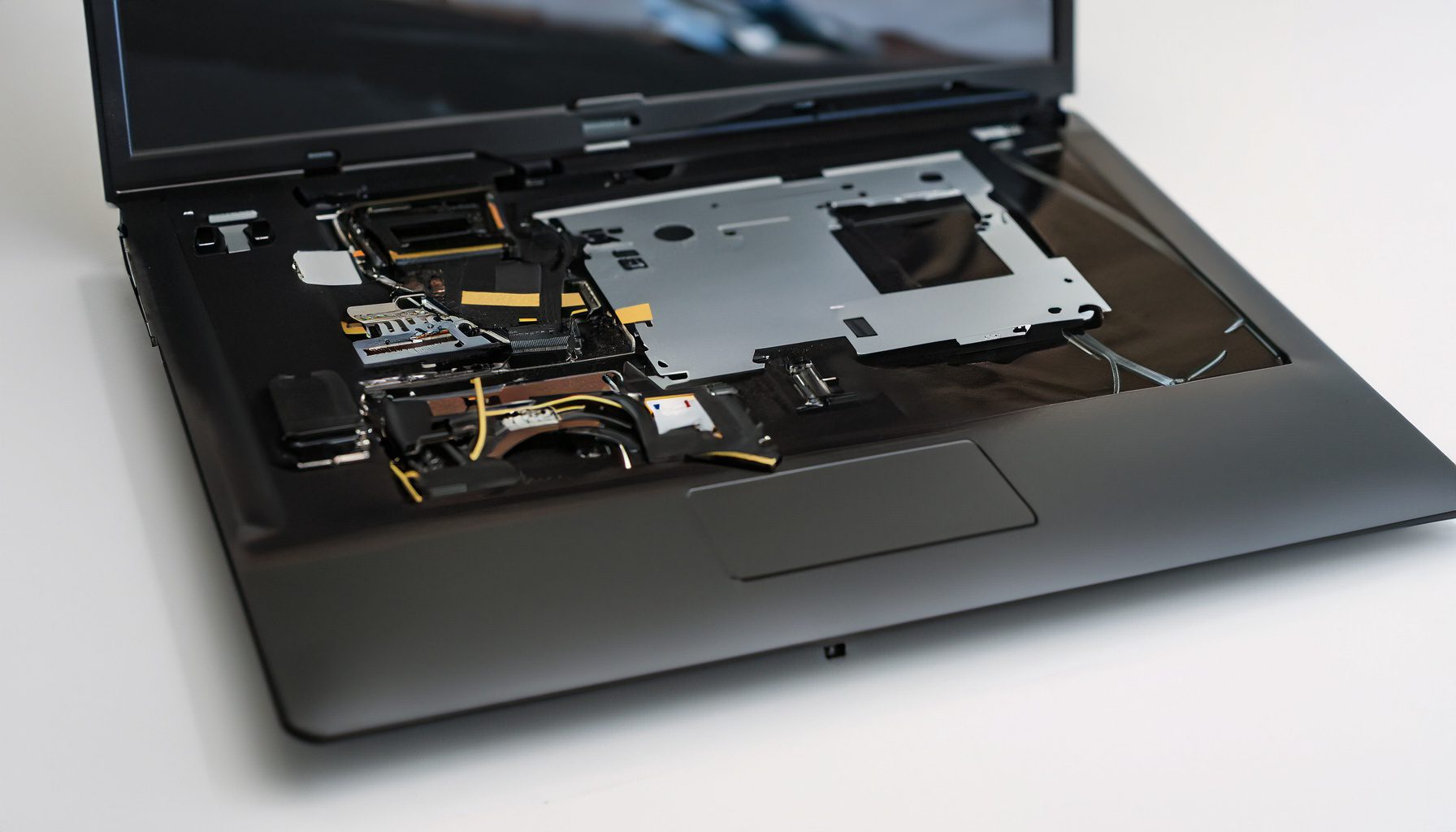
Lenovo IdeaPad Flex 5 14IAU7 TearDown Disassemble Upgrade

[vc_video link=”https://www.youtube.com/watch?v=Uf8GogHkVt8″ title=”Lenovo IdeaPad Flex 5 14IAU7 TearDown Disassemble Upgrade”]

Title: Comprehensive Teardown Guide for Lenovo IdeaPad Flex 5

Author: Simon

Introduction: Greetings, Simon here! In today’s post, we’re diving into a complete teardown of the Lenovo IdeaPad Flex 5 (14IAU7). Whether you’re looking to replace a battery, upgrade your M.2 NVMe drive, or just curious about what’s inside your laptop, this guide will walk you through each step.

Tools Required: For this teardown, you’ll need a Torx T4 screwdriver for opening the laptop’s back plate and a Phillips screwdriver (PH1) for handling internal components.

Opening the Laptop:

  1. Unscrew the Back Plate: Start by removing all screws using the Torx T4 screwdriver. The top and side screws are longer than the bottom ones.
  2. Pry Open the Back Plate: Use a metal prying tool to gently separate the back plate from the base of the laptop.

Inside the Laptop: Upon opening, you’ll see the CPU fan, heatsink, M.2 NVMe drive, Wi-Fi module, and the battery.

Battery Replacement:

  1. Disconnecting the Battery: Simply slide down the connector.
  2. Removing the Battery: Use the Phillips screwdriver to remove the three screws and then lift the battery out. For replacement, check the battery model (e.g., L21C3PE0) and refer to the recommended links for purchasing.

M.2 NVMe Drive Replacement:

  1. Removing the M.2 Drive: Unscrew and gently lift the drive, sliding it out for removal or replacement.

Motherboard and Components:

  1. Disconnecting Components: Carefully disconnect cables for Wi-Fi, touchpad, keyboard, and other components.
  2. Removing the Motherboard: Unscrew and gently lift out the motherboard. Note that the RAM is built-in and not upgradable.

Keyboard and Screen Replacement:

  1. Keyboard: The keyboard is not individually replaceable due to its punch-down manufacturing method. For keyboard issues, you’ll need to replace the entire palm rest assembly.
  2. Screen: For screen issues, especially given its 360-degree functionality, replace the entire screen assembly rather than just the glass.

Conclusion: Disassembling the Lenovo IdeaPad Flex 5 requires careful attention but is achievable with the right tools and steps. Whether you’re upgrading components or replacing faulty parts, this guide should help you navigate the process.

Next Steps: Looking to clone your M.2 drive? Check out my detailed video in the link provided for a comprehensive tutorial.


Remember, handling delicate electronics requires caution. If you’re unsure about any step, it’s best to consult a professional. Happy tinkering!

Call to Action: Did you find this guide helpful? Please consider hitting the like button and subscribing for more tech guides. If you have any questions, don’t hesitate to ask in the comments below. Thanks for reading, and until next time, goodbye!


Legal Disclosure:

UberGeeks video(s) or information provided on this website does not, and is not intended to, constitute legal advice, constitute IT professional advise, information technology expert, or tech related material; instead, all information and content available on this are for entertainment purposes only. No information contained in this video shall create any express or implied warranty or guarantee of any particular result.

UberGeeks shall not be held liable for any damages, losses, injuries, loss of data, or harm arising from the use of information or techniques presented in our video(s) or information provided on this website. By accessing and using our content, you agree to release us from any liability.

Participation in any activities or experiments presented in our video(s) is entirely voluntary. If you choose to replicate any actions or experiments, exercise caution, and prioritize your safety and the safety of your equipment.

Thank you for joining us on this IT journey. We hope you find our video(s) enjoyable. Remember, your participation in this channel is at your own discretion, and we encourage you to use the information responsibly and safely.

Transparency Note:

This article was collaboratively written with the assistance of ChatGPT, an AI language model developed by OpenAI. While the content was generated with AI assistance, it was reviewed and edited by our human editorial team to ensure accuracy and quality. As part of our efforts to enhance the user experience, we utilize artificial intelligence (AI) technologies to generate images and visual content on this website. Adobe Firefly AI-generated images may include graphics, illustrations, and other visual elements.


Related Articles









